
1. Ynlieding
Welcome to the user manual for your Logitech M705 Marathon Wireless Mouse. This document provides essential information for setting up, operating, and maintaining your device, ensuring optimal performance and longevity. The M705 mouse is designed for comfort and efficiency, featuring a long battery life and customizable controls for enhanced productivity.
2. Produkt Overview
Key Features
- Ferlingde batterijlibben: Enjoy up to 3 years of battery life, reducing the need for frequent replacements.
- Ergonomysk ûntwerp: Sculpted to fit the natural curve of your right hand, providing comfort during prolonged use.
- Hyper-snel scrollen: Navigate through long documents and web pages with a single spin of the scroll wheel, or switch to click-to-click scrolling for precision.
- Programmierbare knoppen: Five customizable buttons, including forward/back thumb buttons, allow for personalized shortcuts and enhanced control.
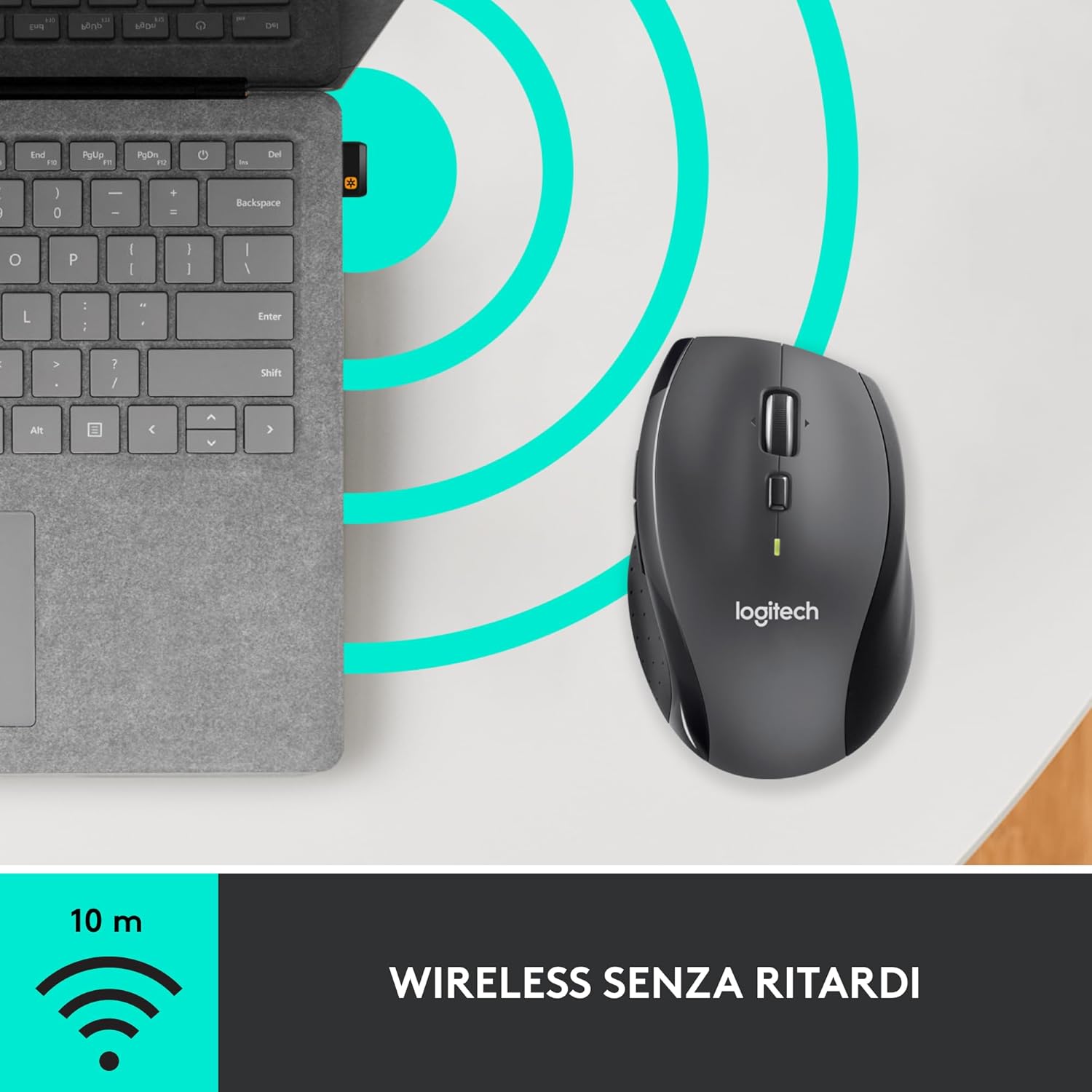
- Ferienigjende ûntfanger: A small USB Unifying receiver connects up to six compatible Logitech devices, freeing up USB ports.
- Wide kompatibiliteit: Compatible with Windows, macOS, Chrome OS, and Linux operating systems.
Pakketynhâld
The Logitech M705 Marathon Wireless Mouse package typically includes:
- Logitech M705 Triedleaze mûs
- Logitech Univing USB-ûntfanger
- 2 AA Alkaline Batteries (may vary by region/packaging)

3. Setup Ynstruksjes
3.1. Ynstallearje Batterijen
- Turn the mouse over and locate the battery compartment cover on the underside.
- Druk op de ûntslutingsknop of ferskow de deksel om it fak te iepenjen.
- Doch de twa AA-batterijen yn, en soargje derfoar dat de polariteit (+/-) goed is.
- Ferfange de batterij compartment cover.

3.2. Connecting the USB Unifying Receiver
- Locate the small USB Unifying receiver. It may be stored inside the battery compartment of the mouse.
- Plug de USB-ûntfanger yn in beskikbere USB-poarte op jo kompjûter.
- Skeakelje de mûs oan mei de oan/út-skeakel dy't oan 'e ûnderkant sit.
- Your computer should automatically detect the mouse. If not, visit the Logitech support website for driver installation.
4. Bedriuwsinstruksjes
4.1. Basis mûsfunksjes
The M705 mouse features standard left and right-click buttons, a scroll wheel, and additional programmable buttons.

4.2. Hyper-snel scrollen
It skrollwiel biedt twa modi:
- Hyper-snelle modus: Press the button directly below the scroll wheel to unlock it for smooth, rapid scrolling through long documents or web siden.
- Click-to-Click Mode: Press the button again to engage precise, stepped scrolling, ideal for navigating lists or image galleries.

4.3. Programmeerbere knoppen
The M705 features five programmable buttons, including two thumb buttons and tilt-scroll functionality. These can be customized using the Logitech Options software.

5. Oanpassing
To unlock the full potential of your M705 mouse, download and install the Logitech Options software from the official Logitech webside. Dizze software lit jo ta:
- Assign custom functions to the five programmable buttons.
- Adjust tracking speed (DPI).
- Konfigurearje applikaasjespesifike ynstellings.
- Kontrolearje batterijstatus.

6. Underhâld
6.1. Cleaning
Om jo mûs skjin te meitsjen, brûk in sêfte, pluisfrije doek. Foar koppich smoargens, brûk in bytsjeampen the cloth with water. Avoid using harsh chemicals or abrasive materials, as these can damage the mouse surface or internal components.
6.2. Batterij ferfanging
When the battery indicator light on your mouse begins to flash or if performance degrades, it's time to replace the batteries. Follow the steps in Section 3.1 to replace the two AA batteries. Dispose of old batteries responsibly according to local regulations.
7. Probleemoplossing
7.1. Mûs reagearret net
- Soargje derfoar dat de mûs ynskeakele is.
- Check the battery level and replace batteries if necessary.
- Verify the USB Unifying receiver is securely plugged into a working USB port.
- Try plugging the receiver into a different USB port or a different computer to isolate the issue.
- As jo in USB-hub brûke, besykje dan direkt ferbining te meitsjen mei de kompjûter.
7.2. Unregelmjittige kursorbeweging
- Meitsje de optyske sensor oan 'e ûnderkant fan 'e mûs skjin.
- Ensure you are using the mouse on a suitable surface. Highly reflective or transparent surfaces may cause tracking issues. A mouse pad is recommended.
- Check for interference from other wireless devices. Move the mouse closer to the USB receiver.
7.3. Unifying Receiver Issues
If the mouse loses connection or you need to pair it with a new receiver, download the Logitech Unifying Software from the Logitech support website. This software guides you through the pairing process.
8. Spesifikaasjes
| Eigenskip | Detail |
|---|---|
| Merk | Logitech |
| Model Namme | M705 |
| Model Number | 910-001949 |
| Konnektivität Technology | Wireless (2.4 GHz USB Unifying Receiver) |
| Beweging Detection Technology | Laser |
| Beweging Resolúsje | 1000 DPI (up to 3200 DPI maximum resolution) |
| Oantal knoppen | 5 Programmierbare knoppen |
| Power Boarne | Battery (2 x AA Alkaline) |
| Gemiddelde Batterielebensdauer | Oant 3 jier |
| Triedleaze berik | Oant 10 meter |
| Form Factor | Right-hand ergonomic |
| Ofmjittings (L x B x H) | 20 x 13 x 12 cm (Product packaging dimensions) |
| Gewicht | 136 gram |
| Kompatibele bestjoeringssystemen | Windows 7, 8, 10; macOS 10.11 or later; Chrome OS; Linux |
9. Garânsje en stipe
Foar detaillearre garânsje-ynformaasje en technyske stipe, ferwize jo nei de offisjele Logitech webwebside of nim kontakt op mei de klanttsjinst fan Logitech. Bewarje jo bewiis fan oankeap foar garânsjeclaims.