BlackBerry BB 9900 Bold Touch Smartphone User Manual
Model: BB 9900
1. Ynlieding
This manual provides essential instructions for setting up, operating, and maintaining your BlackBerry BB 9900 Bold Touch smartphone. Please read this guide thoroughly to ensure proper use and to maximize the device's capabilities. The BlackBerry BB 9900 Bold Touch combines a capacitive touchscreen with a full QWERTY keyboard, running on BlackBerry OS 7.
2. Package Ynhâld
Kontrolearje dat jo pakket de folgjende items befettet:
BlackBerry BB 9900 Bold Touch Smartphone
Rechargeable Batterij
Wall Charger
USB Kabel
User Manual (dit dokumint)
3. Apparaat oerview
Familiarize yourself with the physical features of your BlackBerry BB 9900 Bold Touch.
3.1 Foarside View
Ofbylding: Front view of the BlackBerry BB 9900 Bold Touch, highlighting the 2.8-inch touchscreen and the physical QWERTY keyboard below it. The device also features a trackpad and call/end buttons.
Touchscreen werjefte: 2.8-inch capacitive display for interactive navigation.
QWERTY-toetseboerd: Full physical keyboard for efficient typing.
Optical Trackpad: For precise navigation and selection.
Call/End Buttons: Standard telephony controls.
3.2 Efterkant View
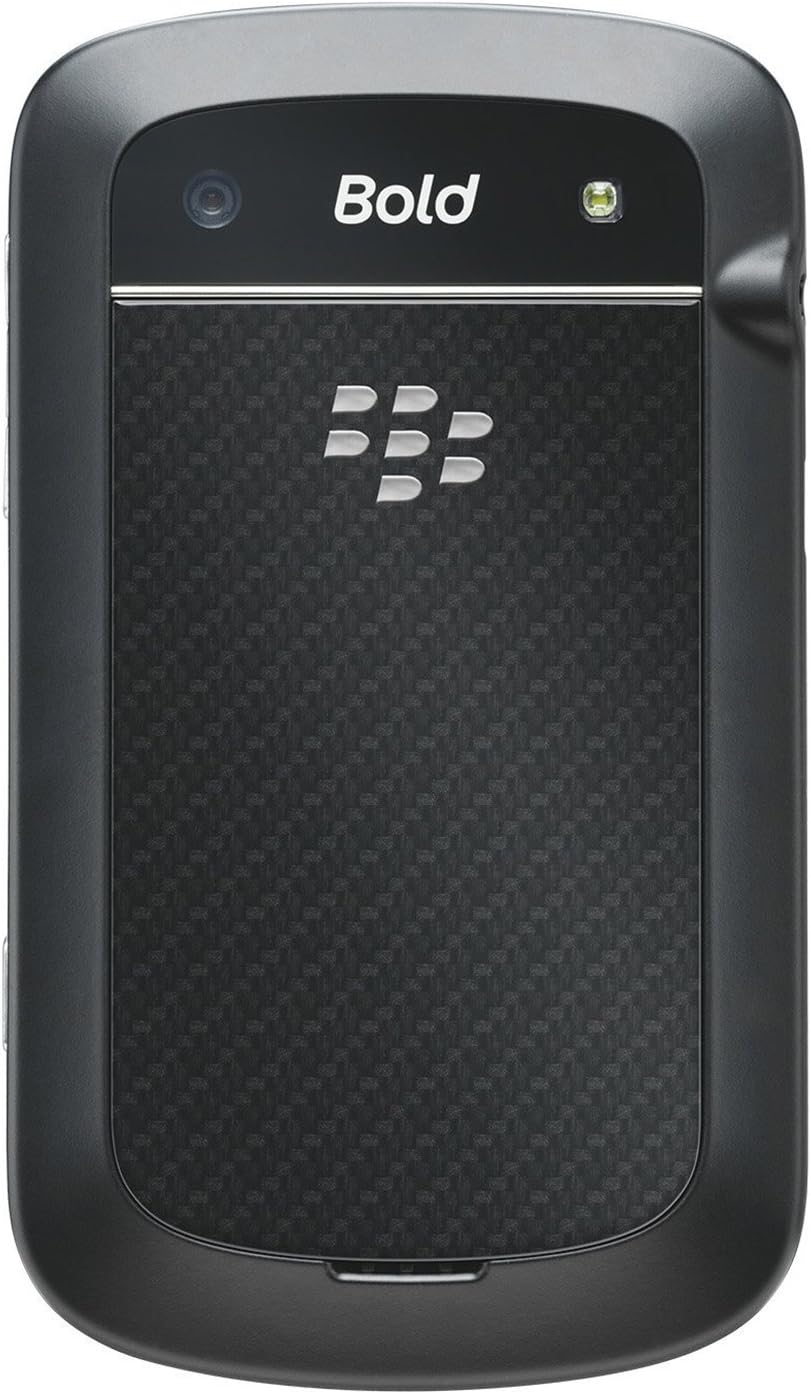
Ofbylding: Efterkant view of the BlackBerry BB 9900 Bold Touch, featuring the 5-megapixel camera lens, LED flash, and the BlackBerry logo.
5MP kamera: Primary camera with autofocus and LED flash.
Batterij Cover: Removable cover for battery and SIM card access.
3.3 Side View
Ofbylding: Side view of the BlackBerry BB 9900 Bold Touch, illustrating the placement of the volume control buttons and a customizable convenience key.
Volume knoppen: Pas audionivo's oan.
Convenience Key: Oanpasbere fluchtoetsknop.
4. Opsette
4.1 De SIM-kaart ynfoegje
Ferwiderje de batterijdeksel fan 'e efterkant fan it apparaat.
Sykje de SIM -kaartslot.
Doch de SIM-kaart yn mei de gouden kontakten nei ûnderen en de ôfsniene hoeke op ien line mei de sleuf.
Soargje derfoar dat de SIM-kaart feilich op syn plak sit.
4.2 De batterij ynsette
After inserting the SIM card, align the battery's gold contacts with the contacts in the battery compartment.
Gently press the battery into place until it clicks.
Ferfang de batterij cover.
4.3 It apparaat opladen
Connect the USB cable to the charging port on your device.
Plug the other end of the USB cable into the wall charger, then into a power outlet.
Lit it apparaat folslein oplade foardat jo it foar it earst brûke. De batterij-yndikator op it skerm sil de oplaadstatus sjen litte.
4.4 Yn-/útskeakelje
Om oan te setten: Press and hold the Power/Lock button (usually located on the top edge) until the BlackBerry logo appears.
Om út te skeakeljen: Press and hold the Power/Lock button until the 'Power Off' option appears on the screen. Tap 'Power Off' to confirm.
5. Bedriuwsinstruksjes
5.1 Navigaasje mei touchscreen
Tap: Rekje it skerm koart oan om applikaasjes te iepenjen, items te selektearjen of knoppen te aktivearjen.
Feegje: Drag your finger across the screen to scroll through lists or switch between home screen panels.
Knypje om te zoomen: Use two fingers to zoom in or out on photos, web siden, of kaarten.
5.2 Using the QWERTY Keyboard
The physical QWERTY keyboard allows for fast and accurate text entry. Each key corresponds to a letter, number, or symbol. Use the 'Alt' key for alternate characters and the 'Shift' key for capitalization.
5.3 Oproppen meitsje
From the home screen, tap the Phone icon or press the green Call button.
Enter the phone number using the keyboard.
Press the green Call button to initiate the call.
To end a call, press the red End Call button.
5.4 Berjochten ferstjoere
Tap the Messages icon from the home screen.
Select 'Compose New' or similar option.
Fier it nûmer fan 'e ûntfanger yn of selektearje út kontakten.
Typ jo berjocht mei it QWERTY-toetseboerd.
Tap 'Send'.
5.5 De kamera brûke
Tik op it kamera-ikoantsje om de kamera-applikaasje te iepenjen.
Kadrearje jo opname mei it skerm as in viewfinder.
Tap the screen or press the convenience key (if configured) to take a photo.
The 5MP camera features autofocus and an LED flash for improved image quality.
5.6 Ferbine mei Wi-Fi
Go to 'Options' > 'Networks and Connections' > 'Wi-Fi'.
Turn Wi-Fi on. The device will scan for available networks.
Selektearje jo winske netwurk en fier it wachtwurd yn as jo dêrom frege wurde.
Once connected, the Wi-Fi indicator will appear in the status bar.
5.7 Using NFC (Near Field Communication)
The BlackBerry BB 9900 Bold Touch supports NFC for short-range wireless communication. This allows for quick pairing with compatible accessories or sharing data with other NFC-enabled devices by tapping them together.
Soargje derfoar dat NFC ynskeakele is yn jo apparaatynstellingen.
Hold your device close to another NFC-enabled device or tag.
Follow on-screen prompts to complete the desired action (e.g., pairing, data transfer).
6. Underhâld
6.1 Jo apparaat skjinmeitsje
Use a soft, lint-free cloth to wipe the screen and body of the device.
Foarkom it brûken fan hurde gemikaliën, abrasive reinigingsmiddels of aerosolsprays.
Bliuw it apparaat net oan oermjittich focht.
6.2 Batterij Soarch
Foarkom ekstreme temperatueren, dy't de prestaasjes fan 'e batterij kinne ferleegje.
Use only the original or approved charger.
De batterij net trochboarje of beskeadigje.
6.3 Software Updates
Periodically check for software updates to ensure your device has the latest features and security enhancements. Updates can typically be found in the device's 'Options' or 'Settings' menu under 'Software Updates'.
7. Probleemoplossing
7.1 Apparaat giet net oan
Soargje derfoar dat de batterij goed is ynfoege en opladen.
Connect the device to the charger and wait a few minutes before attempting to power on again.
If the issue persists, try removing and reinserting the battery.
7.2 Problemen mei netwurkferbining
Check if your SIM card is correctly inserted and activated with your carrier.
Verify that cellular data or Wi-Fi is enabled in your device settings.
Restart it apparaat.
If using Wi-Fi, ensure your router is working and you have entered the correct password.
7.3 Touchscreen reagearret net
Restart it apparaat.
Soargje derfoar dat it skerm skjin is en frij fan pún of focht.
If the issue is intermittent, check for any recent software installations that might be causing conflicts.
8. Spesifikaasjes
Eigenskip
Detail
Model Namme
bb 9900
Bestjoeringssysteem
BlackBerry OS 7
Skerm
2.8-inch Capacitive Touchscreen, 640 x 480 Resolution
Prozessor
Not specified (typically 1.2 GHz for this model)
RAAM
768 MB
Ynterne opslach
8 GB
Rear Kamera
5 MP, Autofocus, LED Flash
Konnektivität
Wi-Fi 802.11 b/g/n, NFC, Bluetooth, GPS
Netwurk Support
Quad-band GSM/GPRS/EDGE, Tri-band HSPA+
Ofmjittings
4.53 x 2.6 x 0.41 inch (115 x 66 x 10.5 mm)
Gewicht
4.6 ounces (130 gram)
Audio Jack
3.5 mm
9. Stipe en garânsje
9.1 Customer Support
For technical assistance, troubleshooting beyond this manual, or service inquiries, please visit the official BlackBerry support website or contact your local service provider. Refer to the packaging or official webside foar spesifike kontaktgegevens.
9.2 Warranty Information
Your BlackBerry BB 9900 Bold Touch is covered by a limited warranty. Please refer to the warranty card included in your product packaging or visit the official BlackBerry webside foar detaillearre betingsten en kondysjes, ynklusyf garânsjeperioade en spesifikaasjes oer de dekking. Bewarje jo bewiis fan oankeap foar garânsjeclaims.
Ask a question about this manual
Ask about setup, troubleshooting, compatibility, parts, safety, or missing instructions. Manuals+ will review the question and use this page’s manual context to help answer it.