
Ynlieding
This manual provides instructions for the installation and operation of your Intel Centrino 2230 Mini PCI Express Wi-Fi/Bluetooth Combo Adapter. This adapter integrates both Wi-Fi (802.11n) and Bluetooth 4.0 capabilities into a single Mini PCI Express card, designed for compatible laptop systems.
Important Compatibility Note: This adapter does NOT support HP and Lenovo computers due to specific hardware whitelists implemented by these manufacturers. Please verify your system's compatibility before installation.
Safety Information
- Always disconnect power from your computer before opening the chassis or installing any internal components.
- Use appropriate anti-static precautions (e.g., anti-static wrist strap) to prevent electrostatic discharge (ESD) damage to components.
- Handle the adapter by its edges to avoid touching sensitive components.
- Keep small parts (screws, antenna connectors) away from children.
Pakketynhâld
Jo pakket moat de folgjende items befetsje:
- Intel Centrino 2230 Mini PCI Express Wi-Fi/Bluetooth Combo Adapter (Model: 2230BNHMW)
- (Note: Additional accessories like screws or antenna cables may vary by retailer and are not always included.)
Opset en ynstallaasje
1. Kontrôles foar ynstallaasje
- Kompatibiliteit: Ensure your laptop has a Mini PCI Express slot and is not an HP or Lenovo model. Refer to your laptop's service manual for slot location and compatibility.
- Tools: You will typically need a small Phillips head screwdriver.
- Bestjoerders: It is recommended to download the latest drivers for the Intel Centrino 2230 from the official Intel support website onto a USB drive before starting the installation. Sykje nei "Intel Centrino Wireless-N 2230 drivers".
2. Fysike Ynstallaasje
- Útskeakelje: Shut down your laptop completely and disconnect the power adapter and battery.
- Tagongspaniel: Locate and remove the access panel on the bottom of your laptop that covers the Mini PCI Express slot. Consult your laptop's service manual for exact instructions.
- Alde kaart fuortsmite (as fan tapassing): If replacing an existing Wi-Fi card, carefully disconnect the antenna cables (MAIN and AUX) and remove the screw securing the card. The card should pop up slightly, allowing you to slide it out.
- Nije kaart ynfoegje: Align the Intel Centrino 2230 adapter with the Mini PCI Express slot. Gently push the card into the slot at an angle until it is fully seated.
- Feilige kaart: Push the card down and secure it with the screw.
- Antennen ferbine: Carefully connect the antenna cables to the corresponding connectors on the adapter. The main antenna typically connects to the "MAIN" (1) connector, and the auxiliary antenna to the "AUX" (2) connector. These are small, delicate connectors; apply gentle, even pressure until they click into place.
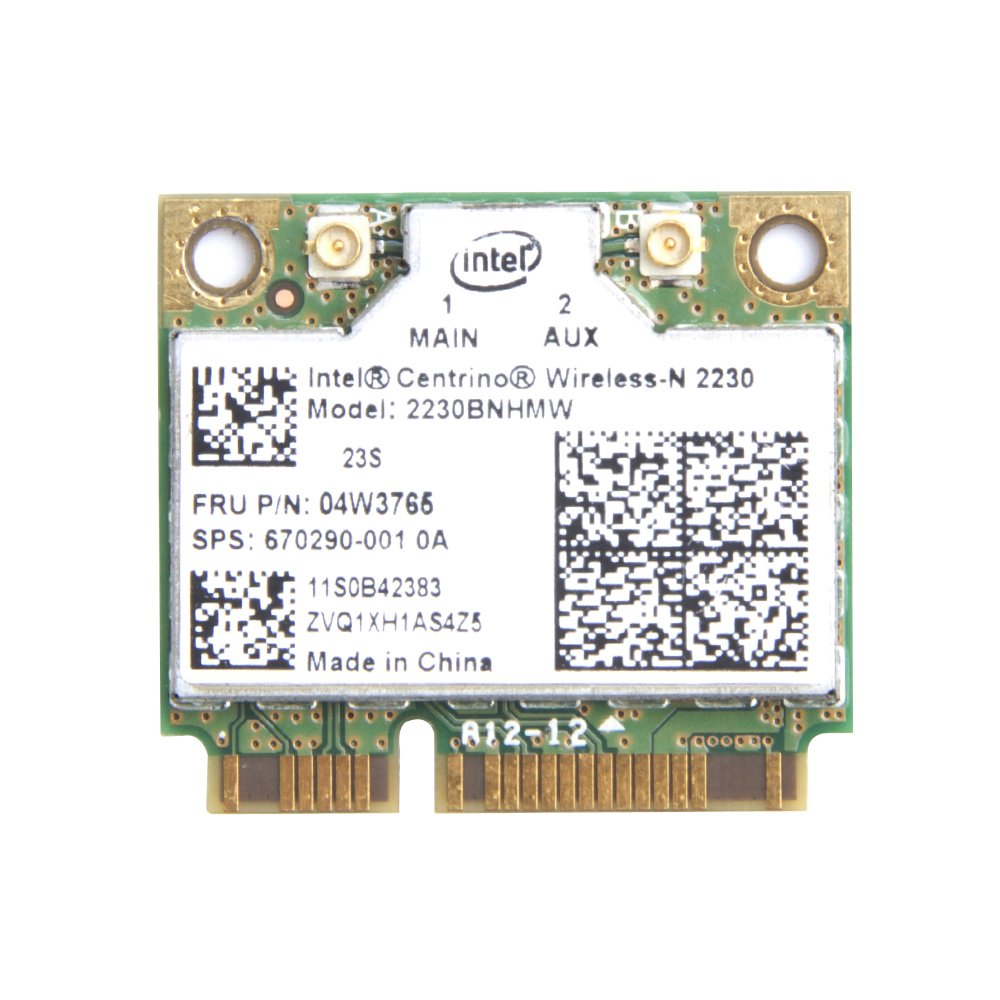
Image: Intel Centrino 2230 Mini PCI Express Wi-Fi/Bluetooth Combo Adapter. The image displays the top side of the card, highlighting the "MAIN" (1) and "AUX" (2) antenna connectors, the Intel logo, and the model number "2230BNHMW" clearly printed on the label.
- Reassemble: Replace the access panel and reconnect the battery and power adapter.
3. Driver Ynstallaasje
- Power On: Start dyn laptop.
- Drivers ynstallearje: Navigate to the downloaded driver files (from step 1) and run the installer. Follow the on-screen prompts to complete the installation for both Wi-Fi and Bluetooth components.
- Op 'e nij begjinne: Restart your computer after driver installation is complete.
Operating Instructions
Wi-Fi Ferbining
- After successful driver installation and system restart, the Wi-Fi icon should appear in your system tray (Windows) or menu bar (Linux/macOS).
- Click on the Wi-Fi icon to view beskikbere draadloze netwurken.
- Selektearje jo winske netwurk en klik op "Ferbine".
- Fier de netwurkfeiligenssleutel (wachtwurd) yn as jo dêrom frege wurde.
- Once connected, the icon will indicate an active Wi-Fi connection.
Bluetooth Device Pairing
- Ensure Bluetooth is enabled on your computer. This can usually be done through system settings or a dedicated function key.
- Put your Bluetooth device (e.g., headphones, mouse) into pairing mode. Refer to your device's manual for specific instructions.
- On your computer, go to Bluetooth settings (e.g., "Bluetooth & other devices" in Windows).
- Klik op "Bluetooth of oar apparaat tafoegje" en selektearje "Bluetooth".
- Select your device from the list of discovered devices and follow any on-screen prompts to complete the pairing process.
Ûnderhâld
- Driver Updates: Periodically check the official Intel support website for updated Wi-Fi and Bluetooth drivers. Keeping drivers current can improve performance and resolve compatibility issues.
- Reiniging: If your laptop requires internal cleaning, ensure the adapter is free from dust accumulation, which can affect performance and heat dissipation. Always power off and disconnect the laptop before cleaning.
Troubleshooting
- Adapter not detected or not working:
- Ensure the card is fully seated in the Mini PCI Express slot and secured with a screw.
- Verify that the antenna cables are securely connected to the "MAIN" and "AUX" ports on the adapter.
- Check Device Manager (Windows) to see if the device is listed. If there are yellow exclamation marks, drivers may be missing or corrupted.
- Reinstall the drivers from the Intel support website.
- Foar brûkers fan Windows 10: Some users have reported issues with this specific card on Windows 10, including dropped connections or the card disappearing. Ensure you have the absolute latest drivers directly from Intel, not generic Windows drivers.
- Confirm your laptop is not an HP or Lenovo model, as these are known to have compatibility restrictions.
- Wi-Fi connection issues (drops, slow speed):
- Update Wi-Fi drivers to the latest version from Intel.
- Soargje derfoar dat de firmware fan jo router by de tiid is.
- Try connecting to a different Wi-Fi network to rule out router-specific issues.
- Kontrolearje op ynterferinsje fan oare 2.4GHz-apparaten.
- Bluetooth not pairing or connecting:
- Ensure Bluetooth drivers are correctly installed and up to date.
- Verify that Bluetooth is enabled in your system settings.
- Set it Bluetooth-apparaat yn koppelmodus.
- Remove any previous pairings of the device from your computer and attempt to pair again.
- Restart jo kompjûter.
Spesifikaasjes
| Model Number | 2230BNHMW |
| Wireless Type | IEEE 802.11b/g/n |
| Data Transfer Rate | Up to 300 Mbps (Wi-Fi) |
| Bluetooth Ferzje | Bluetooth 4.0 |
| Ynterface | Mini PCI Express |
| Ofmjittings (LxWxH) | 2.9 x 2 x 1.1 inch (sawat) |
| Gewicht | 0.16 ounces / 4.54 g (approximate) |
Warranty Information
This Intel product is typically covered by a limited warranty provided by Intel or the reseller. Warranty terms and duration may vary depending on your region and point of purchase. Please retain your proof of purchase for warranty claims. For detailed warranty information, refer to the official Intel warranty policy available on their website of nim kontakt op mei jo winkelier.
Stypje
For technical assistance, driver downloads, and further product information, please visit the official Intel support website. You can typically find support resources by searching for "Intel Centrino Wireless-N 2230 support" on their site. For issues related to your purchase, please contact your retailer.
Intel Support Website: https://www.intel.com/content/www/us/en/support.html