
1. Ynlieding
Thank you for choosing the TECKNET M003 2.4G Wireless Optical Mouse. This ergonomic mouse is designed for comfort and precision, offering a reliable wireless connection for various computing tasks. Please read this manual carefully to ensure proper setup and operation.

Figure 1: TECKNET M003 Wireless Optical Mouse with ergonomic design highlighted.
2. Package Ynhâld
- TECKNET Pro Wireless Mouse
- Nano USB-ûntfanger
- User Manual (dit dokumint)
3. Produkt Overview
Familiarize yourself with the components of your TECKNET M003 mouse:
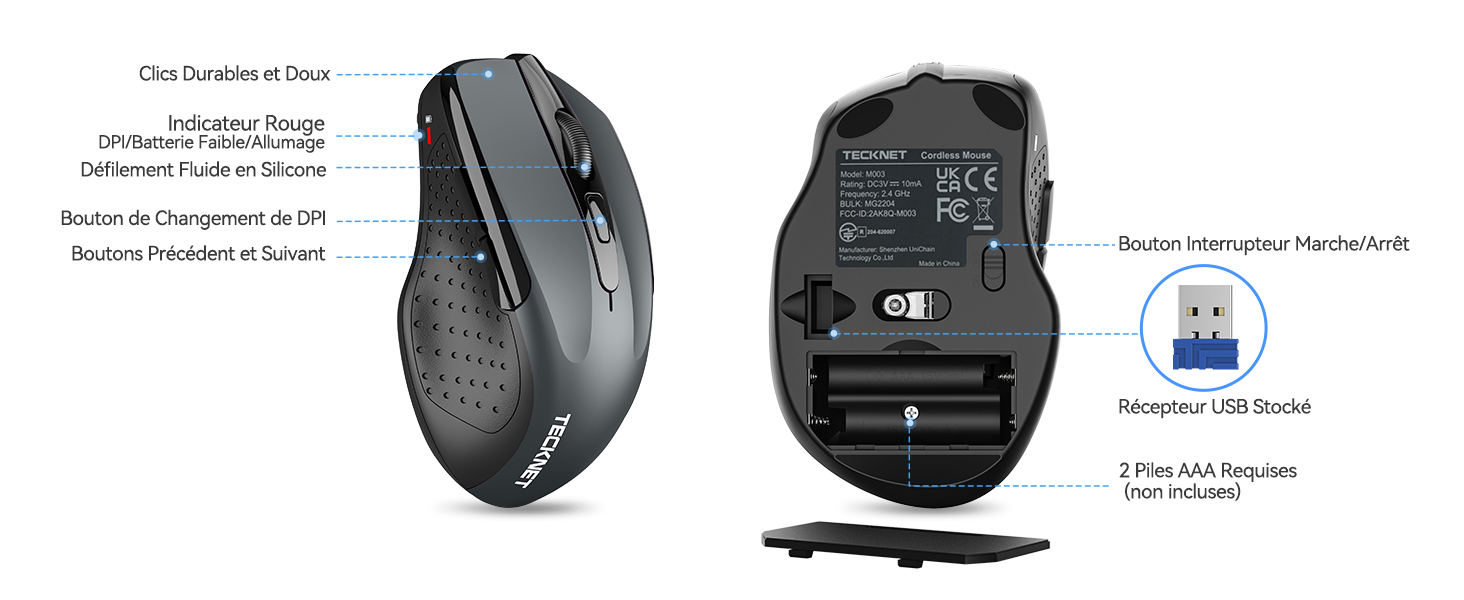
Figure 2: Front and bottom view of the mouse with labeled parts.
- Linkerknop: Standert klikfunksje.
- Rjochter knop: Standert rjochts-klikfunksje.
- Scroll Wheel: Foar fertikaal scrollen en middelste klikfunksje.
- DPI-skeakelknop: Past de gefoelichheid fan 'e kursor oan.
- Foarút knop: Navigearret foarút yn web browsers of file explorers (not available for Mac OS).
- Efterút knop: Navigearret efterút yn web browsers of file explorers (not available for Mac OS).
- Power Switch (On/Off): Located on the bottom of the mouse.
- Optical Tracking Sensor: For precise movement detection.
- Batterijfak: Holds two AAA batteries.
- USB Receiver Storage Slot: Located inside the battery compartment for convenient storage.
4. Setup Ynstruksjes
4.1 Batterij Ynstallaasje
- Open the battery compartment cover located on the bottom of the mouse.
- Doch twa (2) AAA-batterijen yn, en soargje derfoar dat de polariteit (+/-) goed is. Batterijen binne net ynbegrepen.
- Slút it deksel fan it batterijfak feilich.
4.2 De USB-ûntfanger ferbine
- Locate the nano USB receiver stored inside the battery compartment of the mouse.
- Nim de USB-ûntfanger út syn opslachslot.
- Plug the USB receiver into an available USB port on your computer (PC, laptop, Chromebook, Mac).
- Skeakelje de mûs mei de macht switch oan de ûnderkant.
Dyn kompjûter moat automatysk de nedige stjoerprogramma's detektearje en ynstallearje. De mûs sil binnen in pear sekonden klear wêze foar gebrûk.

Figure 3: Plugging the USB receiver into a computer.
5. Bedriuwsinstruksjes
5.1 Basis Operaasje
- Ferpleats de mûs oer in flak oerflak om de kursor op jo skerm te kontrolearjen.
- Use the left and right buttons for clicking and context menus.
- Roll the scroll wheel to navigate vertically through documents and web pages. Press the scroll wheel for a middle-click function (behavior may vary by application).
- The forward and backward buttons (side buttons) allow for quick navigation in web browsers of file explorers. Note: These buttons are not supported on Mac OS.
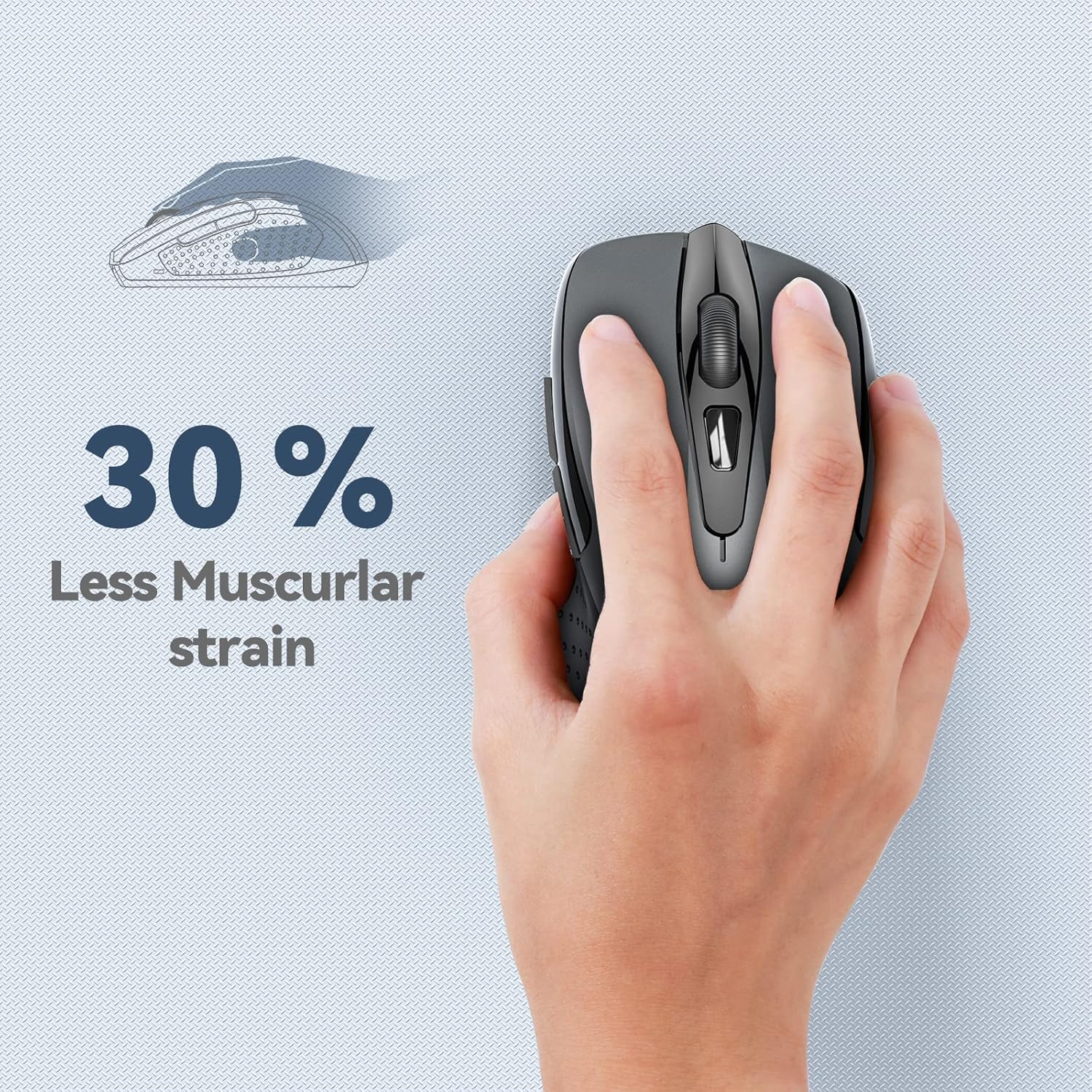
Figure 4: Ergonomic design reduces muscle strain during use.
5.2 DPI Oanpassing
The mouse features 5 adjustable DPI (Dots Per Inch) levels, allowing you to customize cursor sensitivity for different tasks. Press the DPI switch button (located below the scroll wheel) to cycle through the following settings:
- 800 DPI: Suitable for general web blêdzjen.
- 1200 DPI: Ideal for spreadsheet editing (e.g., Excel).
- 1600 DPI: Recommended for video editing.
- 2000 DPI: Useful for graphic design software (e.g., Photoshop).
- 2600 DPI: High sensitivity for gaming or fast-paced tasks.

Figuer 5: DPI-nivo's en har oanrikkemandearre gebrûk.
6. Underhâld
6.1 Batterij Management
- The mouse requires two AAA batteries. For optimal performance, use high-quality alkaline batteries.
- The mouse features an automatic sleep mode to conserve power when not in use.
- Always turn off the mouse using the power switch on the bottom when transporting it or when it will not be used for an extended period.
- Expected battery life is up to 24 months, depending on usage.
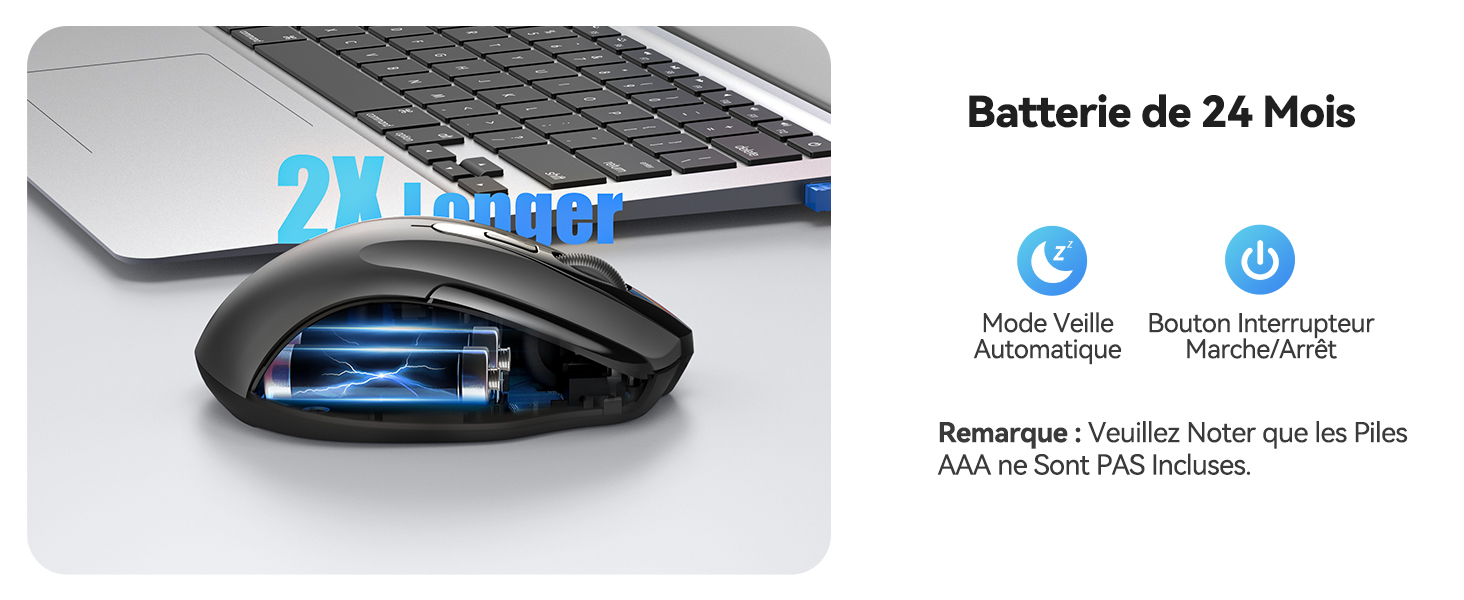
Figure 6: Battery saving features.
6.2 Cleaning
To clean your mouse, gently wipe it with a soft, damp doek. Mije it brûken fan hurde gemikaliën of abrasive materialen.
7. Probleemoplossing
- Mûs reagearret net:
- Soargje derfoar dat de mûs ynskeakele is.
- Kontrolearje oft de batterijen goed ynfoege binne en genôch lading hawwe. Ferfange as it nedich is.
- Kontrolearje oft de USB-ûntfanger goed yn in wurkjende USB-poarte op jo kompjûter sit. Besykje in oare USB-poarte.
- Move the mouse closer to the USB receiver to ensure it is within the 15-meter operating range.
- Restart jo kompjûter.
- Unregelmjittige kursorbeweging:
- Meitsje de optyske sensor oan 'e ûnderkant fan 'e mûs skjin.
- Soargje derfoar dat jo de mûs op in gaadlik oerflak brûke. Foarkom heechreflektearjende of transparante oerflakken.
- Adjust the DPI setting to a lower sensitivity if the cursor is too fast.
- Side buttons not working on Mac:
- The forward and backward side buttons are not supported on Mac OS. This is expected behavior.
8. Spesifikaasjes
| Eigenskip | Spesifikaasje |
|---|---|
| Model Number | M003 |
| Konnektivität Technology | 2.4G Draadloos (USB-ûntfanger) |
| Beweging Detection Technology | Optical |
| Ferstelbere DPI | 800 / 1200 / 1600 / 2000 / 2600 |
| Oantal knoppen | 6 |
| Hand Oriïntaasje | Ambidextrous |
| Operating Range | Oant 15 meter |
| Batterij Type | 2 x AAA (net ynbegrepen) |
| Estimated Battery Life | Up to 24 months (675 hours average) |
| Kompatibele bestjoeringssystemen | Windows XP/Vista/7/8/10/11, Mac OS, Linux, Chromebook |
| Item Gewicht | 100g wy |
| Ofmjittings (L x B) | 10.6L x 6.8W centimeters |
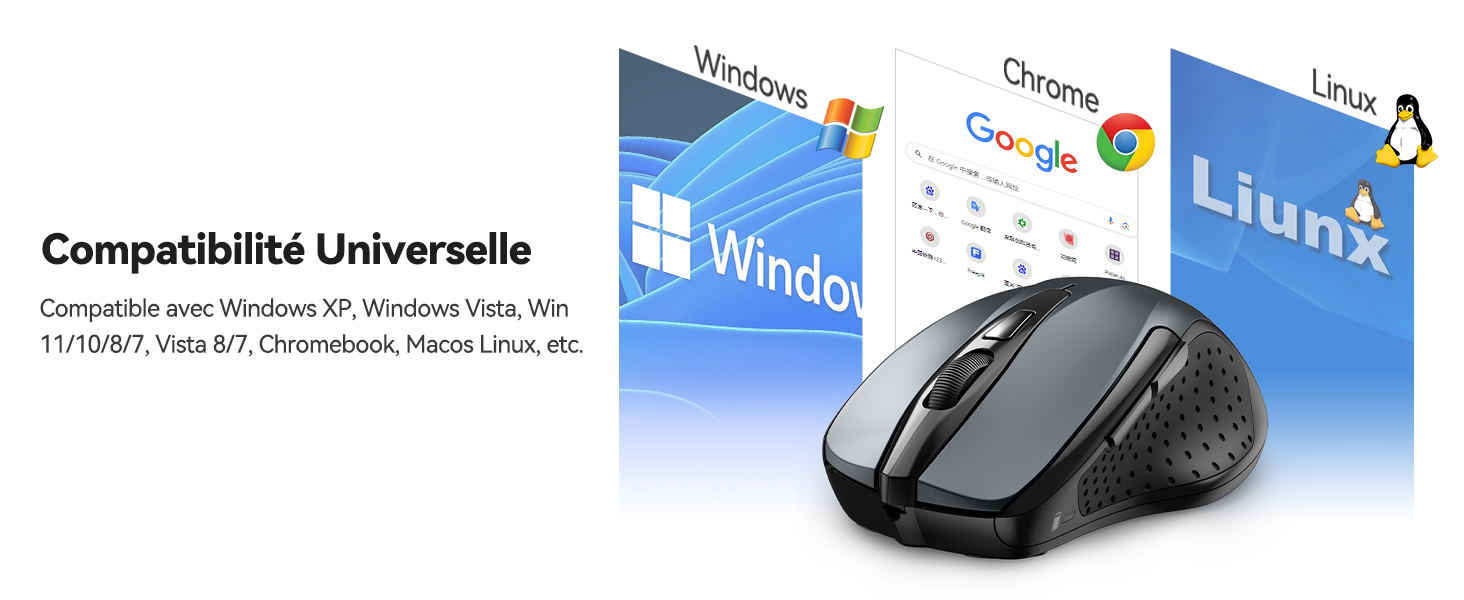
Figure 7: Universal compatibility with various operating systems.
9. Garânsje en stipe
The TECKNET M003 Wireless Optical Mouse comes with a 2-jierrige garânsje út de datum fan oankeap.
If you encounter any issues during product use, please contact the professional TECKNET customer service team for assistance. You can find contact information on the official TECKNET webwebside of fia jo winkelier.
10. Produktfideo foarbyview
Fideo 1: In koarte gearfettingview of the TECKNET 2.4G Wireless Mouse, highlighting its features and ease of use.