
1. Ynlieding
The Elgato HD60 Pro is an internal PCIe capture card designed for high-quality gameplay capture and streaming. This device allows users to record and stream console gameplay in 1080p resolution at 60 frames per second (1080p60) with ultra-low-latency passthrough. It integrates directly into your PC, providing a dedicated hardware encoder for efficient performance.
2. Key Features
- 1080p60 Capture: Share your gameplay in superb viewyn kwaliteit.
- True Passthrough: Play your console games with zero lag.
- Instant Gameview: Power your workflow with ultra-low-latency technology.
- Unbeheinde opname: Rekordoeren itentage directly to your hard drive.
- Flashback Recording: Slide back in time to save epic moments retroactively.

Image: The Elgato HD60 Pro highlights its 1080p60 capture capability, enabling high-quality recording and streaming.
3. Setup Guide
3.1. Fysike Ynstallaasje
- Meitsje jo PC klear: Power down your computer and unplug all cables. Open your PC case.
- Locate a PCIe slot: Find an available PCIe x1 slot on your motherboard.
- Insert the HD60 Pro: Carefully align the HD60 Pro card with the PCIe slot and firmly press it down until it is securely seated.
- Befeiligje de kaart: Use a screw to fasten the HD60 Pro bracket to your PC case.
- Close PC case: Reattach your PC case cover and reconnect all cables.

Image: The Elgato HD60 Pro PCIe Capture Card, ready for installation into a computer's motherboard.

Image: A hand carefully inserting the Elgato HD60 Pro into an available PCIe slot on a motherboard.
3.2. Software Ynstallaasje
- Download software: Visit the official Elgato website (elgato.com/download) to download the latest Elgato Game Capture HD software and drivers for your operating system (Windows or macOS).
- Software ynstallearje: Folgje de ynstruksjes op it skerm om de software te ynstallearjen.
- Alternative Software: The HD60 Pro is compatible with popular streaming software such as OBS Studio, Streamlabs OBS, and XSplit.
3.3. Ferbinende apparaten
- HDMI yn: Connect an HDMI cable from your gaming console's HDMI output (e.g., PS5, PS4, Xbox Series X/S, Xbox One) to the HDMI-IN port on the Elgato HD60 Pro.
- HDMI út: Connect another HDMI cable from the HDMI OUT port on the Elgato HD60 Pro to your TV or gaming monitor's HDMI input. This provides zero-lag passthrough for your gameplay.

Ofbylding: Close-up view of the Elgato HD60 Pro's HDMI IN and HDMI OUT ports for connecting gaming consoles and displays.
4. Operating the HD60 Pro
4.1. Recording Gameplay
- Software starte: Open the Elgato Game Capture HD software or your preferred streaming application (OBS Studio, etc.).
- Selektearje apparaat: In the software, select the Elgato HD60 Pro as your video capture device.
- Ynstellings konfigurearje: Set your desired resolution (e.g., 1080p) and frame rate (60 fps).
- Begjin opname: Click the record button within the software to begin capturing your gameplay.
4.2. Direkt spultsjeview and Passthrough
The HD60 Pro features Instant Gameview, providing ultra-low-latency passthrough directly to your TV or monitor. This allows you to play your games without any noticeable delay, ensuring a seamless gaming experience while simultaneously capturing footage on your PC.

Image: The Instant Gameview feature of the Elgato HD60 Pro ensures ultra-low latency for real-time broadcasting and gaming.
4.3. Flashback-opname
Never miss an epic moment. With Flashback Recording, you can retroactively save gameplay even if you didn't hit the record button. The software continuously buffers your gameplay, allowing you to scroll back in time and capture past events.
4.4. Live Commentary
Add your voice to your streams and recordings. The software allows you to integrate live commentary as a separate audio track, providing flexibility for post-production and enhancing viewer ferloving.
Video: Elgato Gaming Curated Scenes - This video showcases various features and use cases for Elgato gaming products, including recording and streaming.
Video: Elgato Gaming Instant Gameview for HD60 S and HD60 Pro - Demonstrates the low-latency Instant Gameview feature, crucial for a smooth gaming and streaming experience.
Video: Elgato Game Capture HD60 Pro - Stream and record in 1080p60, superior low latency technology, H.264 - An official product video highlighting the core capabilities of the HD60 Pro.
5. Underhâld
The Elgato HD60 Pro is designed for durability and requires minimal maintenance. Ensure your PC case has adequate airflow to prevent overheating. Periodically clean your PC's interior to prevent dust buildup on the capture card and other components.
6. Probleemoplossing
- Gjin sinjaal/swart skerm:
- Verify all HDMI cables are securely connected to the correct IN/OUT ports.
- Ensure your gaming console's HDCP (High-bandwidth Digital Content Protection) is disabled. Refer to your console's settings for instructions.
- Check your software settings to ensure the HD60 Pro is selected as the input device and the resolution/frame rate are correctly configured.
- Audioproblemen:
- Confirm audio input/output settings within your capture software.
- Ensure any external audio devices (headsets, microphones) are properly connected and selected.
- Performance/Lag:
- Ensure your PC meets the minimum system requirements for the HD60 Pro and your chosen capture software.
- Update your graphics card drivers and Elgato software to the latest versions.
- Slút ûnnedige eftergrûnapplikaasjes om systeemboarnen frij te meitsjen.
7. Spesifikaasjes
| Merk | Elgato |
| Searje | Elgato Game Capture HD60 Pro |
| Model Number | 1GC109901002 |
| Hardware Platfoarm | PlayStation 4, Xbox Series X/S, Xbox One, PS5 |
| Bestjoeringssysteem | Windows, macOS |
| Item Gewicht | 0.634 oz |
| Produkt Ofmjittings | 4.8 x 0.55 x 2.2 inch |
| Hardware ynterface | PCI-Express x1 |
| Video Capture Resolúsje | 1080p |
8. Wat sit der yn 'e doaze
- Elgato HD60 Pro Capture Card
- Ynstallaasje Guide
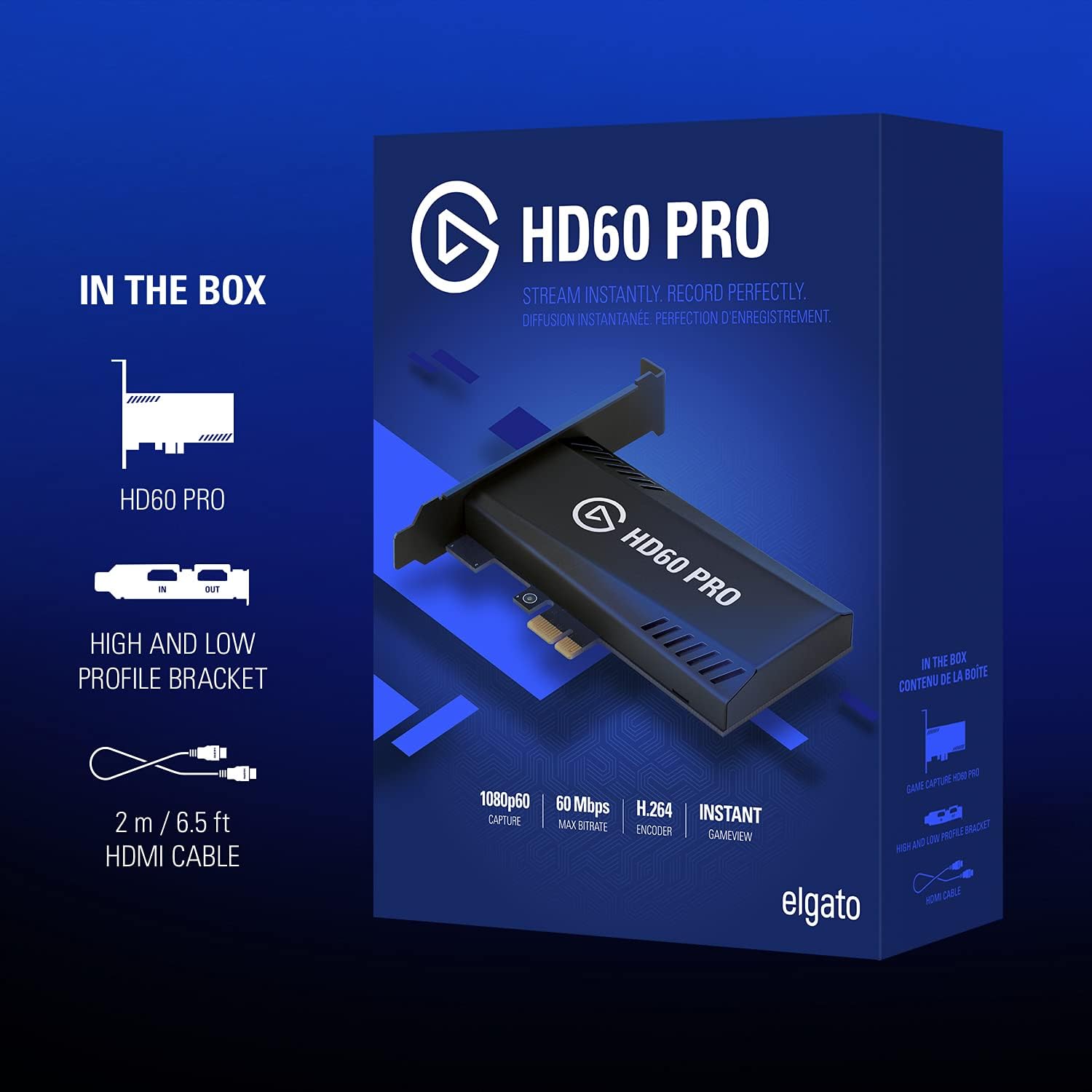
Image: The retail box for the Elgato HD60 Pro, illustrating the included capture card and HDMI cable.
9. Garânsje en stipe
For detailed warranty information and technical support, please refer to the official Elgato website. You can find drivers, software updates, and troubleshooting resources at elgato.com/download.


