
1. Ynlieding
This manual provides detailed instructions for setting up, operating, and maintaining your Epson L485 Wi-Fi Inktank Printer. Please read this manual thoroughly to ensure proper use and to maximize the performance and longevity of your device.
Produkt oerview
The Epson L485 is a versatile all-in-one printer offering print, scan, and copy functionalities with the added convenience of Wi-Fi Direct. It features an innovative ink tank system designed for high-volume printing with impressive page yields and a high print resolution for quality output.

figuer 1: Front view of the Epson L485 Wi-Fi Inktank Printer.
Wat is yn 'e doaze
- Epson L485 printerienheid
- Software CD
- Power Kabel
- Warranty Card
- Set of Original Epson Ink Bottles (Black, Cyan, Magenta, Yellow)
Fideo 1: In oerview of the Epson L485 Wi-Fi Inktank Printer's features and design.
2. Setup Guide
Follow these steps to set up your Epson L485 printer for the first time.
Video 2: Step-by-step guide on how to set up your Epson InkTank Printer.
2.1 Initial Printer Preparation
- Pak de printer út: Helje de printer foarsichtich út 'e ferpakking. Ferwiderje alle beskermjende tapes en materialen.
- Check Valve Position: Locate the ink tank valve on the side of the printer. Ensure it is in the upright (printing) position.
- Open Ink Tank Unit: Gently unhook the ink tank unit from the side of the printer and open its lid to access the ink tanks.
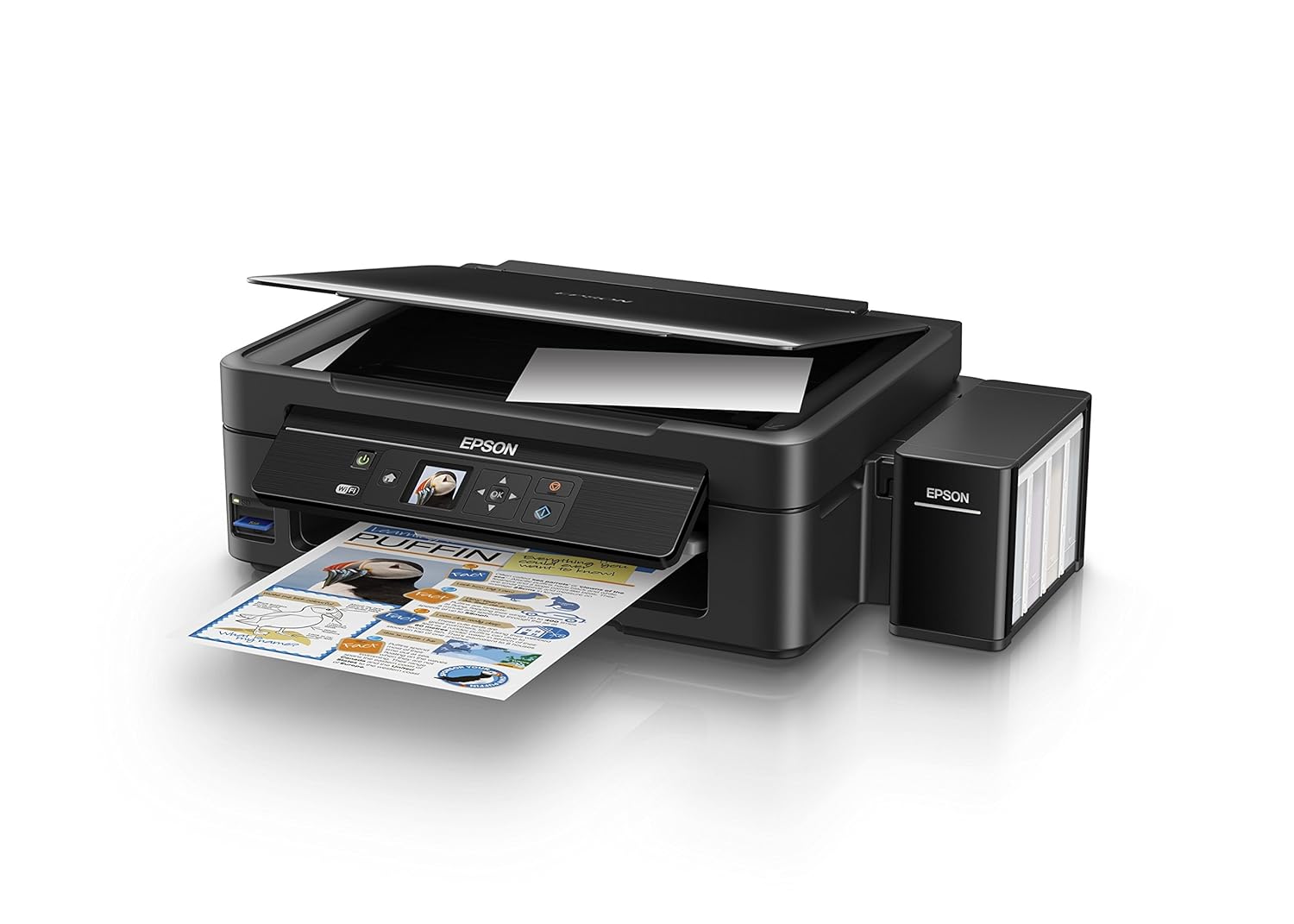
Figure 2: The ink tank unit unhooked and open, showing the ink reservoirs.
2.2 De inkettanks folje
- Prepare Ink Bottles: Snap off the tip of each ink bottle and remove the cap.
- Inkttanks folje: Match the color of the ink bottle with the corresponding ink tank. Carefully pour the entire contents of each ink bottle into its respective tank. Do not overfill.
- Feilige kappen: Once all tanks are filled, replace the caps securely on the ink tanks.
- Close Ink Tank Unit: Close the lid of the ink tank unit and re-hook it to the printer.

Figure 3: Demonstrating the process of filling an ink tank with a yellow ink bottle.

Figure 4: The four color ink bottles used for the Epson L485 printer.
2.3 Power On and Ink Charging
- Ferbine macht: Plug the power cable into the printer and then into a wall outlet.
- Turn On Printer: Druk op de power knop om de printer yn te skeakeljen.
- Initiate Ink Charge: Press and hold the 'Ink Charge' button (usually indicated by a droplet icon) for 3 seconds until the lights start blinking. The initial ink charging process takes approximately 20 minutes. Do not turn off or unplug the printer during this process.
- Foltôging: The lights will stop blinking when ink charging is complete.
2.4 Driver ynstallaasje
- Insert Software CD: Insert the provided Software CD into your computer's CD/DVD drive. If your computer does not have a CD drive, download the latest drivers from the official Epson support website.
- Folgje de ynstruksjes op it skerm: Follow the prompts on your computer screen to install the printer drivers and utilities. Agree to the license agreement and select 'Start & Connection' for setup.
- Connect USB Cable (if prompted): If setting up via USB, connect the USB cable between the printer and your computer when prompted by the installation software.
2.5 Konnektiviteit ynstelle
The Epson L485 supports both USB and Wi-Fi connectivity.
USB Ferbining
Connect the USB cable from the printer to an available USB port on your computer. The printer should be recognized automatically after driver installation.
Wi-Fi opset
The printer features an LCD screen for easy Wi-Fi setup without needing a PC.
- Access Wi-Fi Setup: On the printer's control panel, navigate to the 'Wi-Fi Setup' option using the arrow keys and press 'OK'.
- Selektearje netwurk: Choose your desired wireless network from the list and enter the password if required.
- Ferbining befêstigje: Once connected, the Wi-Fi indicator light will be solid, and the LCD screen will confirm the setup is complete.

Figure 5: Demonstrating wireless printing from a smartphone to the Epson L485 printer.
3. De printer betsjinje
3.1 Printsjen
The Epson L485 delivers high-quality prints with a resolution of 5760 dpi. It offers print speeds of up to 33 ppm for black and 15 ppm for color documents.
- Papier lade: Load paper into the rear paper feeder. Adjust the paper guides to fit the paper size.
- Select Print Job: Selektearje fan jo kompjûter of mobyl apparaat it dokumint of de ôfbylding dy't jo printsje wolle.
- Ynstellings oanpasse: Choose your print settings (e.g., paper size, print quality, color/black & white) in the print dialog box.
- Ôfdrukke: Klik op 'Print' om de taak nei de printer te stjoeren.

Figure 6: The Epson L485 printer in action, producing a vibrant print.
3.2 Scannen
The printer features a sheetfed scanner with an optical resolution of 1200 dpi x 2400 dpi for clear and detailed scans.
- Plakdokumint: Lift the scanner lid and place your document face-down on the scanner glass, aligning it with the corner mark.
- Scan begjinne: From your computer, open the Epson Scan software or use the scan function on the printer's control panel.
- Ynstellings oanpasse: Select scan settings such as resolution, color mode, and destination folder.
- Start scan: Begin the scanning process.

Figure 7: The scanner bed of the Epson L485 printer with the lid open.
3.3 Kopiearje
Make copies directly from the printer's control panel.
- Plakdokumint: Place the document you wish to copy on the scanner glass.
- Selektearje Kopiearfunksje: On the printer's LCD screen, navigate to the 'Copy' option.
- Ynstellings oanpasse: Select the number of copies, color or black & white, and other copy settings.
- Start Copy: Druk op de knop 'Start' om te begjinnen mei kopiearjen.
3.4 Wi-Fi Direkt
Wi-Fi Direct allows you to connect your mobile devices directly to the printer without a router, enabling convenient wireless printing.
- Enable Wi-Fi Direct: On the printer's control panel, go to 'Wi-Fi Setup' and select 'Wi-Fi Direct'. Follow the on-screen instructions to enable it and view it netwurk namme en wachtwurd.
- Ferbine mobyl apparaat: On your mobile device, go to Wi-Fi settings, find the printer's Wi-Fi Direct network, and connect using the provided password.
- Ôfdrukke: Use an Epson printing app (e.g., Epson iPrint) or your device's native print function to print directly to the printer.
4. Underhâld
4.1 Inkt byfolje
When ink levels are low, refill the tanks using genuine Epson ink bottles. Refer to section 2.2 for detailed ink filling instructions. Always use the correct color ink for each tank.
4.2 Cleaning
Regelmjittich skjinmeitsjen helpt de printkwaliteit te behâlden en ferlingt de libbensdoer fan jo printer.
- Eksterne reiniging: Feie de bûtenkant fan 'e printer ôf mei in sêfte, damp doek. Mije it brûken fan abrasive cleaners.
- Printkopreiniging: If print quality declines (e.g., missing lines, incorrect colors), perform a print head cleaning using the printer's utility software on your computer or through the printer's control panel menu.
- Nozzle kontrôle: Run a nozzle check pattern to diagnose print quality issues before performing a head cleaning.
5. Probleemoplossing
This section addresses common issues you might encounter with your Epson L485 printer.
5.1 Printer reagearret net
- Soargje derfoar dat de printer oan is en feilich ferbûn is mei it stopkontakt.
- Check the USB cable connection to both the printer and computer, or verify the Wi-Fi connection status.
- Start sawol de printer as jo kompjûter/mobyl apparaat opnij op.
5.2 Minne printkwaliteit
- Perform a nozzle check to identify clogged nozzles. If necessary, run a print head cleaning cycle.
- Kontrolearje de inketnivo's en folje alle lege tanks opnij.
- Ensure you are using genuine Epson ink and appropriate paper types for your print job.
5.3 Papierstoppen
- Turn off the printer and carefully remove any jammed paper from the paper tray, output tray, or inside the printer.
- Soargje derfoar dat it papier goed ynladen is en net kreukt of kurled.
6. Spesifikaasjes
| Merk | Epson |
| Model Namme | L485 |
| Konnektivität Technology | Wi-Fi |
| Printing Technology | Inkjet |
| Special Feature | Unthâld Card Slot |
| Kleur | Swart |
| Printer útfier | Kleur |
| Maksimale printsnelheid (kleur) | 15 ppm |
| Maksimale printsnelheid (monochrome) | 33 ppm |
| Item Gewicht | 6001g wy |
| Printertype | Inkjet |
| Scanner Type | Sheetfed |
| Maximum Copy Speed (Black and White) | 33 ppm |
| Display Type | LCD |
| Kompatibele apparaten | Snoadfoans |
| Inkt kleur | Swart, Syaan, Magenta, Giel |
| Resolúsje | 5760 x 5760 DPI |
| Oanfoljende printerfunksjes | All In One (Print, Scan, Copy) |
| Maksimale mediagrutte | A4 |
| Papiergrutte | A4 |
| Dual-sided printsjen | Nee |
7. Garânsje en stipe
Your Epson L485 Wi-Fi Inktank Printer comes with a free installation service and an onsite warranty.
7.1 Free Installation and Onsite Warranty
To avail free installation for your printer, please contact Epson support after receiving your product. The onsite warranty covers manufacturing defects and ensures professional assistance at your location.
7.2 Kontakt mei stipe
For installation, support, or any technical assistance, please contact Epson customer service:
- Tillefoan: 1860 3000 1600 (Timings: 9 am - 6 pm)