
Apple AirPods Pro
Apple AirPods Pro Wireless Earbuds User Manual
Ynlieding
Welcome to your Apple AirPods Pro. These advanced wireless earbuds offer Active Noise Cancellation, Transparency Mode, and adaptive equalization for an immersive audio experience. This manual provides essential information for setting up, operating, maintaining, and troubleshooting your device.
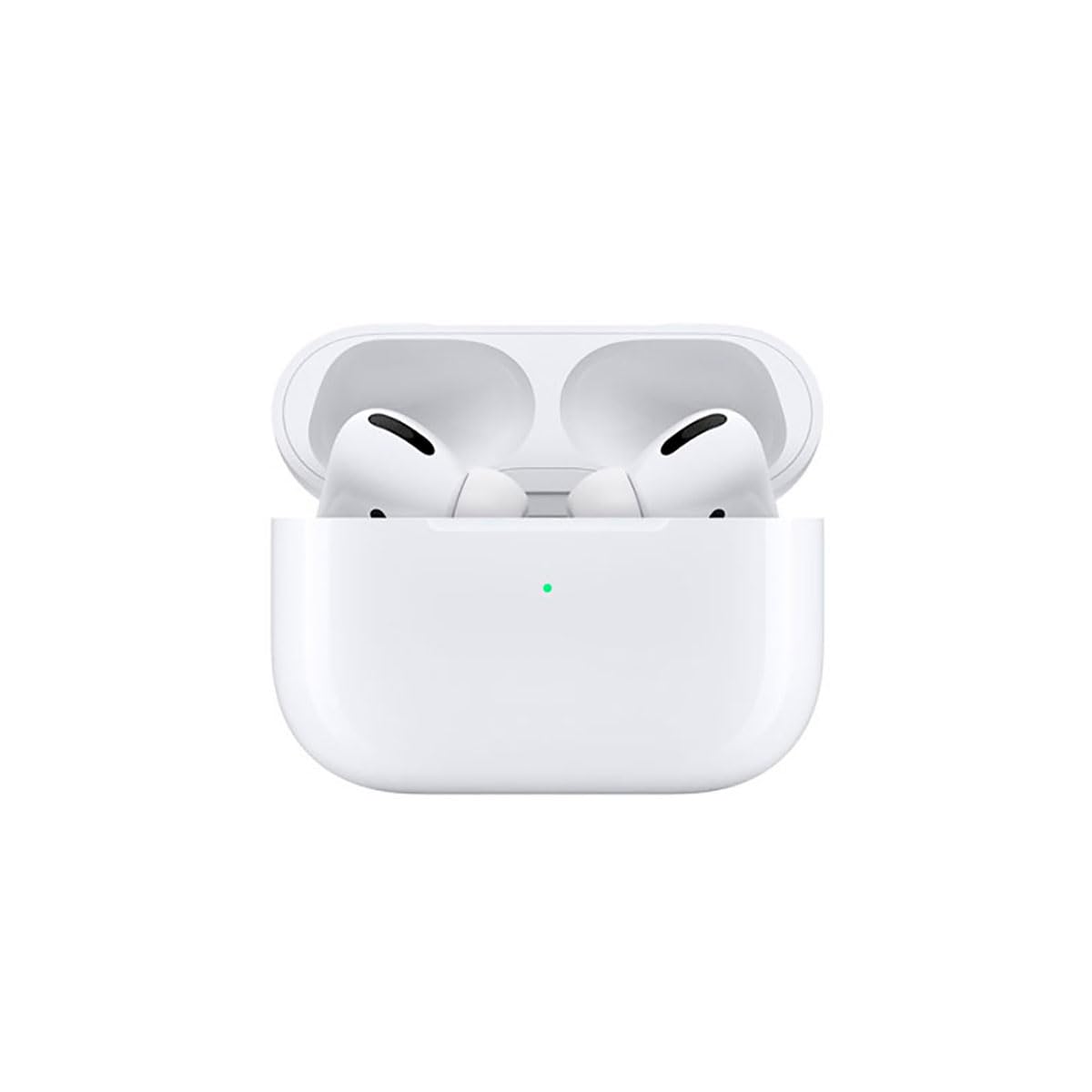
Image: A person wearing Apple AirPods Pro earbuds, demonstrating their use in a daily setting.
1. Te begjinnen
1.1 Útpakke en opladen
Your AirPods Pro come with a Wireless Charging Case, silicone ear tips in three sizes, and a Lightning to USB-C cable.
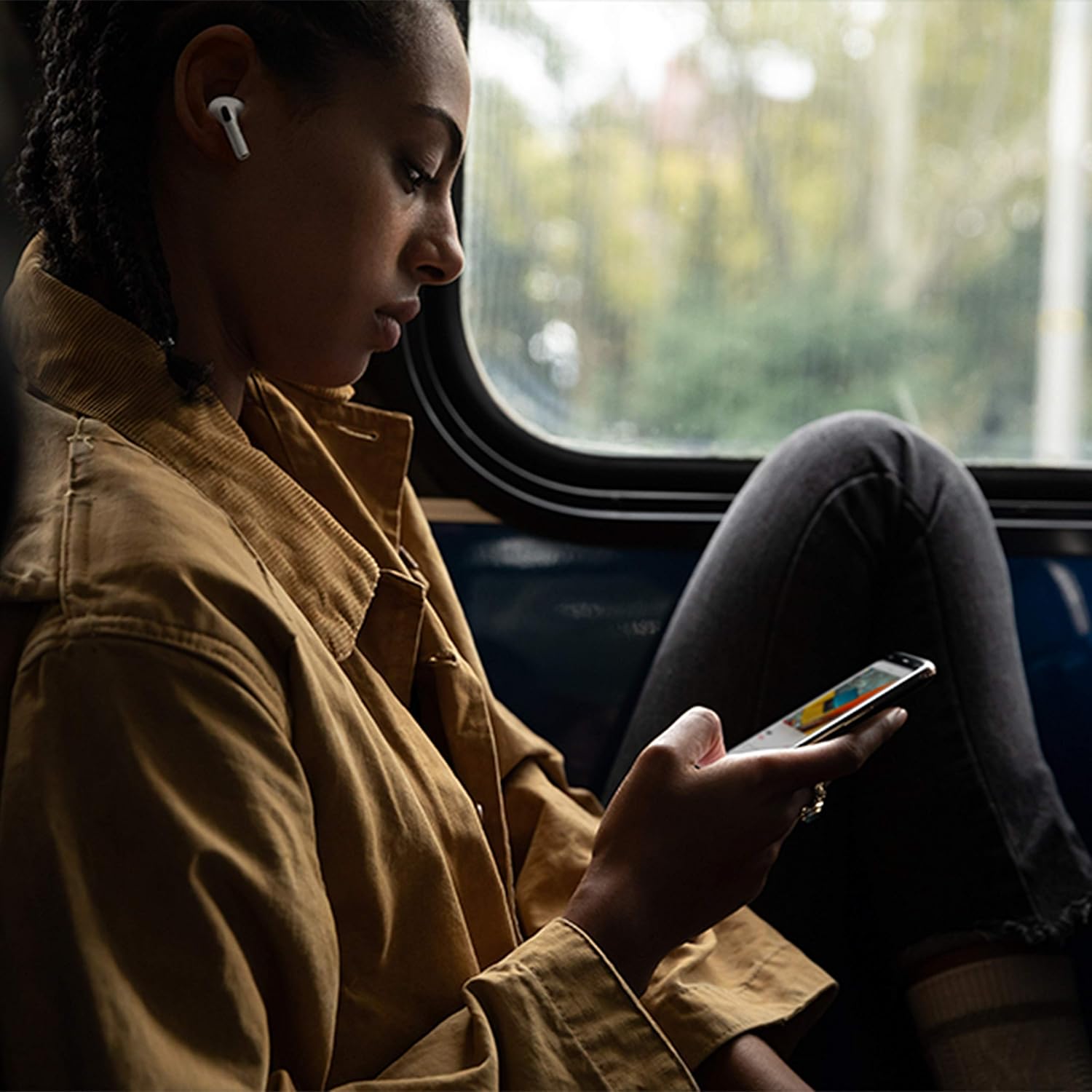
Image: Apple AirPods Pro earbuds inside their wireless charging case, with the status indicator light visible.
Before first use, ensure your AirPods Pro and their charging case are fully charged. Connect the Lightning to USB-C cable to the charging case and a power adapter, or place the case on a Qi-certified wireless charging mat.
1.2 Koppelje mei jo apparaat
To pair your AirPods Pro with an Apple device:
- Ensure your Apple device (iPhone, iPad, or iPod touch) is running the latest iOS version.
- Unlock your device and go to the Home screen.
- Open the charging case lid with your AirPods Pro inside, and hold it near your device.
- A setup animation will appear on your device's screen. Follow the on-screen instructions.
- Once connected, your AirPods Pro will automatically pair with all supported devices signed in to your iCloud account.
To pair with a non-Apple device (e.g., Android phone):
- With your AirPods Pro in the charging case, open the lid.
- Druk en hâld de opset knop op 'e efterkant fan' e saak oant it statusljocht wyt knippert.
- On your device, go to Bluetooth settings and select "AirPods Pro" from the list of available devices.
1.3 Dyn bêste fit fine
Achieving the right fit is crucial for optimal sound quality and Active Noise Cancellation. Your AirPods Pro come with small, medium, and large silicone ear tips.

Ofbylding: Close-up view of two individual Apple AirPods Pro earbuds, highlighting the silicone ear tips.
- Try each size of ear tip to find the ones that provide the best seal and comfort.
- Gean op jo iPhone nei Ynstellings > Bluetooth, tap the "i" icon next to your AirPods Pro, then tap "Ear Tip Fit Test." Follow the on-screen instructions to check the seal.
2. Using Your AirPods Pro
2.1 Kontrôles
The force sensor on the stem of each AirPod Pro allows you to control audio playback and calls.
- Druk ien kear op: Play, pause, or answer a phone call.
- Druk twa kear: Gean foarút.
- Druk trije kear: Gean werom.
- Druk en hâld: Wikselje tusken Aktive Noise Cancellation en Transparânsje modus.
2.2 Active Noise Cancellation and Transparency Mode
Your AirPods Pro offer two primary listening modes:
- Aktive Noise Cancellation (ANC): Blokkearret eksterne lûden, wêrtroch jo jo kinne rjochtsje op jo audio.
- Transparânsjemodus: Lit jo jo omjouwing hearre wylst jo nei audio harkje, nuttich foar bewustwêzen yn drokke omjouwings.
Switch between these modes by pressing and holding the force sensor on an AirPod stem, or via Control Center on your Apple device.
2.3 Siri Activation
Activate Siri by saying "Hey Siri" or by pressing and holding the force sensor on an AirPod stem (if configured in settings).
2.4 Wetter- en switbestindichheid
AirPods Pro are sweat and water resistant for non-water sports and exercise. They are not waterproof and should not be submerged in water. Resistance may decrease as a result of normal wear.
3. Soarch en ûnderhâld
3.1 Cleaning Your AirPods Pro and Case
Regularly clean your AirPods Pro and their charging case to maintain performance and hygiene.
- Wipe the AirPods and case with a soft, dry, lint-free cloth.
- Do not use abrasive materials, sprays, or solvents.
- For ear tips, remove them from the AirPods and rinse with water. Dry thoroughly before reattaching.
3.2 Batterij ynformaasje
The AirPods Pro and charging case contain rechargeable batteries. Battery life is dependent on usage and settings. Over time, the capacity of all rechargeable batteries diminishes. To maximize battery lifespan:
- Avoid ekstreme temperatueren.
- Bewarje yn in koel, droech plak as net yn gebrûk.
- Charge regularly, but avoid leaving them fully charged or fully depleted for extended periods.
4. Troubleshooting Common Issues
4.1 Connection Problems
If your AirPods Pro are not connecting:
- Soargje derfoar dat Bluetooth ynskeakele is op jo apparaat.
- Place AirPods Pro in the charging case, close the lid, wait 15 seconds, then open the lid.
- If issues persist, try resetting your AirPods Pro: With the lid open, press and hold the setup button on the back of the case for about 15 seconds until the status light flashes amber, then white. Re-pair them with your device.
4.2 Problemen mei de lûdskwaliteit
If you experience poor sound quality or ineffective noise cancellation:
- Ensure ear tips are clean and properly fitted. Perform the Ear Tip Fit Test.
- Check for debris in the speaker mesh.
- Ensure your device's volume is adjusted correctly.
4.3 Problemen mei opladen
If your AirPods Pro or case are not charging:
- Verify the Lightning cable is securely connected to both the case and the power adapter.
- If using wireless charging, ensure the case is correctly positioned on the charging mat.
- Meitsje de oplaadpoarte op 'e kast skjin.
5. Produkt Spesifikaasjes
| Eigenskip | Detail |
|---|---|
| Merk | Appel |
| Model Namme | Apple AirPods Pro |
| Form Factor | In-Ear |
| Noise Control | Aktive Noise Cancellation |
| Konnektivität Technology | Bluetooth |
| Wireless Communication Technology | Bluetooth |
| Kleur | Wyt |
| Age Range (Beskriuwing) | Folwoeksen |
5.1 Wat sit der yn 'e doaze
- AirPods Pro
- Wireless Charging Case
- Silicone Ear Tips (three sizes)
- Bliksem nei USB-C Kabel
- Dokumintaasje
6. Garânsje en stipe
6.1 Warranty Information
Apple AirPods Pro come with a standard limited warranty. For detailed warranty terms and conditions, please refer to the documentation included with your product or visit the official Apple support website.
6.2 Customer Support
Foar fierdere assistinsje, technyske stipe of tsjinst, besykje de offisjele Apple Support webside of nim direkt kontakt op mei de klanttsjinst fan Apple.
Ask a question about this manual
Ask about setup, troubleshooting, compatibility, parts, safety, or missing instructions. Manuals+ will review the question and use this page’s manual context to help answer it.