
1. Ynlieding en oerview
The AVMATRIX VS0601 is a compact, multi-format 6-channel video switcher designed for live production environments. It supports a variety of input signals, including 4 SDI and 2 HDMI inputs, and offers scaled outputs for both SDI and HDMI Program (PGM) feeds. The device also features HDMI and SDI multiview outputs for comprehensive monitoring, various transition effects (CUT, AUTO, T-BAR, FADE, WIPE, MIX), GPIO Tally, Picture-in-Picture (PIP), and Fade-to-Black (FTB) functionalities. Its portable design makes it suitable for diverse applications.
2. Produktfunksjes
- Multi-format 6-Channel Input: Accepts 4 SDI and 2 HDMI input signals.
- Scaled Outputs: SDI and HDMI PGM outputs with scaling capabilities.
- Multiview Monitoring: Dedicated HDMI and SDI multiview outputs for monitoring all inputs simultaneously.
- Oergongseffekten: Supports CUT, AUTO, T-BAR transitions, along with FADE, WIPE, and MIX effects.
- GPIO Tally Interface: For integration with live tally systems.
- Picture-in-Picture (PIP): Allows for overlaying one video source onto another.
- Fade-to-Black (FTB): Smooth transition to a black screen.
- Kompakt ûntwerp: Portable and easy to transport for on-location use.
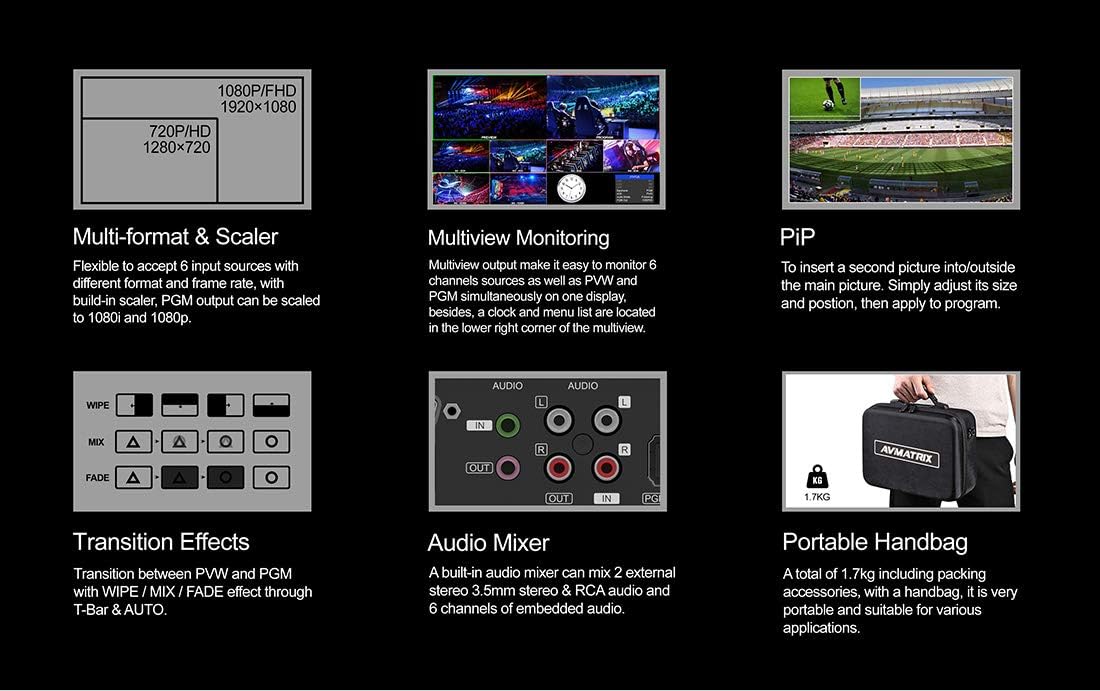
Figuer 2.1: Wichtige funksjes oerview
3. Opsette
3.1 Unpacking en ynspeksje
Carefully unpack the AVMATRIX VS0601 and all accessories. Inspect the unit for any signs of damage during transit. Retain the packaging materials for future transport or storage.
3.2 Ferbine Power
Connect the provided DC 12V power adapter to the 'DC 12V' input port on the rear panel of the switcher. Plug the adapter into a suitable power outlet. Ensure the power switch is in the 'OFF' position before connecting power.
3.3 Fideo-ynfierferbiningen
The VS0601 supports 4 SDI inputs and 2 HDMI inputs. Connect your video sources (cameras, media players, computers) to the corresponding input ports on the rear panel.
- SDI Inputs: Connect up to four SDI sources to the 'SDI IN 1-4' ports.
- HDMI-ynputen: Connect up to two HDMI sources to the 'HDMI IN 5-6' ports.

Figuer 3.1: Ferbiningen op it efterpaniel
3.4 Video Output Connections
Connect your display monitors or recording devices to the output ports.
- Program (PGM) Output: Connect your main program display or recorder to the 'PGM OUT' (SDI or HDMI) ports.
- Multiview Utfier: Connect a monitor to the 'MULTIVIEW OUT' (HDMI or SDI) for simultaneous viewing of all inputs, program, and preview.
- USB-útfier: Connect to a computer via the 'USB OUT' port for streaming applications.
3.5 Audioferbiningen
The switcher includes audio input and output options.
- Audio-ynfier: Connect external audio sources to the 'AUDIO IN' (RCA L/R or 3.5mm stereo) ports.
- Audio útfier: Connect to external audio monitoring or recording devices via the 'AUDIO OUT' (RCA L/R or 3.5mm stereo) ports.
3.6 Tally and LAN Connections
- Tally: Connect a Tally system to the 'TALLY' (DB-15) port for visual indication of program and preview boarnen.
- LAN: Connect an Ethernet cable to the 'LAN' (RJ45) port for network control and firmware updates.
4. Bedriuwsinstruksjes
4.1 Front Panel Controls
The front panel provides intuitive controls for selecting inputs, managing transitions, and adjusting audio.

Figuer 4.1: Layout foar paniel
- PGM (Program) Buttons: Select the input currently live on the program output.
- PVW (Preview) Knoppen: Select the input to be previewed before transitioning to program.
- T-Bar: Manually control transitions between preview en programma.
- CUT-knop: Instantly switch from preview te programmearjen.
- AUTO knop: Execute a transition with a pre-set speed.
- MENU Knob: Navigate and select options within the on-screen display (OSD) menu.
- AUDIO/EFFECTS Buttons: Access audio mixer controls, keying functions (Chroma, Luma, DSK), and Picture-in-Picture (PIP) settings.
4.2 Basiswikseling
- Power on the unit using the switch on the rear panel.
- Op de Multiview monitor, observe all connected inputs.
- Press a button in the PVW row to select an input for preview. This input will appear on the preview section of your multiview monitor.
- Press a button in the PGM row to select an input for program. This input will immediately go live.
- To transition from the previewed source to the program output, use the T-Bar, SNIJE button for an instant switch, or AUTO button for a timed transition.
4.3 Audio Mixing
The VS0601 features an integrated audio mixer. Access the audio controls via the front panel buttons and the OSD menu to adjust levels for embedded audio from HDMI/SDI inputs and external analog audio inputs.
- Brûk de AFV (Audio Follow Video) function to automatically switch audio with video transitions.
- Manually adjust individual audio channel levels using the menu and rotary knob.
4.4 Keying and PIP
The switcher supports various keying effects and Picture-in-Picture functionality.
- Chromasleutel: Use for green screen or blue screen effects.
- Luma Key: Key based on brightness levels.
- DSK (Downstream Key): Overlay graphics or text onto the program output.
- PIP (Picture-in-Picture): Display a smaller video source within the main program video. Adjust size and position through the OSD menu.
5. Spesifikaasjes
| Kategory | Detail |
|---|---|
| Model | VS0601 |
| Ynputen | 4x SDI (SD/HD/3G-SDI), 2x HDMI (Type-A) |
| Analoge audio-ynputen | 1x 3.5mm stereo audio, 1x RCA (L/R) audio |
| PGM útgongen | 1x SDI (SD/HD/3G-SDI), 1x HDMI (Type-A) |
| AUX Utfier | 1x SDI (SD/HD/3G-SDI) |
| Multiview Útgongen | 1x SDI (SD/HD/3G-SDI), 1x HDMI (Type-A) |
| Analoge audioútfier | 1x 3.5mm stereo audio, 1x RCA (L/R) audio |
| LAN ynterface | RJ45 x1, Synchronize local time |
| Tally ynterface | DB-15 x1 |
| SDI Input Format Support | 1080p 60/50/30/25/24, 1080i 60/50, 720p 60/50, 576i, 480i |
| HDMI Input Format Support | 1080p 60/50/30/25/24, 1080i 60/50, 720p 60/50, 576p, 576i, 480p, 480i |
| PGM Utfier Format | 1080p 60/50/30/25/24, 1080i 60/50 |
| Multiview Utfierformaat | 1080p 60 |
| SDI Compliance | SMPTE 292M/SMPTE 259M/SMPTE 424M |
| Ofmjittings (LWD) | 249.2 x 172.3 x 55 mm |
| Gewicht | 1 kg (2.2 lbs) |
| Wurktemperatuer | -20~60°C |
| Storage Temperatuer | -30~70°C |
| Aktueel | DC 12V, 1.2A |
| Voltage | DC 6-17V |
| Streamtafier | DC 12V, 2A |

Figuer 5.1: Technyske spesifikaasjes
6. Underhâld
- Reiniging: Use a soft, dry cloth to clean the exterior of the unit. Do not use liquid or aerosol cleaners.
- Ventilaasje: Soargje foar goede fentilaasje om it apparaat hinne om oerferhitting te foarkommen. Blokkearje gjin fentilaasje-iepeningen.
- Opslach: When not in use for extended periods, store the switcher in a cool, dry place, preferably in its original packaging.
- Firmware -updates: Kontrolearje periodyk de offisjele AVMATRIX webwebside foar firmware-updates om optimale prestaasjes en tagong ta nije funksjes te garandearjen. Folgje de ynstruksjes dy't by de firmware-update komme sekuer.
7. Probleemoplossing
7.1 Gjin fideo-útfier
- Kontrolearje oft de stroomadapter feilich oansletten is en dat it apparaat oan is.
- Check all video cables (SDI, HDMI) for secure connections at both the switcher and the display/source.
- Ensure the correct input is selected on the PGM row.
- Confirm that the output resolution of the switcher is compatible with your display device.
- Test with different cables or display devices if possible.
7.2 Gjin audio-útfier
- Kontrolearje alle audiokabels op feilige ferbiningen.
- Verify audio levels in the mixer settings via the OSD menu. Ensure no channels are muted.
- Confirm that the audio source is active and producing sound.
- If using embedded audio, ensure the video source is providing audio.
7.3 Controls Unresponsive
- Restart the unit by powering it off and then on again.
- Ensure no foreign objects are obstructing buttons or the T-Bar.
- If connected via LAN, check network connection and control software status.
8. Garânsje en stipe
For warranty information and technical support, please refer to the official AVMATRIX webside of nim kontakt op mei jo lokale distributeur. Bewarje jo oankeapbon as bewiis fan oankeap foar garânsjeclaims.
Online boarnen:
- AVMATRIX Official Website
- LILLIPUT Store on Amazon (Manufacturer/Seller)