
1. Ynlieding
This manual provides detailed instructions for the installation, operation, and maintenance of your new ATA 43 Inch Full HD LED Smart TV, Model 43S1. Please read this manual thoroughly before using the television to ensure proper functionality and to maximize your viewûnderfining. Hâld dizze hantlieding foar takomstige referinsje.
2. Wichtige feiligens ynformaasje
- Power Boarne: Soargje derfoar dat de tv ferbûn is mei in stroomfoarsjenning binnen it oantsjutte folumetage berik.
- Ventilaasje: Blokkearje de fentilaasje-iepeningen net. Lit genôch romte om 'e tv hinne foar in goede luchtstream.
- Wetter en focht: Stel de tv net bleat oan rein of focht. Set foarkom dat jo foarwerpen fol mei floeistoffen, lykas fazen, op 'e tv pleatse.
- Reiniging: Doch de stekker fan 'e tv út it stopkontakt foardat jo it skjinmeitsje. Brûk in sêfte, droege doek. Brûk gjin floeibere reinigingsmiddels of spuitbussen.
- Pleatsing: Plak de tv op in stabyl, flak oerflak. Set it net yn direkt sinneljocht of tichtby waarmteboarnen.
- Betsjinning: Besykje net dit produkt sels te tsjinjen. Ferwize alle service oan kwalifisearre servicepersoniel.
3. Package Ynhâld
Kontrolearje it fakje foar de folgjende items:
- ATA 43 Inch Full HD LED Smart TV (Model 43S1)
- Remote Control
- TV-meubel (2 stikken)
- Power Cord
- User Manual (dit dokumint)
- Skroeven foar tv-standert
4. Produkt Overview
4.1. Front View
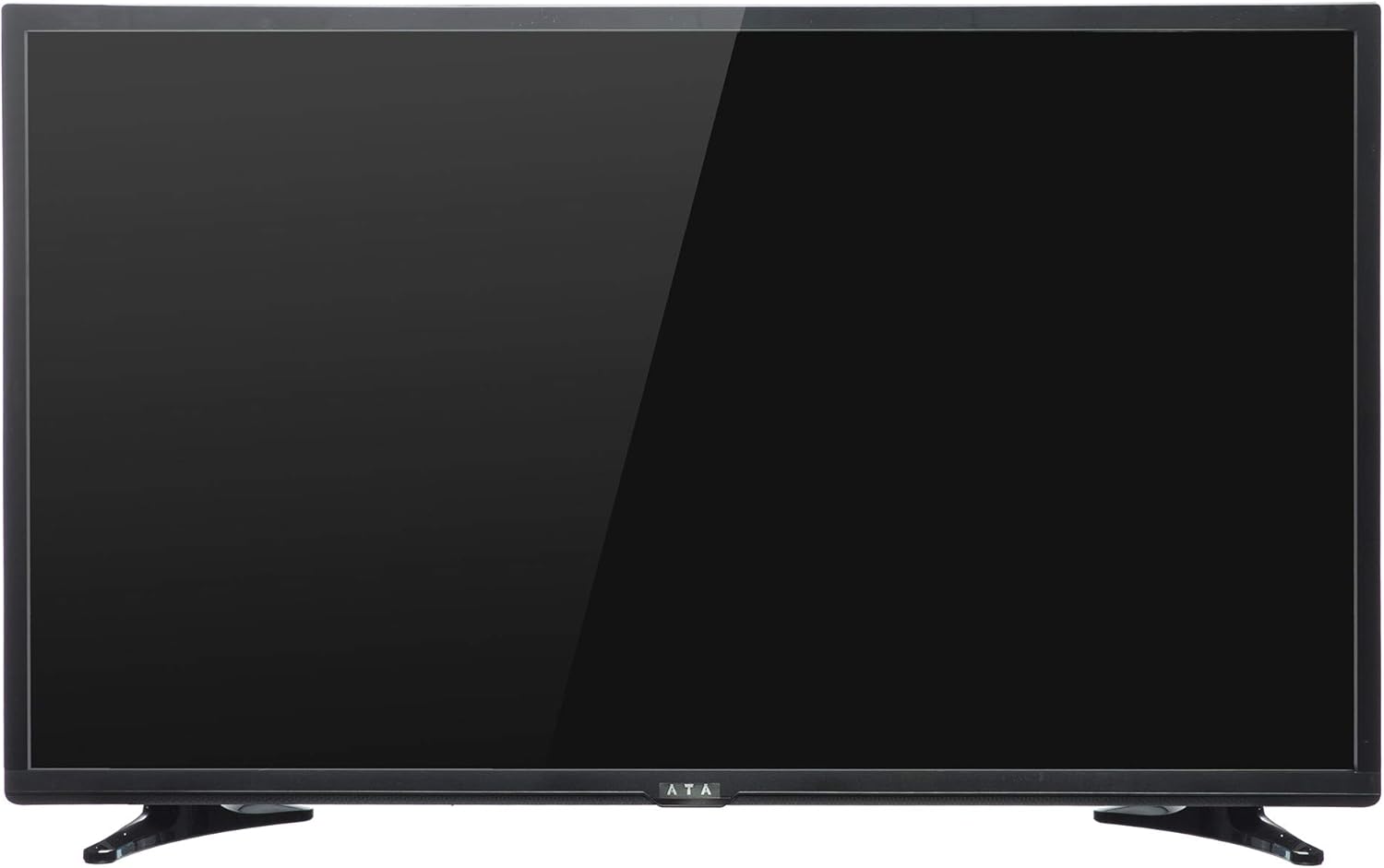
Ofbylding 1: Front view of the ATA 43 Inch Smart TV. The screen is black, indicating it is powered off or in standby mode. The ATA logo is visible at the bottom center.
The front of the ATA 43S1 TV features a sleek design with a narrow bezel, maximizing the screen area. The ATA brand logo is centrally located at the bottom of the frame. An indicator light (not visible in image) and IR receiver for the remote control are typically located near the logo.
4.2. Efterkant View

Ofbylding 2: Efterkant view of the ATA 43 Inch Smart TV. This image displays the back panel, including VESA mounting holes for wall installation and designated areas for input/output ports.
The rear panel of the TV includes VESA mounting points for wall installation (wall mount bracket sold separately). Various input and output ports are located on the side and bottom sections of the back panel for easy access.
4.3. Ynfier-/útfierpoarten
Your ATA Smart TV is equipped with a variety of ports to connect external devices.

Image 3: Close-up of the side-facing ports, showing three HDMI ports (HDMI1, HDMI2, HDMI3) and two USB ports (USB2.0, USB2.0).
- HDMI-poarten (x3): For connecting high-definition devices such as Blu-ray players, gaming consoles, and set-top boxes.
- USB-poarten (x2): Foar it ferbinen fan USB-opslachapparaten om media ôf te spyljen files of foar software-updates.

Image 4: Close-up of the bottom-facing ports, including Earphone, RJ45 (Ethernet), PC Audio, PC(VGA), Mini YPbPr, Video, L/R Audio (AV In), and Coaxial.
- RJ45 (Ethernet) Poart: Foar bedrade ynternetferbining.
- PC(VGA) Port: Foar it ferbinen fan in kompjûter.
- PC Audio In: Audioynfier foar VGA-ferbining.
- AV In (Video, L/R Audio): Foar it ferbinen fan âldere apparaten mei komposite fideo- en stereo-audio-útgongen.
- Mini YPbPr: Komponint fideo ynfier.
- Koaksiaal: Foar it oansluten fan in antenne of kabel-tv.
- Oortelefoonkontakt: Foar it ferbinen fan koptelefoan.
4.4. Remote Control

Image 5: The remote control for the ATA Smart TV. It features standard TV controls, navigation buttons, and dedicated function keys.
The remote control allows you to operate all functions of your TV. It includes buttons for power, input source selection, volume control, channel navigation, menu access, smart TV functions, and media playback controls.
- STANDBY (Reade knop): Power oan / út.
- BOARNE: Select input source (HDMI, AV, TV, etc.).
- Siferknoppen (0-9): Direkte kanaalseleksje.
- VOL +/-: Oanpasse folume.
- CH +/-: Feroarje kanalen.
- DEMPJE: Dempe / unmute lûd.
- MENU: Tagong ta it haadmenu.
- YNGEAN: Befêstigje seleksje.
- Navigaasjeknoppen (omheech/omleech/lofts/rjochts): Navigearje troch menu's.
- ÚTGONG: Exit current menu or function.
- THÚS: Access the Smart TV home screen.
- P.MODE / S.MODE: Picture Mode / Sound Mode.
- SUBTITLE / AUDIO / REFRESH: Specific function buttons.
- PLAY/PAUSE, STOP, FF, FB, PREV, NEXT: Kontrôles foar it ôfspyljen fan media.
5. Opsette
5.1. De tv-standert befestigje
- Plak de tv foarsichtich mei de foarkant nei ûnderen op in sêft, skjin oerflak om skea oan it skerm te foarkommen.
- Rjochtsje de standerdielen út mei de oerienkommende sleuven oan 'e ûnderkant fan' e tv.
- Befestigje de standerdielen mei de levere skroeven. Soargje derfoar dat se goed oandraaid binne.
- Til de tv foarsichtich op en set him op in stabyl, flak oerflak.
Alternatively, you can use a VESA-compatible wall mount (not included) to mount the TV on a wall. Refer to the wall mount's instructions for installation.
5.2. Ferbine Power
Connect the power cord to the TV's power input and then plug the other end into a wall outlet. The TV will enter standby mode.
5.3. Initial Setup Wizard
The first time you power on the TV, an initial setup wizard will guide you through basic settings.
- Druk op de STAND-BY knop op de ôfstânskontrôle om de TV yn te skeakeljen.
- Follow the on-screen prompts to select your preferred language, country/region, and time zone.
- Netwurkferbining:
- Wi-Fi: Selektearje jo Wi-Fi-netwurk út 'e list en fier it wachtwurd yn.
- Ethernet: If you connected an Ethernet cable to the RJ45 port, the TV should automatically detect the wired connection.
- Complete any remaining steps in the setup wizard, such as channel scanning (if connecting an antenna/cable).
6. Bedriuwsinstruksjes
6.1. Power On / Off
- To turn on the TV from standby, press the STAND-BY knop op de ôfstânsbetsjinning.
- Om de TV yn standby-modus te setten, druk op de STAND-BY knop wer.
6.2. Ynput Boarne Seleksje
To switch between connected devices (e.g., HDMI, AV, TV tuner):
- Druk op de BOARNE knop op de ôfstânsbetsjinning.
- Use the Navigation buttons (Op/Omleech) to highlight the desired input source.
- Parse YNGEAN om jo seleksje te befêstigjen.
6.3. Folume en Channel Control
- Parse VOL+ om it folume te ferheegjen, FOL - folume te ferminderjen.
- Parse CH + om nei it folgjende kanaal te gean, CH- om nei it foarige kanaal te gean.
- Use the Number buttons to directly enter a channel number.
- Parse STOMME to temporarily turn off the sound. Press again to restore.
6.4. Smart TV-funksjes (Android 4.4.2)
Your TV runs on Android 4.4.2, providing access to various smart features and applications.
- Druk op de THÚS button on the remote to access the Smart TV home screen.
- From the home screen, you can navigate to pre-installed applications or access settings.
- Ensure your TV is connected to the internet via Wi-Fi or Ethernet to utilize online features.
- Use the Navigation buttons and YNGEAN to select and launch applications.
7. Underhâld
- It skerm skjinmeitsje: Feie it skerm foarsichtich ôf mei in sêfte, pluisfrije doek. Foar koppige plakken, brûk in bytsjeampmeitsje de doek skjin mei wetter of in spesjalisearre skermreiniger (spuite net direkt op it skerm).
- Reiniging fan it kabinet: Brûk in sêfte, droege doek om de tv-kast ôf te feegjen. Brûk gjin skurende reinigingsmiddels of oplosmiddels.
- Stofjen: Stofje de fentilaasje-iepeningen oan 'e efterkant fan' e tv regelmjittich ôf om oerferhitting te foarkommen.
- Stromkabel: Periodically check the power cord for any damage. If damaged, contact service personnel for replacement.
8. Probleemoplossing
| Probleem | Mooglike oarsaak | Oplossing |
|---|---|---|
| Gjin macht | Netsnoer net oansletten; Stopkontakt wurket net. | Soargje derfoar dat it netsnoer goed ynstutsen is. Test it stopkontakt mei in oar apparaat. |
| Gjin byld, mar lûd is oanwêzich | Ferkearde ynfierboarne selektearre; Probleem mei efterljochting. | Druk op de BOARNE button to select the correct input. Check picture settings. |
| Gjin lûd, mar byld is oanwêzich | Volume is muted or too low; Audio cables not connected properly. | Parse STOMME or increase volume. Check audio cable connections. |
| Remote control wurket net | Batterijen binne leech of ferkeard ynfoege; Obstruksje tusken ôfstânsbetsjinning en tv. | Replace batteries. Ensure line of sight to the TV's IR receiver. |
| Kin gjin ferbining meitsje mei Wi-Fi | Ferkeard wachtwurd; Routerprobleem; TV te fier fan router. | Verify Wi-Fi password. Restart router. Move TV closer or use Ethernet. |
9. Spesifikaasjes
| Eigenskip | Detail |
|---|---|
| Merk | ATA |
| Model Number | 43S1 (ATA43FOS) |
| Skermgrutte | 43 ynms |
| Display Type | LED FHD |
| Resolúsje | 1920 x 1080 (folsleine HD) |
| Ferfarskje Rate | 60 Hz |
| Bestjoeringssysteem | Android 4.4.2 |
| Konnektivität Technology | HDMI (x3), USB (x2), VGA, Ethernet (RJ45) |
| Special Features | Smart TV functionality, Flat Screen |
| Produkt Ofmjittings (D x B x H) | 9 x 96.5 x 56 sm |
| Item Gewicht | 6.01 kg |
| Ynbegrepen komponinten | TV, Stand |
10. Garânsje en stipe
For warranty information, please refer to the warranty card included with your product or contact your local ATA authorized dealer or service center. Keep your purchase receipt as proof of purchase for warranty claims.
For technical support or service inquiries, please contact ATA customer service through their official webside of de kontaktgegevens dy't jo yn jo produktdokumintaasje fine.