
Sharp 4T-C65DL6EX
Sharp 65-inch 4K Ultra HD LED Smart Android TV User Manual
Model: 4T-C65DL6EX
1. Ynlieding
This manual provides essential information for the safe and efficient operation of your Sharp 65-inch 4K Ultra HD LED Smart Android TV, Model 4T-C65DL6EX. Please read these instructions thoroughly before using your television and retain them for future reference. Your new television features a 65-inch 4K Ultra HD display, runs on Android 10.0, and includes a built-in receiver and remote control.
2. Wichtige Safety Ynstruksjes
Folgje de folgjende feilichheidsmaatregels om brân, elektryske skok of ferwûning te foarkommen:
- Bliuw dit apparaat net oan rein of focht.
- Blokkearje gjin fentilaasje-iepeningen. Ynstallearje neffens de ynstruksjes fan de fabrikant.
- Ynstallearje net yn 'e buert fan waarmteboarnen lykas radiatoren, waarmteregisters, kachels of oare apparaten (ynklusyf amplifters) dy't waarmte produsearje.
- Beskermje it netsnoer fan it rinnen of beknypt, benammen by stekkers, gemakskontrôles en it punt wêr't se út it apparaat komme.
- Brûk allinne taheaksels / accessoires spesifisearre troch de fabrikant.
- Skeakelje dit apparaat út by bliksemstoarmen of as it foar lange perioaden net brûkt wurdt.
- Ferwize alle service oan kwalifisearre servicepersoniel.
3. Wat is ynbegrepen
Upon unpacking your Sharp 65-inch Smart Android TV, please ensure all the following items are present:
- Sharp 65-inch 4K Ultra HD LED Smart Android TV
- Remote Control
- Power Kabel
- TV-standert (2 stikken) en skroeven
- User Manual (dit dokumint)
4. Opsette
4.1 De tv-standert befestigje
Om de stand oan jo televyzje te befestigjen:
- Plak de tv foarsichtich mei de foarkant nei ûnderen op in sêft, flak oerflak om skea oan it skerm te foarkommen.
- Rjochtsje elk standstik út mei de oerienkommende sleuven oan 'e ûnderkant fan' e tv.
- Befestigje elk ûnderdiel fan 'e stand mei de levere skroeven. Soargje derfoar dat se goed oandraaid binne.
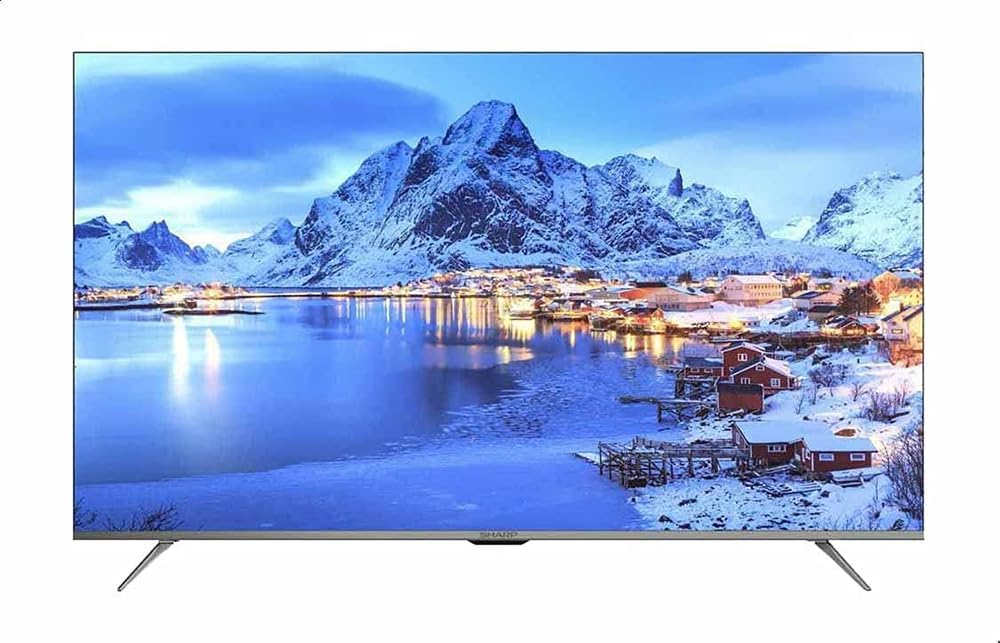
figuer 4.1: Front view of the Sharp 65-inch Smart Android TV with its stand attached, displaying a vibrant landscape image.

Figuer 4.2: Skeakele foarkant view of the Sharp 65-inch Smart Android TV, showcasing the slim bezel and stand design.
4.2 Eksterne apparaten ferbine
Your TV offers various ports for connecting external devices. Refer to the diagram below for port locations.

Figuer 4.3: Sideprofile of the Sharp 65-inch Smart Android TV, highlighting the various input ports available for connectivity.
- HDMI-poarten: Connect Blu-ray players, game consoles, cable/satellite boxes, etc.
- USB-poarten: Ferbine USB-opslachapparaten foar it ôfspyljen fan media.
- Antenne/kabelynfier: Connect your antenna or cable for broadcast TV.
- Ethernet-poarte: Foar in bedrade ynternetferbining.
4.3 Foar it earst oansette
Nei it ferbinen fan alle nedige kabels:
- Stek de stroomkabel yn 'e tv en dan yn in stopkontakt.
- Druk op de oan/út-knop op 'e ôfstânsbetsjinning of op 'e tv sels.
- Follow the on-screen instructions to complete the initial setup, including language selection, network connection (Wi-Fi or Ethernet), and Google account sign-in for Android TV features.

figuer 4.4: Close-up view of the power and control buttons located on the television unit.
5. Betelje jo tv
5.1 Remote Control Overview
The included remote control allows you to navigate your TV's features. Familiarize yourself with its buttons:
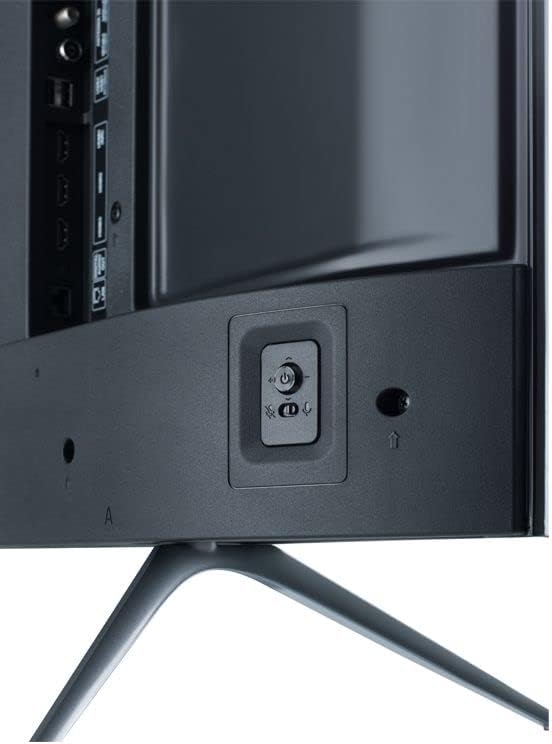
Figure 5.1: The Sharp Smart TV remote control, featuring dedicated buttons for popular streaming services and voice control.
- Krêft: Skeakelt de TV oan of út.
- Nûmerknoppen: Selektearje kanalen direkt.
- Navigaasjepad (omheech/omleech/lofts/rjochts/OK): Navigearje troch menu's en selektearje opsjes.
- Rêch: Gean werom nei it foarige skerm.
- Thús: Jout tagong ta it thússkerm fan Android TV.
- Volume +/-: Past it folumenivo oan.
- Kanaal +/-: Feroaret tv-kanalen.
- Boarne: Selektearret ynfierboarnen (HDMI, AV, TV).
- Netflix/YouTube/Prime Video Buttons: Direct access to these applications.
- Google Assistent-knop: Aktivearret stimkontrôle.
5.2 Android TV-ynterface
Your TV runs on Android 10.0, providing access to a wide range of apps and services. The home screen displays your favorite apps, recommended content, and settings.

Figure 5.2: The Android TV home screen, showing various applications and content recommendations.
- Apps: Access installed applications from the 'Apps' row.
- Google Play Store: Download nije apps, spultsjes en ynhâld.
- Ynstellings: Customize TV settings, network connections, and user preferences.
- Google Assistant: Brûk stimkommando's om nei ynhâld te sykjen, smart home-apparaten te kontrolearjen en ynformaasje te krijen.
5.3 Switching Input Sources
To switch between connected devices (e.g., a game console on HDMI 1, a Blu-ray player on HDMI 2, or the built-in receiver):
- Druk op de Boarne knop op jo ôfstânsbetsjinning.
- Use the navigation buttons to highlight the desired input source.
- Parse OK om it te selektearjen.
6. Underhâld
6.1 It TV-skerm skjinmeitsje
Om it skerm skjin te meitsjen, feegje it sêft ôf mei in sêfte, pluisfrije doek. Foar koppige plakken, dûb it lichtjesampMeitsje de doek skjin mei wetter of in spesjalisearre skermreiniger. Spuit de reiniger nea direkt op it skerm.
6.2 Cleaning the TV Casing
Wiskje de tv casing with a soft, dry cloth. Avoid using abrasive cleaners or solvents, as they may damage the finish.
7. Probleemoplossing
As jo problemen hawwe mei jo tv, sjoch dan nei de folgjende faak foarkommende problemen en oplossingen:
| Probleem | Mooglike oplossing |
|---|---|
| Gjin macht | Ensure the power cable is securely plugged into both the TV and the wall outlet. Check if the outlet is working. |
| Gjin byld, mar lûd is oanwêzich | Check the input source selection. Ensure external devices are powered on and connected correctly. |
| Gjin lûd, mar byld is oanwêzich | Kontrolearje it folumenivo en soargje derfoar dat de tv net stil stiet. Ferifiearje audiokabels foar eksterne apparaten. |
| Remote control wurket net | Ferfang de batterijen yn 'e ôfstânsbetsjinning. Soargje derfoar dat der gjin obstakels binne tusken de ôfstânsbetsjinning en de IR-sensor fan 'e tv. |
| Smart TV-funksjes binne stadich of reagearje net | Check your internet connection. Restart the TV by unplugging it for a few minutes and plugging it back in. Clear app caches if necessary. |
8. Spesifikaasjes
Key technical specifications for the Sharp 65-inch 4K Ultra HD LED Smart Android TV (Model 4T-C65DL6EX):
- Skermgrutte: 65 ynms
- Display technology: LED
- Resolúsje: 4K Ultra HD
- Ferfarskingsfrekwinsje: 60 Hz
- Bestjoeringssysteem: Android 10.0
- Konnektivität technology: Wi-Fi
- Aspektferhâlding: 16:9
- Model nûmer.: 4T-C65DL6EX
- Fabrikant: Skerp
- Item Ofmjittings (D x B x H): 29D x 144.8W x 89.9H sintimeter
- Ofmjittings fan it pakket: 50 x 50 x 18 sm; 21kg

Figure 8.1: Dimensional diagram of the Sharp 65-inch Smart Android TV, indicating height, width, and depth.
9. Garânsje en stipe
For warranty information and technical support, please refer to the documentation provided with your purchase or contact your local Sharp authorized service center. In some regions, support may be provided by Al-Araby Group.