
Ynlieding
The Samsung Galaxy S21 FE 5G is a factory unlocked Android smartphone designed to enhance your daily mobile experience. It features a 120Hz display, a powerful processor, a pro-grade camera system, and an all-day intelligent battery. This manual provides essential information for setting up, operating, maintaining, and troubleshooting your device.

figuer 1: Front view of the Samsung Galaxy S21 FE 5G smartphone.
Opsette
Inisjele opset
Upon first powering on your device, follow the on-screen prompts to select your language, connect to a Wi-Fi network, and sign in with your Google account. This process will guide you through essential configurations to get your phone ready for use.
SIM Card Ynstallaasje
The Galaxy S21 FE 5G supports Dual SIM functionality using Nano SIM cards. To install your SIM card(s):
- Sykje de SIM-kaartlade oan 'e kant fan it apparaat.
- Stek it SIM-útwurptool yn it lytse gat neist de lade en druk sêft oant de lade derút komt.
- Plak jo Nano SIM-kaart(en) yn 'e lade mei de gouden kontakten nei ûnderen. Soargje derfoar dat se goed ynfoege binne.
- Set de bak foarsichtich yn it apparaat.
Power On/Off
- Om oan te setten: Druk en hâld de oan/út-knop/sydknop yndrukt oant it Samsung-logo ferskynt.
- Om út te skeakeljen: Press and hold the Power/Side key and the Volume Down button simultaneously, then tap 'Power off' on the screen. Alternatively, swipe down from the top of the screen to open the Quick Panel, tap the Power icon, and select 'Power off'.
Bedriuwen fan it apparaat
Display en navigaasje
Experience smooth scrolling and vibrant visuals on the 6.4-inch Dynamic AMOLED 2X display with a 120Hz refresh rate and 2560 x 1440 resolution. The display offers a fast touch response for seamless interaction, even in bright sunlight.

Figure 2: The Dynamic AMOLED 2X display of the Galaxy S21 FE 5G.
Kamera Features
The Galaxy S21 FE 5G is equipped with a powerful pro-grade camera system:
- Efterkamera: 12MP Ultra Wide, 12MP Wide-angle, and 8MP Telephoto.
- Foarste kamera: 32MP selfie-kamera.
- 30x Space Zoom: Combines 3x Hybrid Optic Zoom and 30x digital zoom for high-resolution close-ups, with EngageZoom Lock to reduce shakiness.
- Nachtmodus: Capture crisp images in vivid color, even in low-light conditions.

Figure 3: Portrait mode capabilities of the Galaxy S21 FE 5G camera.

Figure 4: Night mode feature for enhanced low-light photography.
Batterij Management
The device features a 4500mAh intelligent battery designed to last all day, even with 5G usage. Super Fast Charging can charge 50% of the battery in approximately 30 minutes. Average battery life for talk time is 37 hours.

Figure 5: All-day intelligent battery of the Galaxy S21 FE 5G.
Optreden
Powered by an efficient Snapdragon processor with 6GB RAM, the Galaxy S21 FE 5G delivers reliable performance for graphic-heavy gaming and multitasking.
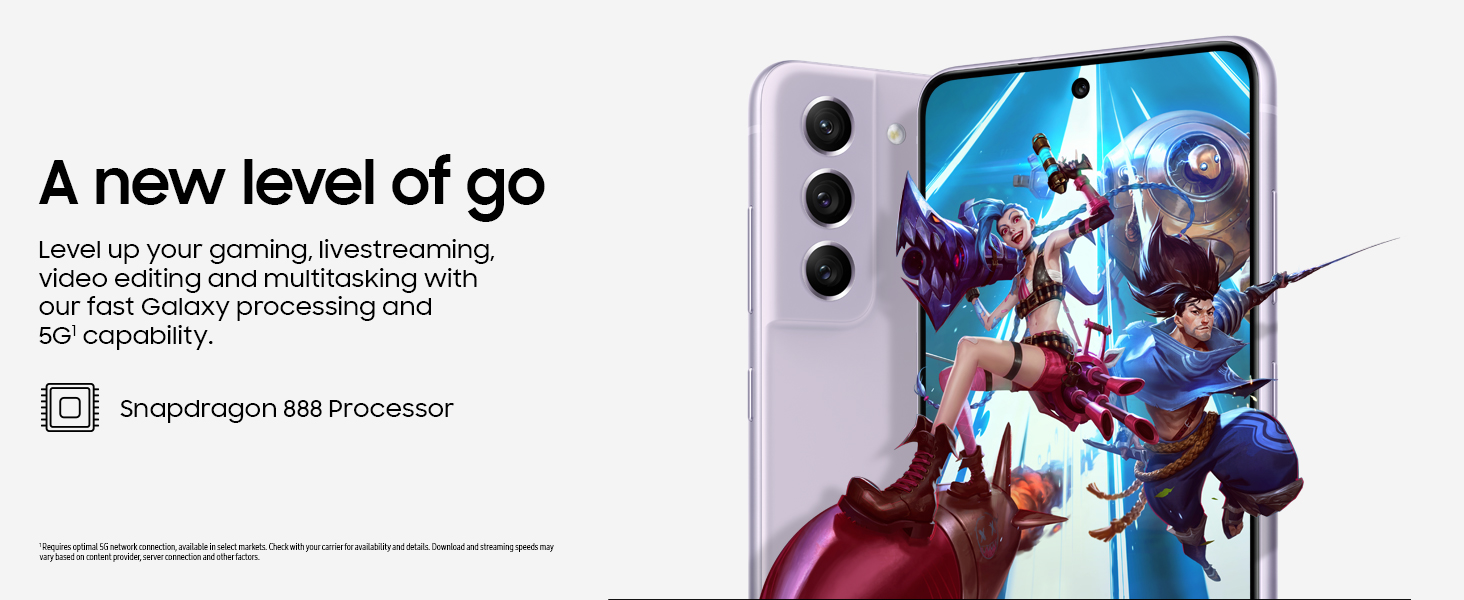
Figure 6: High-performance processor for gaming and multitasking.
Konnektivität
The device supports 5G cellular technology, Wi-Fi, Bluetooth, and NFC for versatile connectivity options. It is an unlocked device, allowing flexibility with wireless carriers.
Ûnderhâld
Cleaning
To clean your device, gently wipe the screen and body with a soft, lint-free cloth. Avoid using harsh chemicals or abrasive materials that could damage the screen or finish.
Software Updates
Regularly check for and install software updates to ensure your device has the latest features, security patches, and performance improvements. You can usually find this option in the device's Settings menu under 'Software update'.
Fabriek weromsette
A factory reset will erase all data from your phone and restore it to its original factory settings. This can be useful for troubleshooting persistent issues or preparing the device for transfer to a new owner. Before performing a factory reset, ensure all important data is backed up to an external storage device or cloud service.
Video 1: Instructions on how to perform a factory reset on an Android phone. This process will erase all data and restore the device to its default settings.
Troubleshooting
As jo problemen hawwe mei jo apparaat, besykje dan de folgjende basisstappen foar probleemoplossing:
- Restart it apparaat: In ienfâldige opnij starte kin faak lytse softwareproblemen oplosse.
- Kontrolearje op software-updates: Soargje derfoar dat jo apparaat de lêste softwareferzje brûkt.
- Clear app cache/data: As in spesifike app problemen feroarsaket, besykje dan de cache of gegevens te wiskjen yn Ynstellings > Apps.
- Kontrolearje de netwurkferbining: For connectivity issues, verify Wi-Fi or cellular data is enabled and working correctly.
- Kontrolearje de brûker hânboek: For more detailed solutions, refer to the comprehensive user manual available through the device settings.
Spesifikaasjes
| Eigenskip | Spesifikaasje |
|---|---|
| Merk | Samsung |
| Model Namme | Galaxy S21 FE 5G |
| Bestjoeringssysteem | Android 12.0 |
| CPU Model | Snapdragon |
| RAM-ûnthâld ynstalleare grutte | 6 GB |
| Unthâld Storage Kapasiteit | 256 GB |
| Skermgrutte | 6.4 ynms |
| Resolúsje | 2560 x 1440 |
| Ferfarskje Rate | 120 Hz |
| Cellular Technology | 5G |
| Draadloze netwurktechnology | Wi-Fi |
| Konnektivität Technology | Bluetooth, NFC, USB, Wi-Fi |
| Rear Facing Camera Photo Sensor Resolution | 12 MP |
| Resolúsje fan 'e foarste fotosensor | 32 MP |
| Batterij Kapasiteit | 4500 miljamp Oeren |
| Wetter Resistance Level | Wetterdicht |
| Item Gewicht | 190g wy |
Garânsje en stipe
The Samsung Galaxy S21 FE 5G comes with a 1-Year Manufacturer Warranty. For warranty claims or technical support, please contact Samsung customer service or visit their official support website. You can also find additional support resources and user manuals in the device's settings under 'User manual'.