
Ynlieding
This manual provides instructions for the Belkin 5-in-1 Multiport Hub Adapter, Model INC008btBK. This adapter is designed to expand connectivity for Chromebook and Chrome OS devices, offering ports for 4K video output, power delivery, USB peripherals, and a wired internet connection. It supports fast charging up to 86W and video resolutions up to 4K at 60Hz via its HDMI port. The hub includes two USB-A 3.1 Gen 1 ports and a Gigabit Ethernet port. It is Works With Chromebook certified, ensuring compatibility with Chrome OS.

The Belkin 5-in-1 Multiport Hub Adapter, a compact black device with an integrated USB-C cable.
Produkt Features
- Chromebook optimized adapter provides automatic firmware updates directly through Chrome OS.
- Certified to meet Google's compatibility standards for Chrome OS devices.
- Features 2x USB-A 3.1 Gen 1 ports for connecting peripherals.
- Includes a Gigabit Ethernet port for a stable wired internet connection.
- Equipped with a 4K HDMI port supporting resolutions up to 4K at 60Hz.
- USB-C port supports pass-through charging up to 100W (minus 15W for adapter operation), delivering up to 86W to connected devices.
- Tethered USB-C cable for easy connection to your Chromebook.
Pakketynhâld
- Belkin 5-in-1 Multiport Hub Adapter (Model INC008btBK)
Setup Ynstruksjes
Follow these steps to set up your Belkin 5-in-1 Multiport Hub Adapter:
- Connect to your Chromebook: Plug the integrated USB-C cable from the hub into an available USB-C port on your Chromebook or compatible device.
- Stroom oanslute (opsjoneel): For charging your Chromebook and connected devices, connect a USB-C power adapter (minimum 65W recommended) to the USB-C Power Delivery (PD) port on the hub. This port supports up to 100W pass-through charging.
- Ferbine HDMI-skerm (opsjoneel): Use an HDMI cable to connect your external monitor or display to the HDMI port on the hub. Ensure your display is set to the correct input source.
- Ferbine USB-randapparaten (opsjoneel): Plug your USB-A devices, such as a mouse, keyboard, or external storage, into the two USB-A 3.1 Gen 1 ports on the hub.
- Ferbine Ethernet (Opsjoneel): For a wired internet connection, connect an Ethernet cable from your router or modem to the Gigabit Ethernet port on the hub.
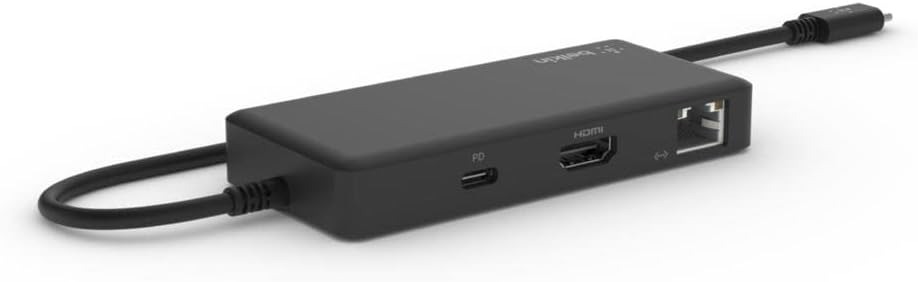
A view of the Belkin Multiport Hub's side, displaying the HDMI, USB-C Power Delivery, and Gigabit Ethernet ports.
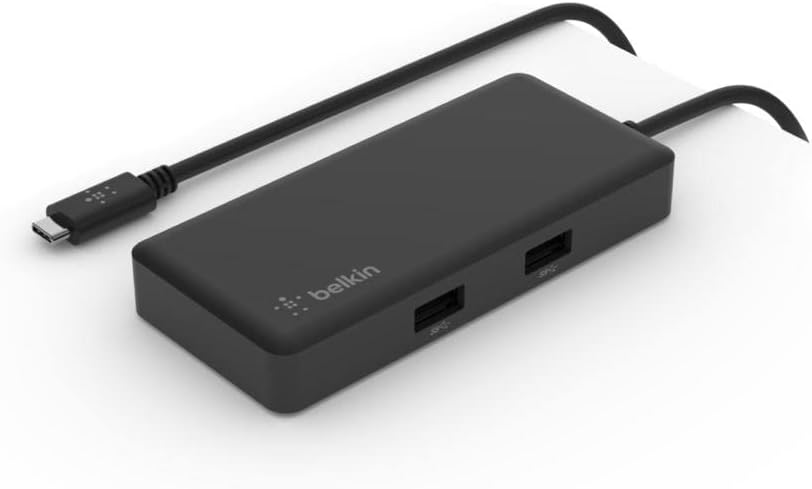
In hoeke view of the Belkin Multiport Hub, highlighting the two USB-A 3.1 Gen 1 ports on its top surface.
Operating Instructions
Once connected, the Belkin 5-in-1 Multiport Hub Adapter operates automatically with your Chromebook. Chrome OS will detect connected devices and displays.
- Display útfier: Your Chromebook should automatically extend or mirror its display to the connected HDMI monitor. Adjust display settings in Chrome OS if needed.
- USB-apparaten: USB-A peripherals will function as soon as they are plugged into the hub.
- Netwurkferbining: The Gigabit Ethernet port provides a stable wired network connection, which will be prioritized over Wi-Fi when connected.
- Power Delivery: Ensure your external USB-C power adapter meets the recommended wattage for optimal charging performance, especially when using multiple hub functions.

The Belkin Multiport Hub connected to a laptop, demonstrating its use with an external monitor (via HDMI) and other USB peripherals.
Ûnderhâld
To ensure the longevity and optimal performance of your Belkin Multiport Hub:
- Keep the adapter clean by wiping it with a soft, dry cloth. Avoid liquid cleaners.
- Bewarje de adapter op in koel, droech plak, fuort fan direkt sinneljocht en ekstreme temperatueren.
- Avoid bending or stressing the integrated USB-C cable excessively.
Troubleshooting
- Gjin werjefte op eksterne monitor:
- Soargje derfoar dat de HDMI-kabel feilich ferbûn is mei sawol de hub as de monitor.
- Verify the monitor's input source is set to HDMI.
- Check your Chromebook's display settings to ensure the external display is detected and configured correctly.
- Besykje in oare HDMI-kabel of monitor as it mooglik is.
- USB-apparaten wurkje net:
- Ensure the USB-A devices are fully inserted into the hub's ports.
- Test the USB device by connecting it directly to your Chromebook (if possible) to rule out device issues.
- If using high-power USB devices, ensure the hub is connected to a power adapter.
- Gjin ynternetferbining fia Ethernet:
- Kontrolearje oft de Ethernet-kabel feilich ferbûn is mei sawol de hub as jo router/modem.
- Check the network status on your Chromebook.
- Soargje derfoar dat jo router/modem goed wurket.
- Chromebook Not Charging:
- Ensure a USB-C power adapter is connected to the hub's USB-C PD port.
- Verify the power adapter is functioning and provides sufficient wattage (minimum 65W recommended for optimal pass-through charging).
- Check the charging indicator on your Chromebook.
Spesifikaasjes
| Merk | Belkin |
| Model Number | INC008btBK |
| Hardware ynterface | Ethernet, USB-C, HDMI, USB-A |
| Oantal havens | 5 (2x USB-A, 1x HDMI, 1x USB-C PD, 1x Ethernet) |
| USB-A havens | 2x USB 3.1 Gen 1 |
| HDMI-útfier | Oant 4K @ 60Hz |
| USB-C Power Delivery | Up to 86W to host (100W pass-through minus 15W for adapter) |
| Ethernet | Gigabit Ethernet (1 Gbps) |
| Kompatibele apparaten | Laptops (Chromebooks, Chrome OS devices) |
| Bestjoeringssysteem | Chrome OS |
| Materiaal | Plestik |
| Item Ofmjittings (L x B x H) | 5.91" x 0.50" x 30.31" (approximate, based on provided data) |
| Item Gewicht | 0.12 kilogram |
Garânsje en stipe
For warranty information and technical support, please visit the official Belkin website or contact Belkin customer service. Product registration may be available for extended warranty benefits.
Jo kinne mear ynformaasje en stipemiddels fine op 'e Belkin Store.