
1. Ynlieding
This manual provides essential information for setting up, operating, maintaining, and troubleshooting your Alienware X17 R2 Gaming Laptop. Please read this guide thoroughly to ensure optimal performance and longevity of your device.
The Alienware X17 R2 is designed for high-performance gaming and demanding tasks, featuring advanced cooling technologies, powerful processors, and dedicated graphics.
2. Produkt Overview
The Alienware X17 R2 is engineered to deliver an immersive gaming experience in a thin 17-inch form factor. Key features include:
- Powerful Intel CPUs: Experience high-performance action across all your favorite games with 12th Gen Intel Core processors.
- Next-Gen GPUs: Game unrestrained with NVIDIA GeForce RTX 3070Ti graphics, Dynamic Boost 2.0, and Deep Learning Super Sampling technology.
- Patented Quad Cooling: An industry-first design uses four intelligently controlled and programmable fans to dissipate heat.
- Ferlingde spieltiid: Improve battery life with Advanced Optimus technology from NVIDIA—now available on all display options.
- Legend 2.0 Industrial Design: A fresh evolution in design with a high-endurance finish and customizable AlienFX lighting.

figuer 2.1: Front view of the Alienware X17 R2 Gaming Laptop displaying a game.
3. Opsette
3.1 Útpakken en earste ynspeksje
- Helje de laptop en alle accessoires foarsichtich út 'e ferpakking.
- Kontrolearje oft alle items dy't neamd binne yn 'e seksje "Wat sit der yn 'e doaze" oanwêzich binne.
- Ynspektearje de laptop op fysike skea. As der skea fûn wurdt, nim dan direkt kontakt op mei jo winkelier.
3.2 Ferbine Power
- Connect the power adapter to the charging port located at the rear of the laptop.
- Stek de macht cord yn in muorre outlet.
- The power indicator light will illuminate, indicating the laptop is receiving power.
3.3 Earste opstart en ynstallaasje fan it bestjoeringssysteem
- Press the Alienware head power button to turn on the laptop.
- Folgje de ynstruksjes op it skerm om it ynstallaasjeproses fan Windows 11 Home te foltôgjen. Dit omfettet it selektearjen fan jo regio, it ferbinen mei in Wi-Fi-netwurk en it oanmeitsjen fan in brûkersaccount.
- Lit it systeem alle nedige updates downloade en ynstallearje.
4. Betsjinjen fan jo laptop
4.1 Toetseboerd en touchpad
The Alienware X17 R2 features a backlit keyboard and a responsive touchpad. The AlienFX lighting allows for customizable colors and effects across the keyboard and other zones.

figuer 4.1: Detailed view fan it efterljochte toetseboerd en touchpad.
4.2 Werjefte en grafiken
Enjoy stunning visuals on the 17.3-inch FHD display with a 480Hz refresh rate and 3ms response time. The NVIDIA GeForce RTX 3070Ti graphics card ensures smooth gameplay and high-fidelity rendering. The laptop supports Dolby Vision for optimized color profiles.
4.3 audio
Experience immersive 3D sound via Dolby Atmos, designed to deliver audio as studios intended.
4.4 Poarten en Konnektivität
The laptop offers a variety of ports for peripherals and external displays:

figuer 4.2: Rear view illustrating the various connectivity ports.
- USB 3.0-poarten: 3 ports for connecting various USB devices.
- USB-C havens: For versatile connectivity, including Thunderbolt 4.
- HDMI 2.1: Supports up to 4K/120Hz output for external displays.
- Ethernet: Killer E3100 RJ45 Ethernet for stable wired network connections.
- Wireless: Killer Wi-Fi 6 (802.11ax) and Bluetooth for wireless connectivity.
5. Underhâld
5.1 Cleaning
- Brûk in sêfte, pluisfrije doek om it skerm en de bûtenste oerflakken skjin te meitsjen.
- Mije it brûken fan hurde gemikaliën of abrasive materialen.
- Regularly clean the cooling vents to prevent dust buildup, which can affect performance.
5.2 Software Updates
Ensure your operating system and drivers are kept up-to-date. Windows Update will handle OS updates, and Alienware Command Center can assist with driver and firmware updates.
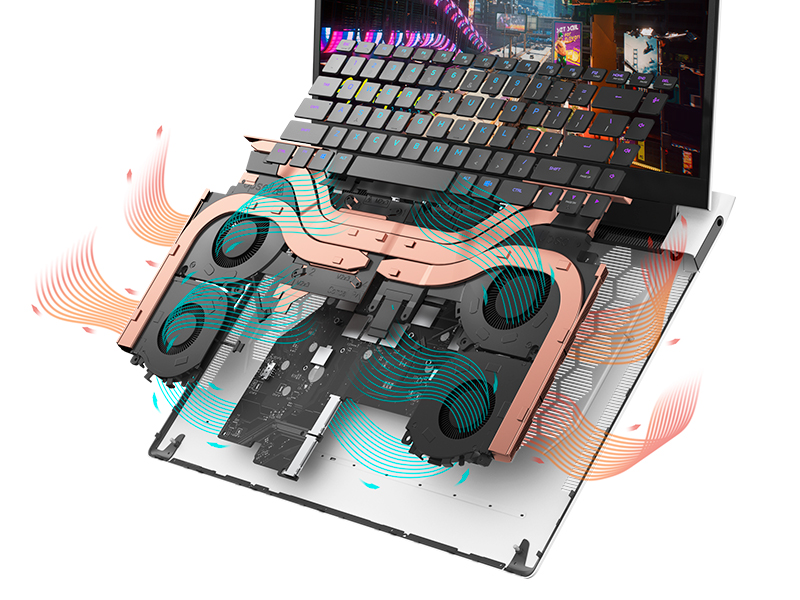
Figure 5.1: Alienware Command Center for system management.
6. Probleemoplossing
If you encounter issues with your Alienware X17 R2, consider the following basic troubleshooting steps:
- Gjin macht: Ensure the power adapter is securely connected to both the laptop and a working power outlet. Check the power indicator light.
- Displayproblemen: If the screen is black, try connecting an external monitor to verify if the issue is with the laptop's display or the graphics card. Update graphics drivers.
- Oververhitting: Ensure cooling vents are clear of obstructions. Use Alienware Command Center to monitor temperatures and adjust fan profiles.
- Prestaasjefertraging: Close unnecessary applications. Check for background processes consuming high CPU or RAM. Ensure sufficient free space on the SSD.
- Softwareproblemen: Restart the laptop. If issues persist, consider performing a system restore or reinstalling the problematic software.
7. Spesifikaasjes
| Eigenskip | Spesifikaasje |
|---|---|
| Skermgrutte | 17.3 ynms |
| Skermresolúsje | 1920 x 1080 piksels (FHD) |
| Prozessor | Intel Core i9-12900H (3.8 GHz, 14 Cores) |
| RAAM | 16 GB DDR5 (4800 MHz) |
| Hard Drive | 1 TB SSD (Solid State) |
| Graphics Coprocessor | NVIDIA GeForce RTX 3070 Ti (8 GB GDDR6) |
| Bestjoeringssysteem | Windows 11 Thús |
| Wireless Type | 802.11ax (Killer Wi-Fi 6), Bluetooth |
| USB 3.0 havens | 3 |
| Item Gewicht | 6.82 pyk |
| Produkt Ofmjittings | 11.79 x 15.72 x 0.58 inch |
8. Wat sit der yn 'e doaze
- Alienware X17 R2 Gaming Laptop
- Stromadapter
- Power Cord
- Dokumintaasje
9. Offisjele produktfideo's
Alienware X17 R2 Gaming Laptop Overview
Fideo 9.1: In offisjele oerwinningview of the Alienware X17 R2 Gaming Laptop, highlighting its design, cooling, and performance features.
About Alienware X17 R2 Gaming Laptop
Video 9.2: A detailed look at the Alienware X17 R2 Gaming Laptop, showcasing its features and design elements.
10. Garânsje en stipe
Your Alienware X17 R2 Gaming Laptop comes with a standard manufacturer's warranty. For detailed warranty information, please refer to the documentation included with your product or visit the official Alienware support website.
For technical support, driver downloads, and service requests, please visit the Alienware support portal. You can also find FAQs and community forums for additional assistance.