
1. Ynlieding
This manual provides detailed instructions for the installation, operation, and maintenance of the PeakDo Wireless HDMI Transmitter and Receiver P3 S. This device is designed to wirelessly transmit uncompressed 1080P Full HD video and digital audio with zero latency, making it ideal for various applications including gaming, home entertainment, and professional presentations. The P3 S model features a USB-C port on the receiver for compatibility with AR smart glasses and portable monitors, in addition to standard HDMI output.

Figure 1: PeakDo Wireless HDMI Transmitter (left) and Receiver (right).
2. Produkt Overview
2.1 Key Features
- Wireless AR Smart Glasses Setup: Features a Type-C port on the Receiver for direct connection to AR smart glasses (e.g., XREAL Air, Rokid Max/Air, RayNeo, VITURE One) and portable monitors, enabling cable-free AR experiences.
- Uncompressed FHD Video & Digital Audio: Transmits 1080P Full HD video and digital audio without compression, ensuring high-quality output.
- Zero Latency Transmission: Provides 0 latency for real-time applications such as live sports, synchronized gaming, and interactive meetings.
- Plug and Play-operaasje: Requires no Wi-Fi connection or app installation for setup.
- Wide kompatibiliteit: Transmitter (TX) connects to PC, Laptop, Xbox, PlayStation, Nintendo Switch, TV Box. Receiver (RX) connects to TVs, monitors, projectors via HDMI, and AR smart glasses/portable monitors via USB-C.
- Oerdracht berik: Effective wireless transmission up to 100 feet (approximately 30 meters).
2.2 Pakketynhâld
Kontrolearje asjebleaft oft alle items yn it pakket oanwêzich binne:
- PeakDo Wireless HDMI Transmitter (TX)
- PeakDo Wireless HDMI Receiver (RX)
- USB Power Cable(s)
- User Manual (dit dokumint)
3. Setup Ynstruksjes
3.1 De stjoerder (TX) ferbine
- Connect the HDMI end of the Transmitter (TX) to the HDMI output port of your source device (e.g., PC, laptop, game console, TV box).
- Connect the USB power cable to the TX unit and plug the other end into a USB power source (e.g., a USB port on your source device, a USB wall adapter). Ensure the TX receives at least 5V 2A power supply.

Figure 2: Compatible input (TX) and output (RX) devices.
3.2 De ûntfanger (RX) ferbine
- Belangryk: First, connect the USB power cable to the RX unit and plug the other end into a USB power source (e.g., a USB wall adapter). Ensure the RX receives at least 5V 2A power supply. The RX unit requires sufficient power to function correctly.
- For HDMI displays (TV, Monitor, Projector): Connect an HDMI cable from the HDMI output port of the Receiver (RX) to the HDMI input port of your display device.
- For AR Smart Glasses or Portable Monitors: Connect a USB-C cable from the Type-C port on the Receiver (RX) to the USB-C input port of your AR smart glasses or portable monitor.
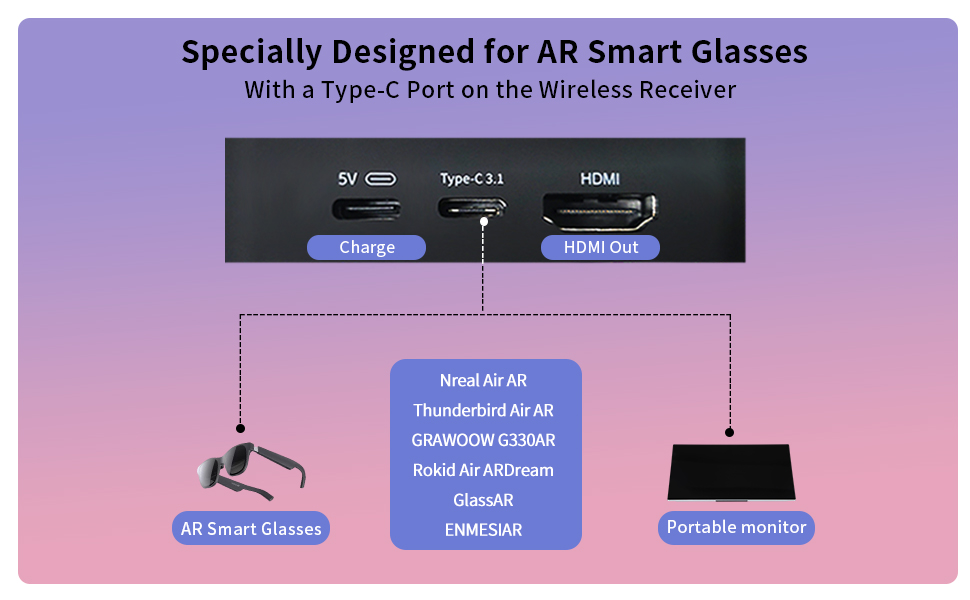
Figure 3: Receiver ports (5V power, Type-C 3.1, HDMI) and AR glasses compatibility.
Noat: For certain AR glasses like Nreal, you may need to upgrade their firmware for optimal compatibility. Refer to your AR glasses manufacturer's instructions for firmware updates.
4. Bedriuwsinstruksjes
4.1 Ynskeakelje en keppelje
Once both the Transmitter (TX) and Receiver (RX) units are connected to their respective power sources and devices, they will automatically power on and attempt to pair. The system is designed for plug-and-play operation, requiring no manual pairing steps or software installation.

Figure 4: Plug and Play setup in a meeting environment.
4.2 Gebrûksscenario's
- Gaming: Experience zero-latency gaming on a large screen or through AR glasses.
- Home Entertainment: Stream movies, TV shows, or other media from your PC or TV box to any display.
- Presentations/Meetings: Share content wirelessly from your laptop to a projector or large monitor in a conference room.
- AR Experiences: Connect directly to compatible AR smart glasses for immersive gaming or productivity.
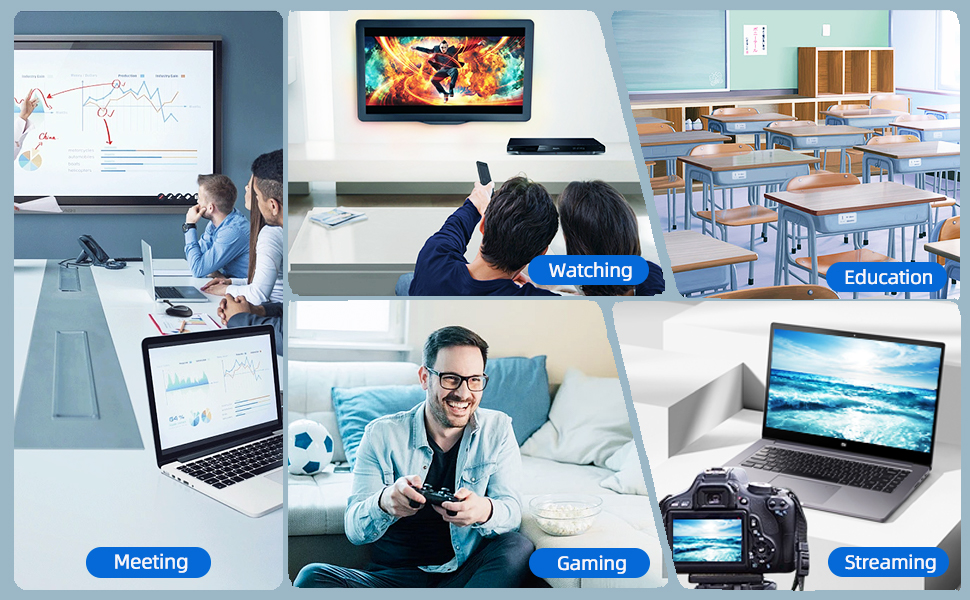
Figure 5: Diverse applications of the PeakDo Wireless HDMI system.

Figuer 6: Example of a wireless AR gaming setup.
5. Underhâld
The PeakDo Wireless HDMI Transmitter and Receiver P3 S requires minimal maintenance.
- Reiniging: Brûk in sêfte, droege doek om de bûtenkant fan 'e ienheden skjin te meitsjen. Brûk gjin floeibere skjinmakkers of spuitbussen.
- Opslach: As se foar langere perioaden net yn gebrûk binne, bewarje de apparaten dan op in koel, droech plak, fuort fan direkt sinneljocht en ekstreme temperatueren.
- Streamtafier: Always ensure both TX and RX units receive adequate power (5V 2A) from a stable power source.
6. Probleemoplossing
6.1 No Signal / Black Screen
- Kontrolearje macht: Ensure both the Transmitter (TX) and Receiver (RX) units are properly powered. The RX unit specifically requires sufficient power (5V 2A) and should be powered first before connecting the HDMI/USB-C cable to the display.
- Kabelferbiningen: Verify that all HDMI and USB-C cables are securely connected to their respective ports on the devices and displays.
- Utfier fan boarneapparaat: Confirm that your source device (PC, game console) is outputting video correctly. Try connecting the source device directly to the display with a cable to rule out issues with the source.
- Display Input: Ensure your display (TV, monitor, projector, AR glasses) is set to the correct input source (e.g., HDMI 1, USB-C).
- Apparaten opnij starte: Disconnect power from both TX and RX units, then reconnect. Also, restart your source device and display.
6.2 Intermittent Signal / Flickering
- Ofstân en obstakels: Reduce the distance between the TX and RX units. Ensure there are no significant physical obstructions (walls, large furniture) between them that could interfere with the wireless signal.
- Ynterferinsje: Keep the units away from other wireless devices (e.g., Wi-Fi routers, cordless phones, microwave ovens) that operate on similar frequencies.
- Streamtafier: Ensure stable and sufficient power supply to both units. Fluctuations in power can affect signal stability.
6.3 Gjin lûd
- Ynstellings foar boarne-audio: Check the audio output settings on your source device to ensure audio is being sent via HDMI.
- Display Audio: Verify that the audio on your display device (TV, monitor, AR glasses) is not muted and the volume is turned up.
- Kabel yntegriteit: Ensure the HDMI or USB-C cable connecting the RX to the display is not damaged.
6.4 AR Glasses Compatibility Issues
- Firmware-fernijing: As mentioned in the setup, some AR glasses (e.g., Nreal) may require a firmware update to work correctly with external video sources. Consult your AR glasses manufacturer's support.
- Power to RX: Ensure the RX unit is adequately powered, especially when connecting to power-hungry AR glasses.
- USB-C kabel: Use a high-quality USB-C cable that supports video transmission.
7. Spesifikaasjes
| Eigenskip | Beskriuwing |
|---|---|
| Model Number | P3 S. |
| Fideo kodearring | YUV422 or RGB444 (uncompressed 1080P) |
| Resolúsje Support | Oant 1080P Full HD |
| Wachttiid | 0 Wachttiid |
| Konnektivität Technology | Wireless (Millimeter Wave) |
| Oerstjoerings Berik | Oant 100 foet (sawat 30 meter) |
| Compatible Transmitter Devices | PC, Laptop, Xbox, PS4, PS5, Switch, PS3, TV Box, etc. |
| Compatible Receiver Devices | TV, Monitor, Projector (via HDMI); AR Smart Glasses, Portable Monitor (via USB-C) |
| Totaal HDMI Ports | 1 (on Receiver) |
| Connector Type | HDMI, Micro USB (for power), USB-C (on Receiver) |
| Audioútfiermodus | Mono (Digital Audio) |
| Surround Sound Channel Konfiguraasje | 2.0 |
| Streamtafier | 5V 2A (for both TX and RX units) |
| Item Gewicht | 1.08 pûn (sawat 0.49 kg) |
| Package Ofmjittings | 6.73 x 5.83 x 2.48 inch (sawat 17.1 x 14.8 x 6.3 sm) |
8. Garânsje en stipe
For warranty information and technical support, please refer to the official PeakDo webside of nim direkt kontakt op mei harren klanttsjinst. Bewarje jo oankeapbewiis foar garânsjeclaims.
- Fabrikant: PeakDo
- Datum earst beskikber: 16 maart 2023
- Klant Reviews: 3.3 out of 5 stars (based on 6 ratings at time of data extraction)