
1. Ynlieding
This manual provides comprehensive instructions for the Maxcom Fit FW55 Aurum Pro Smartwatch. It covers essential information regarding product setup, operation, maintenance, and troubleshooting to ensure optimal performance and user experience. Please read this manual carefully before using your device.
2. Package Ynhâld
Kontrolearje asjebleaft dat alle hjirûnder neamde items oanwêzich binne yn jo produktpakket:
- Maxcom Fit FW55 Aurum Pro Smartwatch
- Oplaadkabel
- User Manual (dit dokumint)
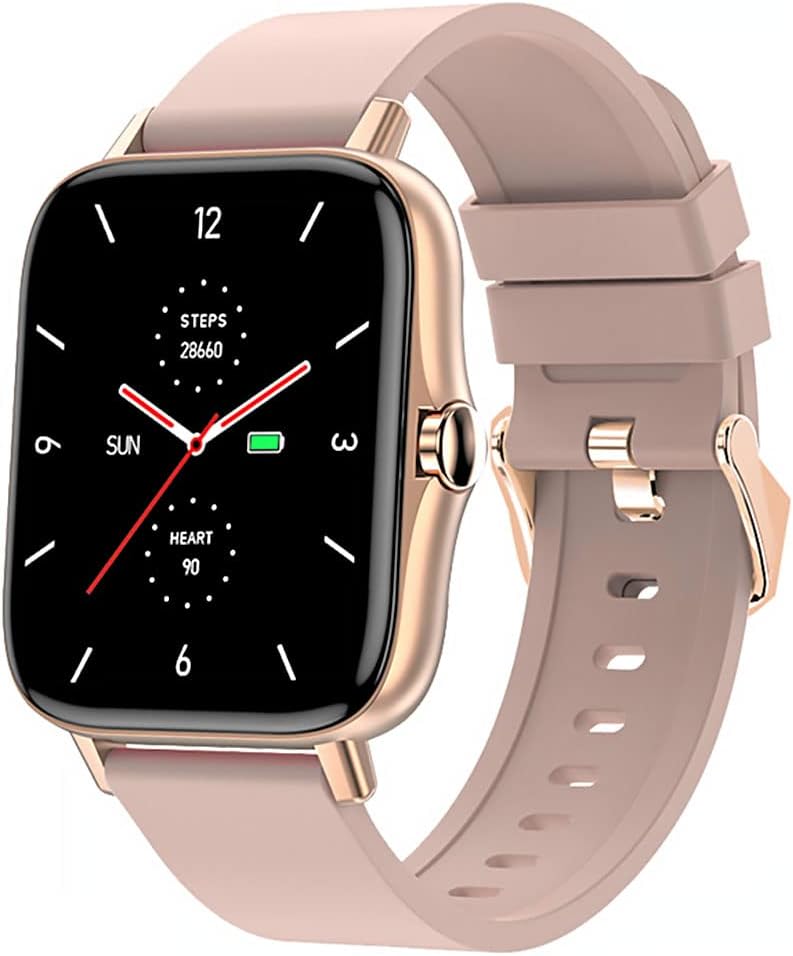
Image 1: Maxcom Fit FW55 Aurum Pro Smartwatch with a pink silicone band. The watch face displays steps, heart rate, and time.
3. Opsette
3.1. De smartwatch oplade
Before initial use, fully charge your Maxcom Fit FW55 Aurum Pro Smartwatch. Connect the provided charging cable to the charging port on the back of the smartwatch and plug the other end into a standard USB power adapter (not included) or a computer's USB port. The watch display will indicate charging status.
- Ensure the charging pins are clean and properly aligned with the watch's charging contacts.
- In folsleine lading duorret normaal sawat 2 oeren.
3.2. Koppelje mei jo smartphone
To unlock the full functionality of your smartwatch, you need to pair it with your smartphone via Bluetooth.
- Download de app: Sykje nei the official Maxcom Fit application in your smartphone's app store (iOS App Store or Google Play Store) and install it.
- Bluetooth ynskeakelje: Soargje derfoar dat Bluetooth ynskeakele is op jo smartphone.
- Iepenje de app: Launch the Maxcom Fit application on your smartphone.
- Apparaat taheakje: Follow the in-app instructions to add a new device. Select "FW55 Aurum Pro" from the list of available devices.
- Pairing befêstigje: A pairing request may appear on both your smartphone and the smartwatch. Confirm the pairing on both devices.
Once successfully paired, the smartwatch will synchronize data with your phone, and you can customize settings through the app.
4. De Smartwatch betsjinje
4.1. Power On / Off
- Power On: Press and hold the side button for a few seconds until the Maxcom logo appears.
- Útskeakelje: From the watch face, swipe down to access quick settings, or navigate to the 'Settings' menu. Select 'Power Off' and confirm. Alternatively, press and hold the side button and select 'Power Off'.
4.2. Basic Navigaasje
- Touch Screen: The FW55 Aurum Pro features a 1.7-inch touch screen for intuitive interaction.
- Swipe omheech / omleech: Scroll through notifications, menus, or quick settings.
- Swipe lofts/rjochts: Access different widgets or main functions (e.g., heart rate, activity data).
- Tap: Selektearje in item of befêstigje in aksje.
- Side knop: Press to return to the watch face or wake the screen. A long press may access power options.
4.3. Key Features
The Maxcom Fit FW55 Aurum Pro Smartwatch offers a range of features to support your daily activities and health monitoring:
- Aktiviteit folgjen: Monitorearret stappen nommen, ôfstân ôflein en ferbaarnde kaloaren.
- Heart Rate Monitoring: Biedet real-time hertslachgegevens.
- Sliepmonitoring: Folget slieppatroanen en kwaliteit.
- Notifikaasjes: Untfangt warskôgings foar oprop, berjochten en app-notifikaasjes fan jo keppele smartphone.
- GPS: Integrated GPS for accurate outdoor activity tracking.
- Oanpasbere horloazjegesichten: Personalize your watch face through the companion app.

Image 2: Maxcom Fit FW55 Aurum Pro Smartwatch featuring a gold metal mesh band. The watch face displays digital time, steps, and heart rate.
5. Underhâld
Proper care and maintenance will extend the lifespan of your smartwatch.
- Reiniging: Regularly wipe the watch screen and body with a soft, dry, lint-free cloth. For stubborn dirt, slightly dampMeitsje de doek net wiet mei wetter. Brûk gjin skealike gemikaliën of abrasive materialen.
- Riem soarch: Clean the watch strap according to its material. Silicone straps can be washed with mild soap and water. Metal straps may require specific cleaning agents.
- Avoid ekstreme betingsten: Do not expose the smartwatch to extreme temperatures, direct sunlight for prolonged periods, or corrosive liquids.
- Wetter Resistance: While the watch may have some water resistance, it is not suitable for diving or high-pressure water activities. Refer to the product specifications for detailed water resistance ratings.
6. Probleemoplossing
If you encounter issues with your Maxcom Fit FW55 Aurum Pro Smartwatch, try the following solutions:
- Horloazje giet net oan: Soargje derfoar dat it horloazje folslein opladen is. Ferbine it teminsten 30 minuten mei de lader.
- Kin net keppele wurde mei smartphone:
- Soargje derfoar dat Bluetooth ynskeakele is op jo tillefoan en it horloazje.
- Soargje derfoar dat it horloazje binnen Bluetooth-berik fan jo tillefoan is.
- Start sawol jo tillefoan as jo smartwatch opnij op.
- Besykje it apparaat te ûntkoppelen en opnij te koppelen fia de app.
- Inaccurate data (steps, heart rate):
- Soargje derfoar dat it horloazje strak om jo pols droegen wurdt, sawat ien fingerbreedte boppe jo polsbonke.
- Meitsje de sensor oan 'e efterkant fan it horloazje skjin.
- Update de begeliedende app nei de lêste ferzje.
- Notifikaasjes net ûntfongen:
- Check notification settings in the Maxcom Fit app.
- Soargje derfoar dat de notifikaasjetastimming fan jo tillefoan oan de app is ferliend.
- Ferifiearje dat it horloazje mei súkses keppele en ferbûn is mei jo tillefoan.
If problems persist, consult the Maxcom support website of nim kontakt op mei de klanttsjinst.
7. Spesifikaasjes
Below are the technical specifications for the Maxcom Fit FW55 Aurum Pro Smartwatch:
| Eigenskip | Detail |
|---|---|
| Merk | Maxcom |
| Model Number | FW55 Aurum Pro |
| Skermgrutte | 1.7 ynms |
| Konnektivität Technology | Bluetooth |
| Triedleaze kommunikaasje standert | Bluetooth |
| Kompatibele apparaten | Smartphone |
| GPS | Yntegreare GPS |
| Foarm | Plein |
| Doelpublyk | Folwoeksenen Unisex |
| Ynbegrepen komponinten | Charger |

Ofbylding 3: Front view of the Maxcom Fit FW55 Aurum Pro Smartwatch with a pink silicone band, highlighting the square display.
8. Garânsje en stipe
For warranty information and customer support, please refer to the documentation included with your purchase or visit the official Maxcom webside. Bewarje jo bewiis fan oankeap foar garânsjeclaims.
For technical assistance or further inquiries, please contact Maxcom customer service through their official channels.


