
1. Ynlieding
The AUSDOM Airkey84 is a compact 75% mechanical keyboard designed for versatility and comfort. It features an 84-key layout, retaining essential arrow and function keys while saving desktop space. This keyboard offers triple connectivity modes: USB-C wired, Bluetooth 3.0/5.0, and 2.4GHz wireless, allowing connection to up to four devices. Equipped with low-profile brown switches, it provides a tactile typing experience suitable for both office work and gaming. The keyboard also includes 14 white LED backlight modes and is compatible with both Mac OS and Windows operating systems.
2. Wat sit der yn 'e doaze
- 1 x Low-profile Mechanysk toetseboerd
- 1 x USB kabel
- 1 x USB-ûntfanger
- 1 x User Manual
- 3 x Extra Keycaps for Windows
3. Opsette
3.1 Ferbiningsmodi
The AUSDOM Airkey84 supports three connection methods: Bluetooth, 2.4GHz wireless, and USB-C wired. It can connect to up to four devices simultaneously and switch between them.

Image: The keyboard supports 2.4G, Bluetooth, and Wired connections, enabling multi-device pairing.
3.1.1 Bluetooth-ferbiningsmodus
- Turn the power button on the keyboard to ON.
- Druk en hâld de Fn + BT1 keycaps for 3-5 seconds. The keyboard will enter pairing mode, and the keys' backlight indicator will flash rapidly.
- On your device (e.g., computer, tablet, smartphone), turn on its Bluetooth function. Sykje nei and select "AUSDOM Airkey84" to pair.
- Repeat steps 2 and 3 for BT2 and BT3 to connect up to three Bluetooth devices.
3.1.2 2.4GHz USB Connection Mode
- Turn the power button on the keyboard to ON.
- Druk op de fn+4 key once to switch to 2.4GHz USB connection mode.
- Plug the USB receiver into your device's USB port. The keyboard should connect automatically.
3.1.3 USB-C Bedrade Modus
- Turn the power button on the keyboard to ÚT.
- Connect the keyboard to your device using the provided USB-C cable. The keyboard will automatically switch to wired mode.

Image: The keyboard connected via USB-C cable, also showing its rechargeable capability.
3.2 Kompatibiliteit
The keyboard is compatible with both Mac OS and Windows operating systems. Three extra keycaps are provided for Windows users to customize their layout.
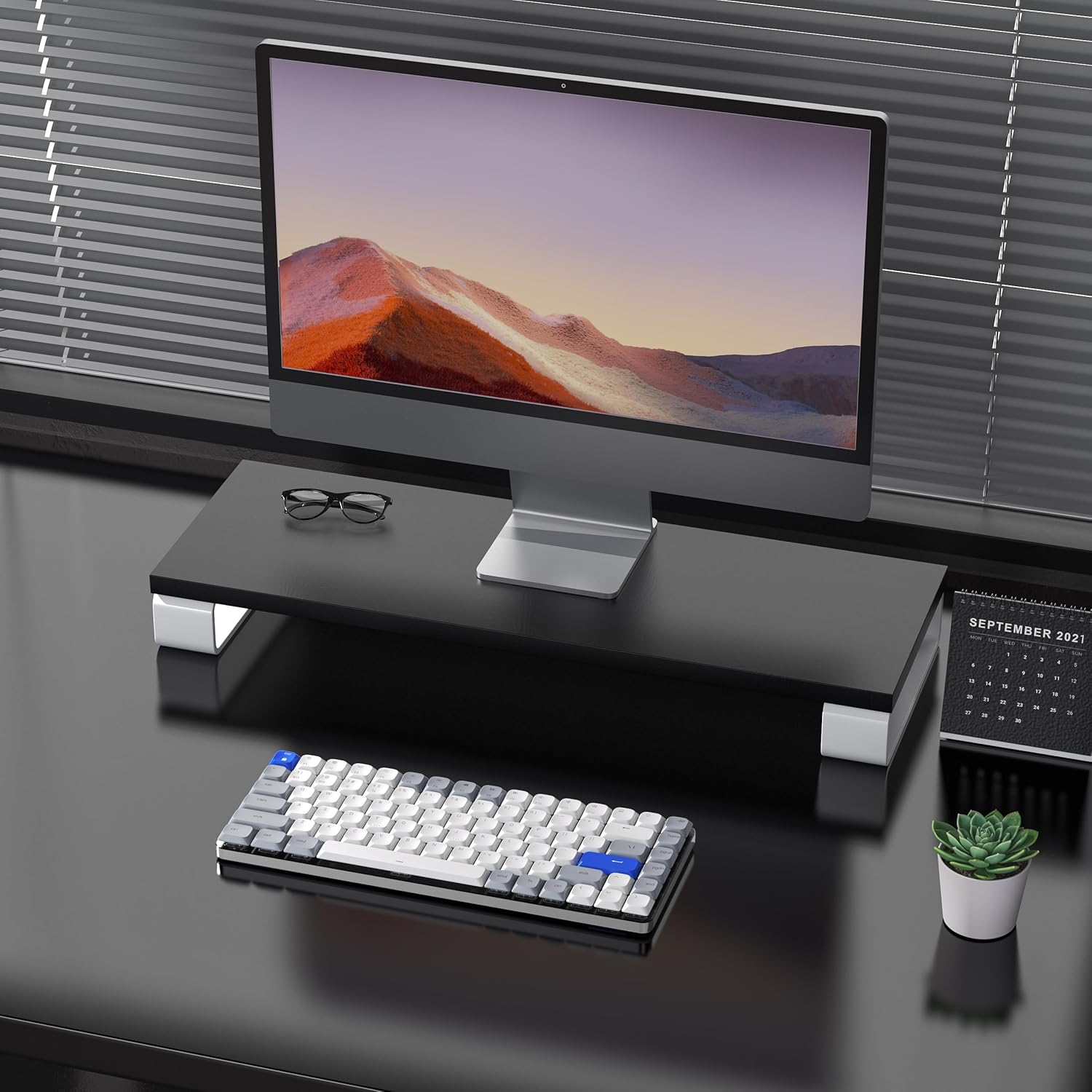
Image: The keyboard is compatible with both Mac and Windows systems, and includes extra keycaps for Windows users.
4. Bedriuwsinstruksjes
4.1 Backlight Control
The keyboard features 14 different white LED backlight modes. To cycle through these modes, press the dedicated lightbulb button located in the top right corner of the keyboard. The keycaps are laser-engraved to ensure clear visibility of characters with the backlight on.

Image: The keyboard displaying its white backlight with 14 different lighting options.
4.2 ferstelbere Stands
The keyboard is equipped with two adjustable stands on the back. These stands allow you to set the keyboard at a comfortable typing angle (e.g., 3 or 6 degrees) to reduce wrist strain during extended use.

Image: The keyboard's ultra-slim aluminum frame and ergonomic design with adjustable feet.
4.3 Low-Profile Brown Switches
The keyboard utilizes low-profile brown switches, which offer a tactile bump without a loud click. This design provides a comfortable and responsive typing experience, ideal for both fast typing and gaming.

Image: A close-up of the low-profile brown switches, highlighting their design for comfortable and effortless typing.
5. Underhâld
5.1 Cleaning
- To clean the keyboard, power it off and disconnect any cables.
- Brûk in sêft, pluisfrij doek wat dampspielje mei wetter of in mylde reinigingsoplossing om de toetskappen en it oerflak ôf te feegjen.
- Brûk perslucht foar stof en pún tusken de kaaien.
- Avoid using harsh chemicals or abrasive materials, as these can damage the keyboard's finish or keycap legends.
5.2 Batterij Soarch
- The keyboard has a built-in 2000 mAh rechargeable battery.
- Charge the keyboard using the provided USB-C cable.
- Om de libbensdoer fan 'e batterij te ferlingjen, foarkom it faak folslein ûntladen fan 'e batterij.
- As jo it toetseboerd foar in langere perioade opslaan, laad it dan op oant sawat 50% foardat jo it opslaan.
6. Probleemoplossing
6.1 Ferbiningsproblemen
- Toetseboerd ferbynt net fia Bluetooth: Ensure the keyboard is in Bluetooth pairing mode (flashing backlight). Check your device's Bluetooth settings and ensure it's discoverable. Try forgetting the device and re-pairing.
- 2.4GHz wireless not working: Ensure the USB receiver is securely plugged into a working USB port. Confirm the keyboard is switched to 2.4GHz mode (Fn + 4). Try a different USB port.
- Wired connection issues: Ensure the USB-C cable is fully inserted into both the keyboard and the device. Try a different USB-C cable or port. Ensure the keyboard's power switch is in the OFF position for wired mode.
6.2 Efterljochting wurket net
- Soargje derfoar dat de batterij fan it toetseboerd genôch opladen is.
- Press the backlight control button (lightbulb icon) to cycle through modes or turn the backlight on/off.
6.3 Toetsen reagearje net
- Check the connection mode and ensure it's properly established.
- Laad it toetseboerd op as de batterij leech is.
- Try connecting the keyboard via USB-C wired mode to rule out wireless interference or battery issues.
- If specific keys are not responding, gently remove the keycap and check for any obstructions or debris around the switch.
7. Spesifikaasjes
| Eigenskip | Detail |
|---|---|
| Model Number | Airkey84 |
| Produkt Ofmjittings | 12.13 x 183070.97 x 0.94 inch |
| Item Gewicht | 1.03 pyk |
| Fabrikant | AUSDOM |
| Batterijen | 1 Lithium Polymer batterij nedich (ynbegrepen) |
| Kompatibele apparaten | Laptop, PC, Smartphone, Tablet |
| Konnektivität Technology | Bluetooth, 2.4GHz Draadloos, USB-C Bedrade |
| Toetseboerdbeskriuwing | Mechanysk, Low Profile, 75% Layout |
| Special Feature | Backlit, Low-Profile Kaai, oplaadber |
| Toetseboerd Backlighting | White LED, Single Color, 14 Modes |
| Materiaal | Acrylonitrile Butadiene Styrene, Aluminum, Silicone |
8. Garânsje en stipe
For warranty information, technical support, or any product-related inquiries, please contact AUSDOM customer service through the official AUSDOM store or the platform where the product was purchased. Please refer to your purchase documentation for specific warranty terms and conditions.
You can visit the official AUSDOM store for more information: AUSDOM Store


