
Yitouniu Yitouniu-EWTH16
EWeLink Wireless Remote TH16 Switch User Manual
Model: Yitouniu-EWTH16
1. Produkt Overview
The Yitouniu EWeLink TH16 Smart Switch is a versatile device designed to integrate into your smart home system, enabling remote and automatic control of appliances. It features temperature monitoring capabilities, allowing connected devices to be turned on or off based on a preset temperature range. This module works in conjunction with the included waterproof DS18B20 temperature sensor to enhance your home's automation.
Key functionalities include real-time temperature monitoring, remote ON/OFF control, timing tasks, automatic mode based on temperature, manual control, smart scene triggering, and voice control compatibility with Amazon Alexa and Google Home.
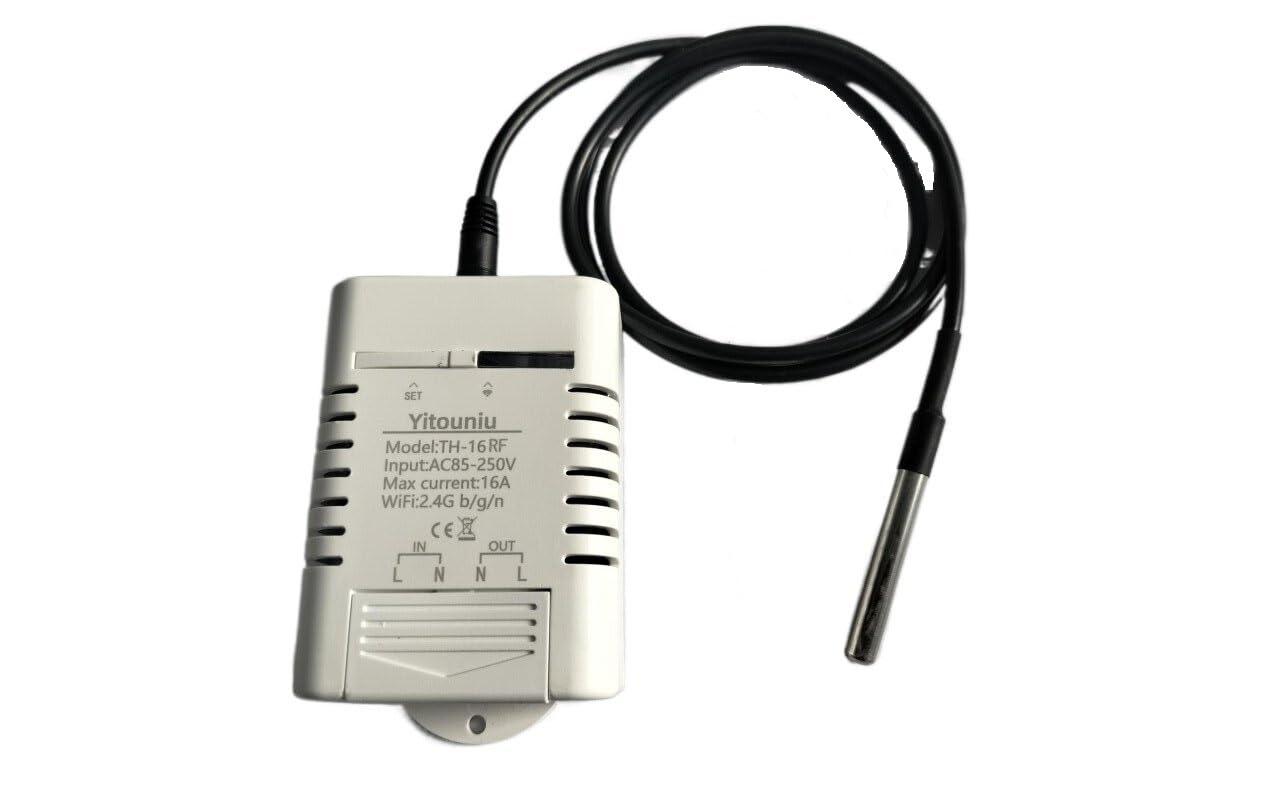
Ofbylding 1.1: EWeLink TH16 Smart Switch with connected DS18B20 temperature sensor.
2. Wat sit der yn 'e doaze
- 1 x TH-16 Smart Switch (Relay housing, relay module)
- 1 x DS18B20 Sensor (Temperature probe)
Note: The sensor can only detect temperature. For humidity detection, a separate humidity sensor is required.
3. Produktfunksjes
- Wide applikaasje: Suitable for various uses including home brewing, fermentation, breeding, incubation, greenhouse temperature control, and more. Supports 85-250V, 16A MAX 3500W.
- App -stipe: Free eWeLink mobile application available for iOS and Android devices.
- Syngronisaasjestatus: Provides real-time device status and temperature monitoring directly to the eWeLink app. Temperature units (Celsius/Fahrenheit) are switchable.
- Remote ON/OFF: Control electrical devices from any location using the app, with high accuracy temperature readings from the waterproof DS18B20 sensor.
- Stim kontrôle: Compatible with Amazon Alexa, Google Home, and Google Nest for convenient voice commands.
- Timingfunksjes: Supports up to 8 enabled countdown, single, or repeat timing tasks to automate device operation at specified times.
- Auto Mode: Configure the device to automatically turn on or off when the temperature falls within a specified range.
- Hânlieding modus: Allows for immediate manual control (ON/OFF) of the connected device.
- Smart Scene Trigger: Temperature values can be used as conditions to trigger other eWeLink smart devices.
- Diele kontrôle: Easily share control of your smart home devices with family members.
- Monitoring fan enerzjyferbrûk: Monitor real-time energy consumption.
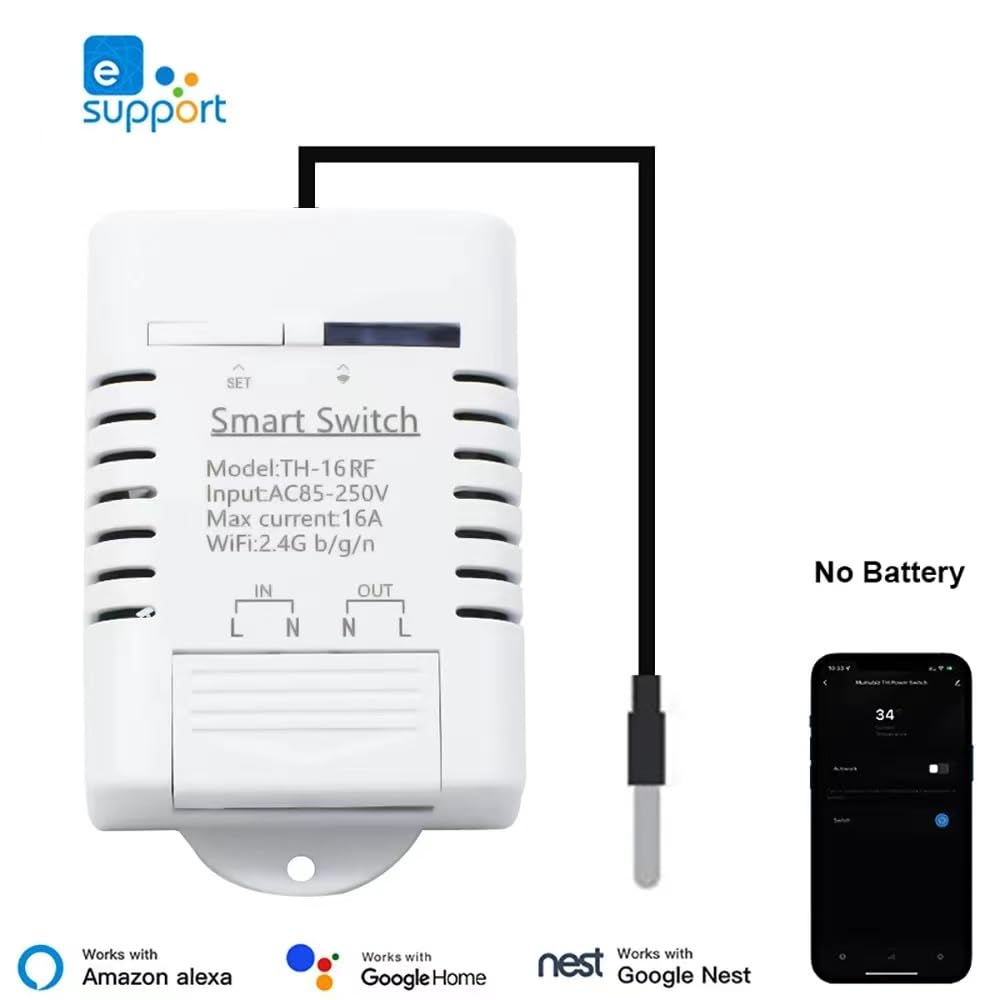
Ofbylding 3.1: The Smart Switch integrates with the eWeLink app and is compatible with Amazon Alexa, Google Home, and Google Nest.

Ofbylding 3.2: Examples of common usage scenarios for the TH16 Smart Switch.
4. Spesifikaasjes
4.1. TH-16 Smart Switch
| Attribute | Wearde |
|---|---|
| Model Number | Yitouniu-EWTH16 |
| Ynfier Voltage | AC85-250V |
| Maksimum hjoeddeistige | 16A |
| Max Power | 3500W |
| Triedleaze Standert | WiFi 2.4GHz b/g/n |
| Produkt Ofmjittings | 2.79"L x 1.65"W (7.09 x 4.19 cm) |
| Materiaal | Plestik |
| Kleur | Wyt |
4.2. DS18B20 Sensor
| Attribute | Wearde |
|---|---|
| Type | Wetterdichte temperatuersensor |
| Sonde | RVS temperatuersonde |
| Temperatuer mjitberik | -20°C ~ +100°C |
| Operaasje Voltage | 3.0-5.5V |
| Lingte | 1m |
| Gewicht | 26g |

Ofbylding 4.1: Detaillearre view of the waterproof DS18B20 temperature sensor.
5. Opset en ynstallaasje
5.1. Wiring the Smart Switch
Before proceeding, ensure the main power supply to the circuit is turned OFF at the breaker to prevent electrical shock. The TH-16 Smart Switch requires a live (L) and neutral (N) input, and provides a switched live (L) and neutral (N) output to your appliance.
- Identifisearje de live (L) en neutrale (N) triedden fan jo stroomboarne.
- Connect the Live wire from the power source to the "IN L" terminal on the switch.
- Connect the Neutral wire from the power source to the "IN N" terminal on the switch.
- Connect the Live wire of your appliance to the "OUT L" terminal on the switch.
- Connect the Neutral wire of your appliance to the "OUT N" terminal on the switch.
- Plug the DS18B20 temperature sensor into the designated port on the smart switch.
- Secure all wire connections firmly.
Warskôging: Incorrect wiring can cause damage to the device or electrical hazards. If you are unsure, consult a qualified electrician.
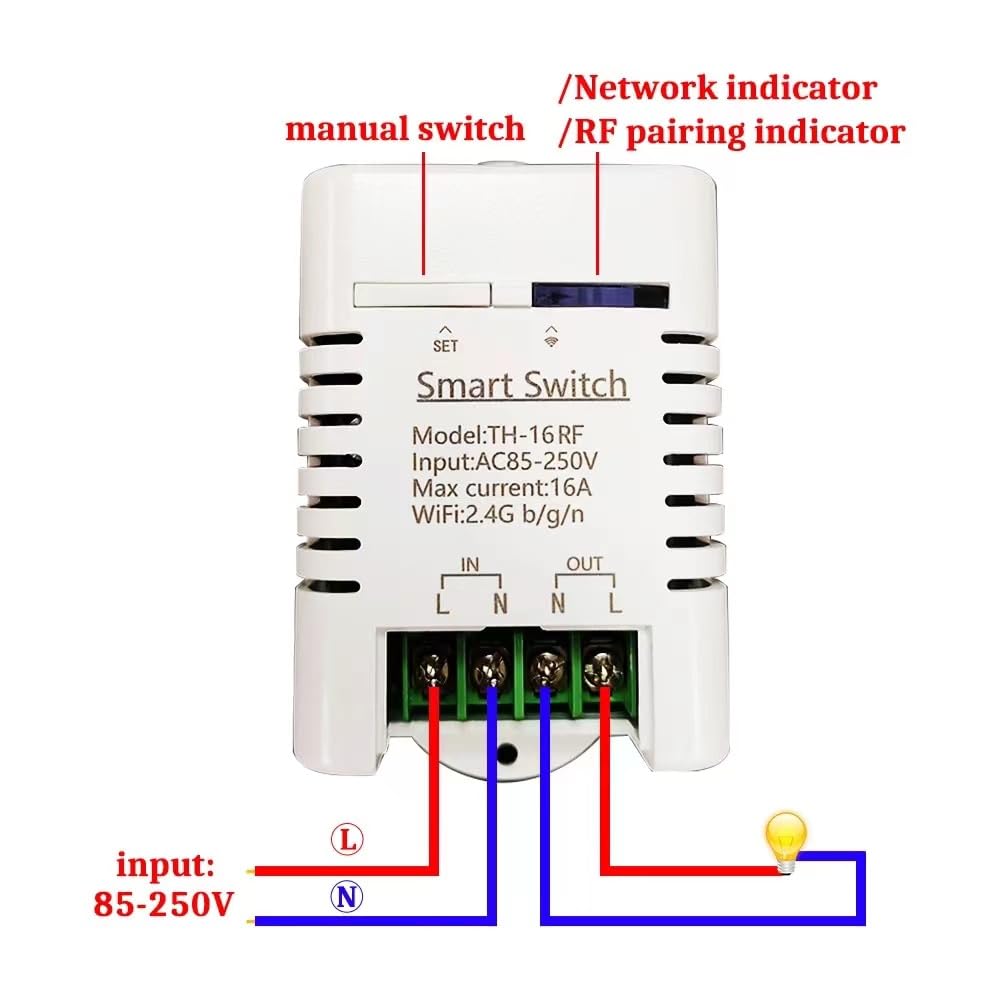
Ofbylding 5.1: Wiring diagram for the TH-16 Smart Switch. Ensure correct Live (L) and Neutral (N) connections for both input and output.
5.2. App Pairing (eWeLink)
The smart switch operates on a 2.4GHz WiFi network. Ensure your mobile device is connected to a 2.4GHz WiFi network during the pairing process.
- Download the "eWeLink" app from the App Store (iOS) or Google Play Store (Android).
- Register an eWeLink account and log in.
- Power on the TH-16 Smart Switch. The network indicator LED should be blinking rapidly (if not, press and hold the "SET" button for 5 seconds until it blinks rapidly to enter pairing mode).
- Open the eWeLink app, tap the "+" icon at the bottom center, and select "Quick Pairing Mode".
- Folgje de ynstruksjes op it skerm om it apparaat te ferbinen mei jo WiFi-netwurk.
- Once successfully paired, the device will appear in your eWeLink app, and the network indicator LED will become solid.
6. Bedriuwsinstruksjes
6.1. Remote Control and Status Monitoring
After successful pairing, you can remotely turn the connected appliance ON or OFF from anywhere using the eWeLink app, provided your phone has network access. The app also displays the real-time status of the switch and the current temperature from the DS18B20 sensor.
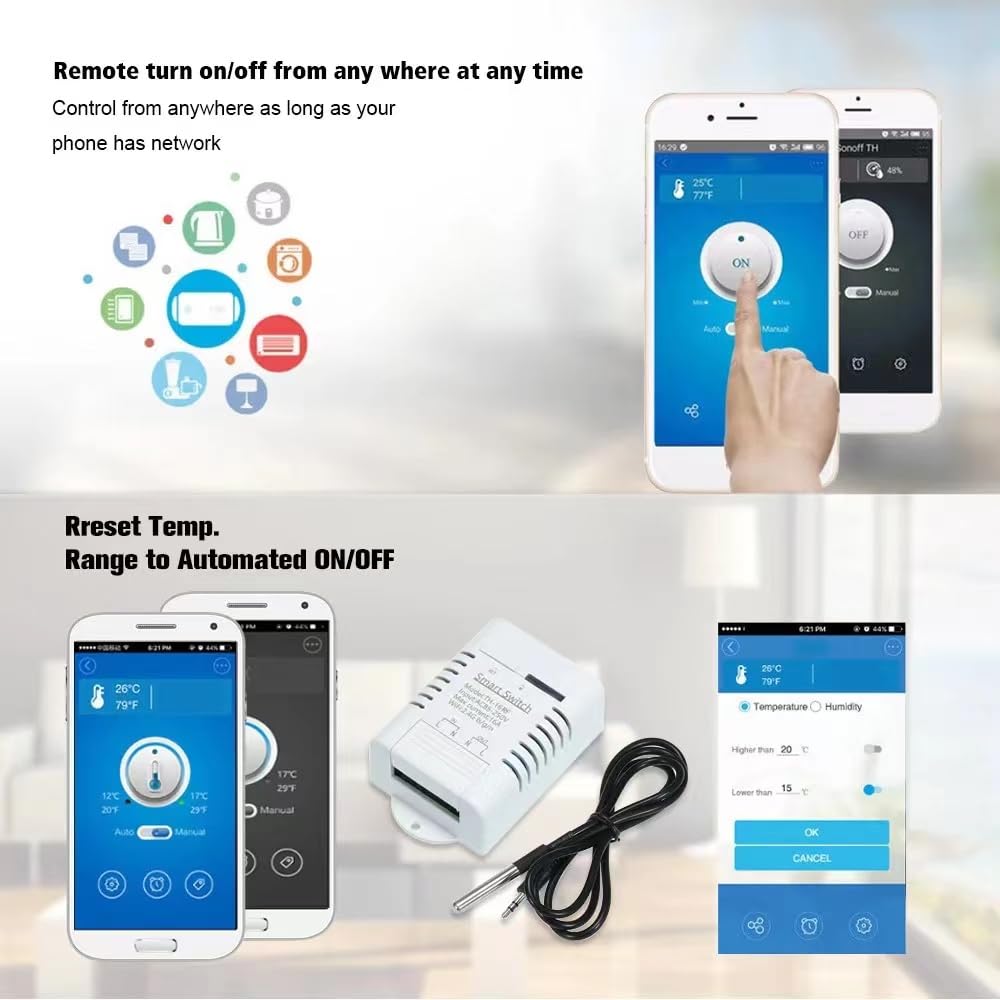
Ofbylding 6.1: Remote control and temperature range setting via the eWeLink app.
6.2. Auto Mode (Temperature Control)
Set the switch to automatically turn ON or OFF based on a specified temperature range:
- In the eWeLink app, select your TH-16 device.
- Navigate to the "Auto Mode" settings.
- Set the desired temperature range (e.g., turn ON when temperature is below X°C, turn OFF when temperature is above Y°C).
- Confirm your settings. The device will now operate autonomously based on the temperature readings.
6.3. Hânlieding Mode
For immediate control, you can switch to "Manual Mode" in the eWeLink app or use the physical button on the device to toggle the power ON/OFF.
6.4. Timingfunksjes
Schedule your devices to turn ON/OFF at specific times:
- In the eWeLink app, select your TH-16 device.
- Go to the "Timing" section.
- Jo kinne ynstelle:
- Ofteltimers: Turn ON/OFF after a set duration.
- Single Timers: Turn ON/OFF at a specific time on a specific date.
- Repeat Timers: Turn ON/OFF at specific times on selected days of the week.
- Save your timing tasks.
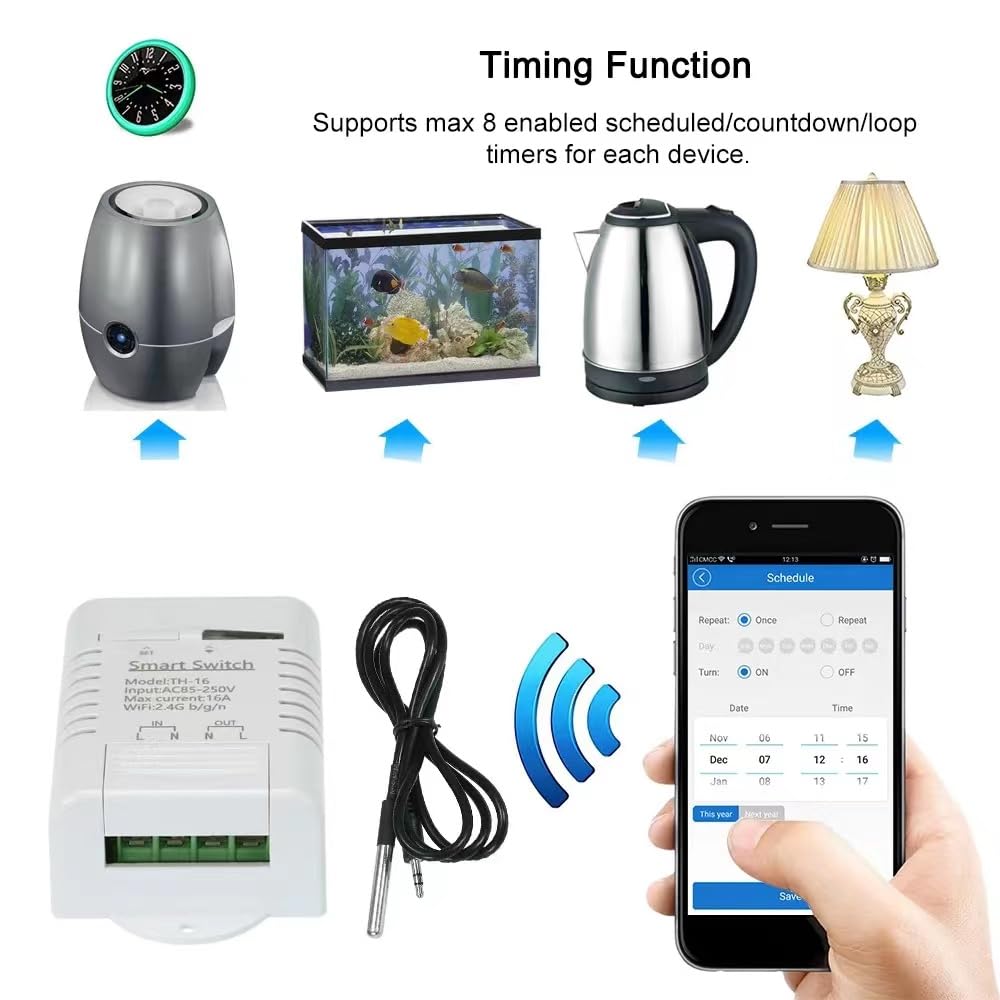
Ofbylding 6.2: Setting up timing schedules within the eWeLink app.
6.5. Yntegraasje fan stimkontrôle
To use voice commands with Amazon Alexa or Google Home:
- Ensure your TH-16 Smart Switch is successfully paired with the eWeLink app.
- Iepenje de Amazon Alexa-app of Google Home-app.
- Enable the "eWeLink Smart Home" skill/service.
- Link your eWeLink account.
- Discover devices. Your TH-16 switch should now be controllable via voice commands (e.g., "Alexa, turn on the switch," "Hey Google, turn off the switch").
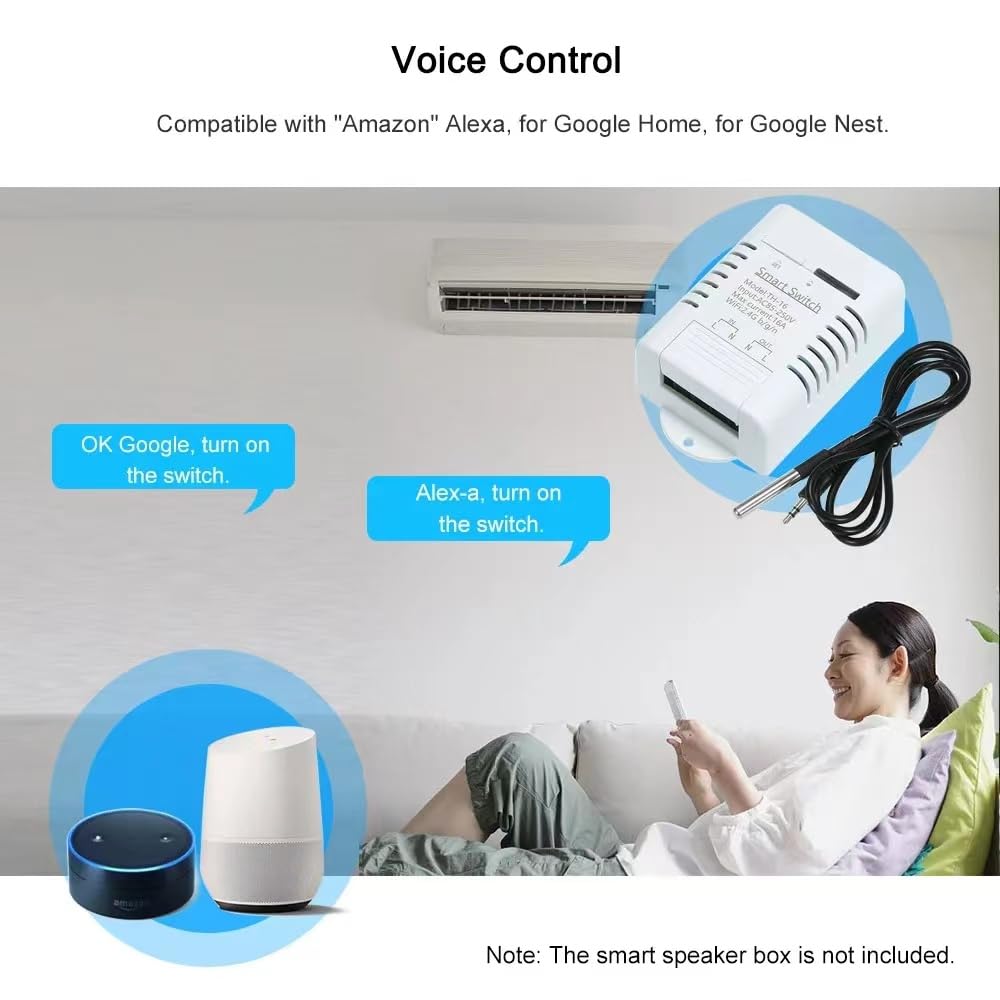
Ofbylding 6.3: Voice control compatibility with Amazon Alexa and Google Home.
6.6. Diele Control
You can share control of your TH-16 Smart Switch with family members or other users:
- In the eWeLink app, select the device you wish to share.
- Tap on the "Share" icon or navigate to the sharing settings.
- Enter the eWeLink account email or phone number of the person you want to share with.
- Set the permissions (e.g., control, view status, set timers).
- The invited user will receive a notification and can accept the shared control.

Ofbylding 6.4: Sharing device control with other eWeLink users.
7. Underhâld
- Reiniging: Feie it apparaat ôf mei in sêfte, droege doek. Brûk gjin skuurmiddels en dompel it apparaat net yn wetter.
- Firmware -updates: Regularly check the eWeLink app for available firmware updates to ensure optimal performance and security.
- Sensorsoarch: While the DS18B20 sensor is waterproof, avoid unnecessary exposure to harsh chemicals or extreme physical stress.
- Netwurkstabiliteit: Ensure your 2.4GHz WiFi network is stable and has good signal strength where the device is installed for reliable operation.
8. Probleemoplossing
- Apparaat offline yn app:
- Kontrolearje oft it apparaat is ynskeakele.
- Verify your WiFi router is working and the 2.4GHz network is active.
- Ensure the device is within range of your WiFi router.
- Try restarting the device and your router.
- If the issue persists, try re-pairing the device with the eWeLink app.
- Kin apparaat net keppele:
- Ensure your phone is connected to a 2.4GHz WiFi network (5GHz networks are not supported).
- Make sure the device is in pairing mode (network indicator blinking rapidly).
- Kontrolearje jo WiFi-wachtwurd op krektens.
- Move the device closer to the router during pairing.
- Stimkontrôle wurket net:
- Confirm the eWeLink skill/service is enabled and linked in your Alexa/Google Home app.
- Ensure your voice assistant device is online and connected to the same network.
- Try re-discovering devices in the Alexa/Google Home app.
- Unkrekte temperatuermjittingen:
- Ensure the DS18B20 sensor is securely plugged into the switch.
- Check for any physical damage to the sensor cable or probe.
- Verify the sensor is placed in an appropriate location, away from direct heat sources or drafts that could skew readings.
9. Garânsje en stipe
This product comes with a standard manufacturer's warranty. For specific warranty terms and conditions, please refer to the documentation provided at the time of purchase or contact the seller directly. For technical support, troubleshooting assistance, or inquiries regarding product functionality, please reach out to the manufacturer or your point of purchase.
Fabrikant: Yitouniu
Datum earst beskikber: 13 july 2023
Relatearre dokuminten - Yitouniu-EWTH16
 |
Sonoff TH10/TH16 WiFi Draadloze Switch Hânlieding In wiidweidige hantlieding foar de Sonoff TH10/TH16 WiFi Draadloze Switch, mei details oer ynstelling, bedrading, app-funksjes en probleemoplossing foar temperatuer- en fochtigensmonitoring. |
 |
Sonoff TH10/TH16 WiFi Draadloze Skeakel: Slimme Temperatuer- en Fochtigenskontrôle Untdek de Sonoff TH10/TH16, in draadloze WiFi-skeakel foar it kontrolearjen fan temperatuer en fochtigens op ôfstân. Bestjoer apparaten fia de eWeLink-app, stel skema's yn en yntegrearje mei smart home-ekosystemen. Stipet Si7021- en DS18B20-sensoren. |
 |
Sonoff TH10/TH16 Wi-Fi Smart Switch brûkershânlieding Dizze brûkershantlieding jout wiidweidige ynstruksjes foar de Sonoff TH10/TH16 Wi-Fi Smart Switch, ynklusyf ynstelling, bedrading, app-yntegraasje, funksjes, spesifikaasjes en probleemoplossing. It stipet temperatuer- en fochtigensmonitoring. |
 |
Sonoff TH10/TH16: Temperatuer- en fochtigensmonitoring WiFi Smart Switch De Sonoff TH10/TH16 is in draadloze tûke skeakel foar it op ôfstân kontrolearjen en kontrolearjen fan temperatuer en fochtigens fan apparaten fia de eWeLink-app. Hy stipet ferskate sensoren en yntegreart mei Amazon Alexa en Nest. |
 |
eWeLink 7-32V Smart WiFi Self-Sloting Module brûkershantlieding In hantlieding foar it brûken fan 'e eWeLink 7-32V Smart WiFi Self-Locking Module, dy't de ynstelling, app-yntegraasje en funksjes lykas ynching en selsfergrendeling behannelet. |
 |
Sonoff Pow R2 User Guide: Smart Power Monitoring and Control Comprehensive user guide for the Sonoff Pow R2 smart switch, detailing setup, wiring, app features, energy monitoring, overload protection, and smart scene integration. |
Ask a question about this manual
Ask about setup, troubleshooting, compatibility, parts, safety, or missing instructions. Manuals+ will review the question and use this page’s manual context to help answer it.