
1. Ynlieding
The ORIVISION EHV1401 is a versatile HDMI and VGA video encoder designed for professional video streaming and broadcasting applications. It supports H.265 and H.264 video encoding at resolutions up to 1080P@60Hz, offering multi-channel output and various streaming protocols. This manual provides detailed instructions for setting up, operating, and maintaining your encoder.
2. Key Features
- Supports H.265/H.264 video encoding.
- Adaptive selection for HDMI or VGA input.
- Simultaneous HDMI and VGA loop-out display.
- Supports 1x HDMI and 1x VGA input with corresponding loop-out.
- Digital and analog audio loop-out support.
- Wide protocol support: HTTP, HTTPS, RTSP, RTMP, RTMPS, SRT, UDP, RTP, HLS, FLV, Onvif.
- Up to 1080P@60Hz resolution input and output.
- Supports 4 channels of simultaneous stream output.
- Audio encoding without video input capability.
- Two-way audio transmission support.
- AAC/G.711 advanced audio coding format.
- 1000M full-duplex network interface for LAN and WAN transmission.
- Supports POE power supply (optional).
- SDK support for secondary development.
- Network remote management and upgrade capabilities.
- Untworpen foar 24/7 operaasje.
3. Produkt Overview and Interfaces
The ORIVISION EHV1401 encoder features multiple input and output ports for flexible connectivity. Understanding these interfaces is crucial for proper setup.

Ofbylding 3.1: Front panel of the ORIVISION EHV1401 encoder. From left to right, it shows VGA input, HDMI input, Audio input, Audio output, VGA output, HDMI output, LAN port, and 12V DC power input.
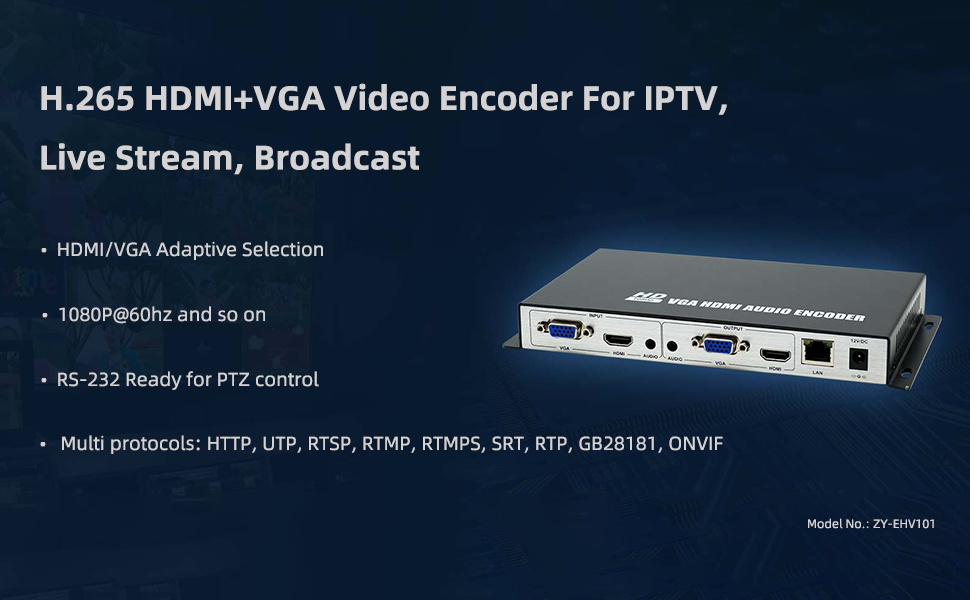
Ofbylding 3.2: Oerview of the ORIVISION EHV1401 encoder highlighting its primary applications for IPTV, Live Stream, and Broadcast, along with key features like adaptive input, 1080P@60Hz support, RS-232 for PTZ, and multiple protocols.
4. Opset en Ferbining
Follow these steps to connect your ORIVISION EHV1401 encoder to your video sources, displays, and network.
- Fideoboarne ferbine: Connect your HDMI or VGA video source (e.g., PC, camera, monitor, DVD player) to the corresponding HDMI or VGA input port on the encoder.
- Ferbine audioboarne (opsjoneel): If using external audio, connect your audio source to the Audio input port.
- Connect Local Displays (Loop-out): For local monitoring, connect HDMI or VGA displays to the HDMI Loopout and VGA Loopout ports.
- Netwurkferbining: Connect an Ethernet cable from the encoder's LAN port to your network router or switch.
- Power Connection: Connect the 12V DC power adapter to the encoder's 12VDC port and plug it into a power outlet. If using POE (Power over Ethernet), ensure your network switch supports POE and connect the Ethernet cable.

Ofbylding 4.1: Basic connection diagram illustrating how to connect video sources (PC, camera, monitor, DVD), local loop-out displays, and network for streaming to various platforms.
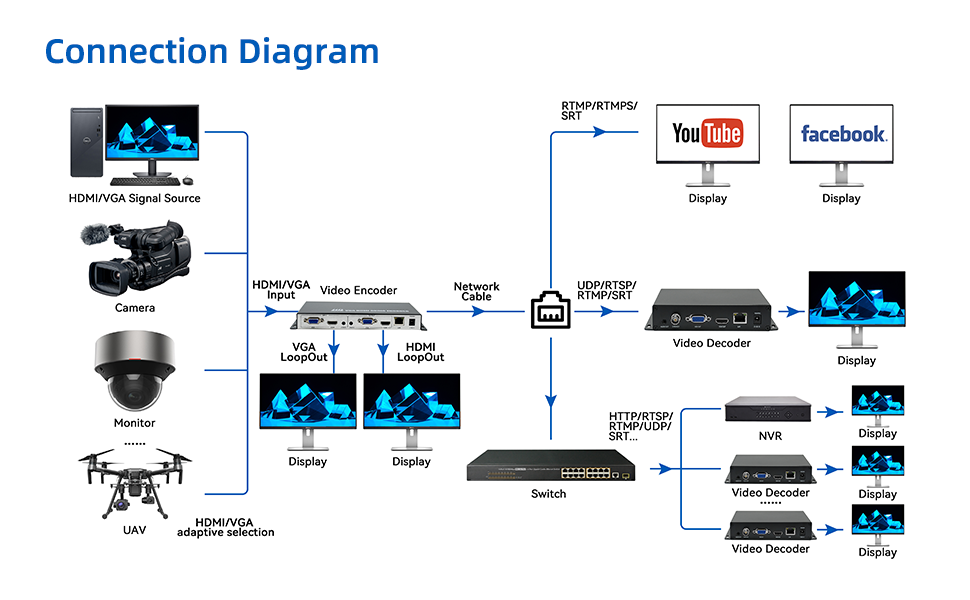
Ofbylding 4.2: Advanced connection diagram showing integration with multiple signal sources, local displays, network switches, and various streaming/recording destinations including YouTube, Facebook, video decoders, and NVRs.
5. Bedriuwsinstruksjes
Once the encoder is connected, you can configure and manage it via its web ynterface.
5.1 Tagong ta de Web Ynterface
- Ensure your computer is on the same network as the encoder.
- Iepenje a web browser and enter the encoder's IP address (refer to your network settings or default IP if provided in documentation).
- Log in using the provided credentials (default username/password are usually 'admin'/'admin' or similar, check product documentation).

Ofbylding 5.1: Example screenshot of the encoder's web interface, providing access to system information and configuration settings.
5.2 Configuring Video and Audio Settings
- Navigate to the "Encoder" or "Video Settings" section in the web ynterface.
- Select your desired input source (HDMI or VGA).
- Configure video resolution (up to 1080P@60Hz), frame rate, and bitrate.
- Adjust audio encoding settings (AAC/G.711) and bitrate.
Ofbylding 5.2: The encoder supports AAC and G.711 audio encoding for high-quality audio transmission.
5.3 Streaming Configuration
The encoder supports various streaming protocols. Configure your desired protocol and destination.

Ofbylding 5.3: The encoder supports a wide range of streaming protocols including RTMP, RTMPS, RTSP, SRT, HLS, UDP/RTP, Multicast, HTTP, and Onvif.
- Select the streaming protocol (e.g., RTMP for YouTube/Facebook Live).
- Enter the streaming server URL and stream key/name provided by your streaming platform.
- Save your settings and start the stream.
6. Spesifikaasjes
Detailed technical specifications for the ORIVISION EHV1401 encoder (Model ZY-EHV101).

Ofbylding 6.1: Comprehensive specifications table for the ZY-EHV101 model, detailing video input/output, supported resolutions, encoding, audio interfaces, network features, and general device parameters.
| Kategory | Parameter | Wearde |
|---|---|---|
| Video | Ynput Schnittstellen | 1x HDMI 1.4 and VGA (HDCP1.4) |
| Support Resolúsje | 1920*1080, 1280*720, 1280*800, 1280*768, 1024*768, 1024*576, 960*540, 850*480, 800*600, 720*576, 720*540, 720*480, 720*404, 704*576, 640*480, 640*360, 480*270, Auto | |
| Frame rate | 5-60Hz | |
| Utfier ynterfaces | 1x Ethernet port (RJ45), 1x HDMI and VGA Loop-out | |
| Fideo kodearring | H.265 & H.264 | |
| Koade Rate | 16kbps - 12Mbps | |
| Audio | Ynput Schnittstellen | 1x External audio, HDMI and VGA built-in Audio |
| Utfier ynterfaces | 1x External audio | |
| Audio kodearring | AAC, G.711 | |
| Netwurk | RJ45 | 1000M Ethernet haven |
| Program Streaming | HTTP, RTSP, RTMP/RTMPS, SRT, GB28181, HLS, FLV, ONVIF, Multicast: UDP/RTP | |
| Algemien | Dimension (W*L*H) | 8.5*4.4*0.98in (217*112*25mm) |
| Bruto Gewicht | 0.35kg | |
| Temperatuer | 0 ~ 45°C (for working), -20~60°C (for storing) | |
| Feuchte | <90%, net-kondensearjend | |
| Ynfier Voltage | DC 12V/1A | |
| Stromferbrûk | 5W |

Ofbylding 6.2: Physical dimensions of the ORIVISION EHV1401 encoder.
7. Probleemoplossing
This section addresses common issues you might encounter with your ORIVISION EHV1401 encoder.
- Gjin fideo-útfier:
- Check all HDMI/VGA cable connections. Ensure they are securely plugged in.
- Verify the input source is active and outputting a signal.
- Confirm the resolution and refresh rate of the input source are supported by the encoder (refer to specifications).
- Ensure the correct input source is selected in the encoder's web ynterface.
- Gjin netwurkferbining:
- Check the Ethernet cable connection to the encoder and your network device.
- Verify network settings (IP address, subnet mask, gateway) in the encoder's web ynterface.
- Ensure your network router/switch is functioning correctly.
- Streaming Issues (Buffering, Disconnections):
- Kontrolearje de snelheid en stabiliteit fan jo ynternetferbining.
- Reduce the video bitrate in the encoder settings if your internet upload speed is insufficient.
- Verify the streaming server URL and stream key/name are correct.
- Ensure no firewall or network security settings are blocking the streaming protocols.
- Gjin audio:
- Check audio cable connections (if using external audio).
- Ensure audio is enabled and correctly configured in the encoder's web ynterface.
- Verify the audio source is active and producing sound.
8. Underhâld
Proper maintenance ensures the longevity and optimal performance of your ORIVISION EHV1401 encoder.
- Reiniging: Brûk in sêfte, droege doek om de bûtenkant fan it apparaat skjin te meitsjen. Foarkom floeibere reinigingsmiddels of abrasive materialen.
- Ventilaasje: Ensure the encoder is placed in a well-ventilated area to prevent overheating. Do not block ventilation openings.
- Firmware -updates: Periodically check the ORIVISION website for firmware updates. Keeping the firmware updated can improve performance and add new features.
- Opslach: If storing the device for an extended period, ensure it is kept in a cool, dry place within the specified storage temperature range (-20~60°C).
9. Garânsje en stipe
For warranty information and technical support, please refer to the documentation included with your purchase or visit the official ORIVISION website. You can also contact ORIVISION customer service for assistance with product setup, operation, or troubleshooting.
Fabrikant: Nantong ZYDZ Electronic Co.,Ltd.
Merk: ORIVISJE