
Goobay 41074
Goobay 41074 USB-C Sync & Charge Cable Instruction Manual
Model Oantal: 41074
1. Ynlieding
This manual provides instructions for the Goobay 41074 USB-C Sync & Charge Cable. This cable is designed for high-speed data transfer, fast charging, and video/audio transmission between compatible USB-C enabled devices.

Image 1.1: The Goobay 41074 USB-C Sync & Charge Cable, featuring a USB-A connector on one end and a USB-C connector on the other. The image also highlights key specifications such as USB-C compatibility, 1-meter length, 60W power delivery, and 20x faster speed than USB 2.0.
2. Produktfunksjes
- Snel opladen: Supports power delivery up to 60 W (20 V / 3 A) for rapid charging of compatible USB-C devices.
- SuperSpeed+ Data Transfer: Achieves data transfer rates up to 10 Gbit/s, which is 20 times faster than USB 2.0.
- USB 3.2 Gen 2 Standard: Utilizes the latest USB 3.2 Gen 2x2 standard for efficient data handling.
- Reversible USB-C Connector: The USB-C plug can be inserted in either orientation.
- Video & Audio Transmission: Capable of transmitting video and audio content to external displays with a USB-C input.
- Alsidige gebrûk: Suitable for transferring movies, music, videos, and various files.

Ofbylding 2.1: In detaillearre view of the Goobay USB-C cable, highlighting its USB-A and USB-C connectors and indicating its 1-meter length, 60W power delivery, and 10 Gbps data transfer speed.
3. Package Ynhâld
It pakket befettet it folgjende artikel:
- 1x Goobay 41074 USB-C Sync & Charge Cable (1 meter)
4. Opsette
To set up your Goobay 41074 USB-C cable, follow these general steps:
- Identifisearje havens: Locate the appropriate USB-A and USB-C ports on your devices (e.g., computer, charger, smartphone, monitor).
- Apparaten ferbine: Insert the USB-A end of the cable into a compatible USB-A port on your host device (e.g., computer, wall charger).
- Connect USB-C Device: Insert the USB-C end of the cable into the USB-C port of your target device (e.g., smartphone, tablet, laptop, monitor). The USB-C connector is reversible, allowing for easy connection in either direction.
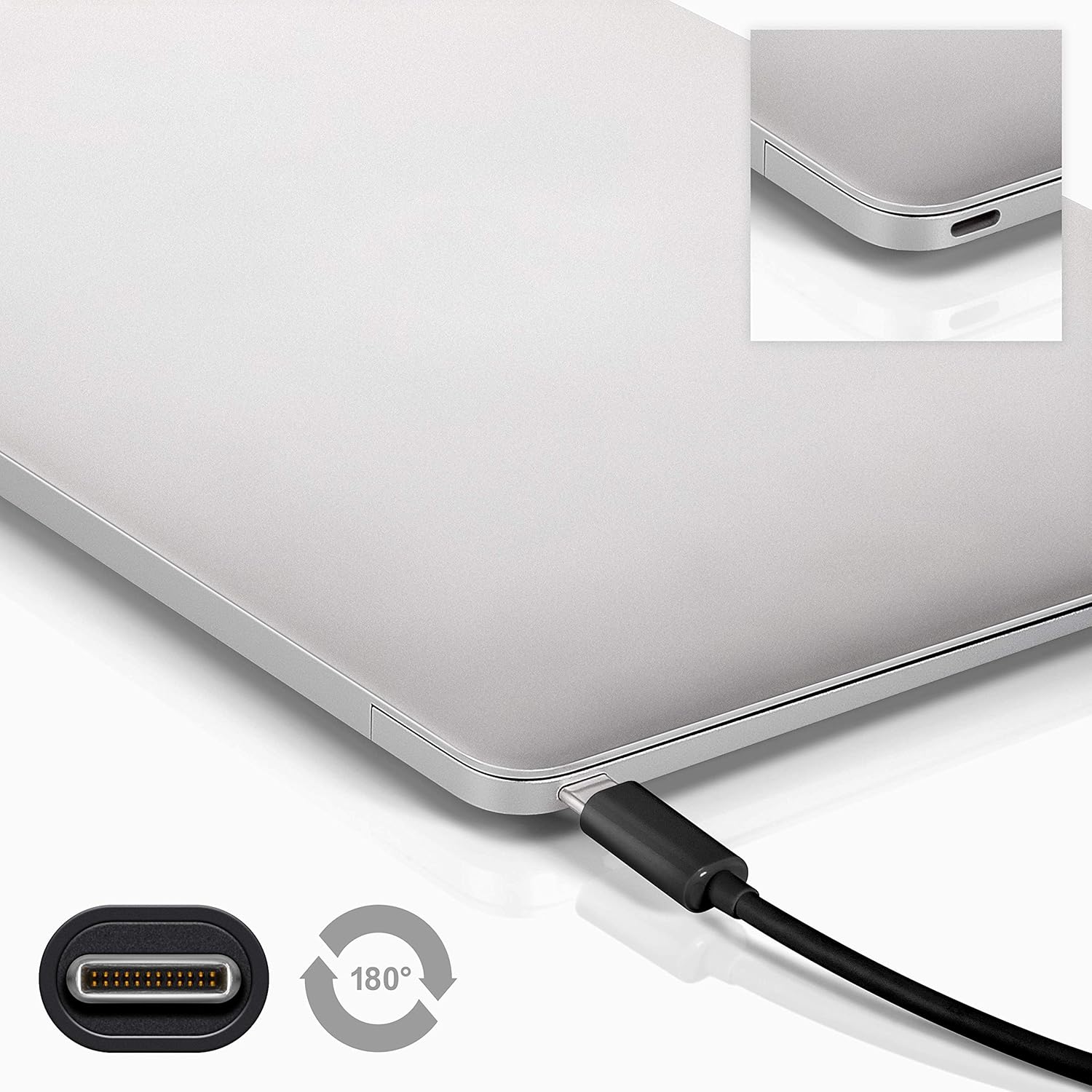
Image 4.1: A Goobay USB-C cable connected to a laptop, demonstrating the reversible nature of the USB-C connector and its ease of use. A close-up of the USB-C port is also shown.
5. Bedriuwsinstruksjes
5.1. Opladen Apparaten
To charge a USB-C enabled device:
- Connect the USB-A end of the cable to a compatible USB wall charger or power adapter.
- Connect the USB-C end of the cable to your USB-C device (e.g., smartphone, tablet, laptop).
- Ensure the power adapter is plugged into a working power outlet. Your device should begin charging.
5.2. Data Transfer
To transfer data between a computer and a USB-C device:
- Ferbine it USB-A-ein fan 'e kabel mei in beskikbere USB-A-poarte op jo kompjûter.
- Ferbine it USB-C ein fan 'e kabel oan jo USB-C apparaat.
- Your computer should recognize the connected device. Follow the on-screen prompts on your computer and device to manage data transfer (e.g., select 'File Transfer' mode on your smartphone).

Image 5.1: A Goobay USB-C cable connecting a smartphone to a laptop, illustrating its use for data transfer between devices.
5.3. Video and Audio Output
To transmit video and audio to an external display:
- Connect the USB-A end of the cable to your source device (e.g., laptop with a USB-A port that supports video output via an adapter, or a docking station).
- Connect the USB-C end of the cable to a compatible monitor or television with a USB-C input that supports video.
- Ensure your source device and display are configured correctly for video output.
6. Underhâld
- Opslach: Bewarje de kabel op in koel, droech plak, fuort fan direkt sinneljocht en ekstreme temperatueren. Foarkom it strak oprollen of bûgen fan 'e kabel yn skerpe hoeken om ynterne skea te foarkommen.
- Reiniging: Disconnect the cable from all devices and power sources before cleaning. Use a soft, dry, lint-free cloth to gently wipe the cable and connectors. Avoid using liquid cleaners or abrasive materials.
- Behanneling: Always grasp the connector head when plugging or unplugging the cable. Avoid pulling on the cable itself, as this can damage the internal wires or the connector.
- Ynspeksje: Periodically inspect the cable and connectors for any signs of wear, fraying, or damage. If damage is observed, discontinue use and replace the cable.
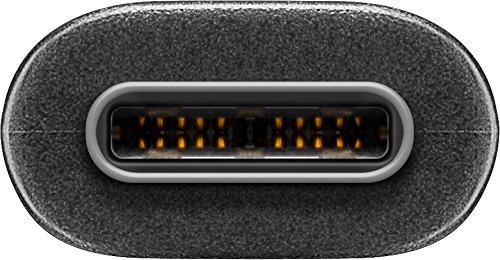
Ofbylding 6.1: In close-up view of the USB-C connector, showing its internal pins. Regular inspection of connectors helps ensure proper function and longevity.
7. Probleemoplossing
7.1. Device Not Charging
- Kontrolearje ferbinings: Ensure both ends of the cable are securely plugged into the device and the power source.
- Ferifiearje macht boarne: Confirm that the wall outlet or power adapter is functioning correctly. Try another power source if available.
- Apparaatkompatibiliteit: Ensure your device supports charging via USB-C and that the power adapter provides sufficient wattage.
- Try Another Cable/Port: If possible, test with a different USB-C cable or a different port on your power source/device to isolate the issue.
7.2. No Data Transfer
- Kontrolearje ferbinings: Ensure the cable is firmly connected to both the computer and the USB-C device.
- Apparaatynstellingen: On your USB-C device (e.g., smartphone), check if it's set to 'File Transfer' or 'MTP' mode after connecting to the computer.
- Kompjûtererkenning: Verify that your computer's operating system recognizes the connected device. You may need to install specific drivers for your device.
- Port Functionality: Test the USB-A port on your computer with another known working device/cable.
7.3. No Video/Audio Output
- Kompatibiliteit: Ensure both your source device (e.g., laptop) and the external display support video output over USB-C. Not all USB-C ports support this feature.
- Display Input: Select the correct input source on your monitor or television.
- Systeemynstellingen: Check your computer's display settings to ensure the external monitor is detected and configured correctly (e.g., extended display, duplicate display).
8. Spesifikaasjes
| Eigenskip | Spesifikaasje |
|---|---|
| Merk | Goobay |
| Model Number | 41074 |
| Ferbiningstype 1 | USB Type-A (Male) |
| Ferbiningstype 2 | USB Type-C (Male) |
| Kabel Type | USB |
| USB Standert | USB 3.2 Gen 2 (SuperSpeed+) |
| Data Transfer Rate | Oant 10 Gbit/s |
| Power Delivery | Up to 60 W (20 V / 3 A) |
| Kabel Lengte | 1 meter |
| Kleur | Swart |
| Kompatibele apparaten | Monitors, Televisions, USB-C enabled devices |
| Special Feature | Fast Charging, Video & Audio Transmission |
9. Garânsje en stipe
Foar garânsje-ynformaasje en technyske stipe, sjoch de dokumintaasje dy't by jo oankeap levere is of besykje de offisjele Goobay-webside. webside. Bewarje jo bewiis fan oankeap foar garânsjeclaims.