
1. Produkt Overview
The POLONO P31S is a compact and portable thermal label printer designed for various labeling needs in home, office, and school environments. It connects wirelessly via Bluetooth to your smartphone or tablet, allowing you to design and print labels using the dedicated mobile application. This device features a built-in cutter and operates without ink, utilizing thermal printing technology for clear, durable labels.
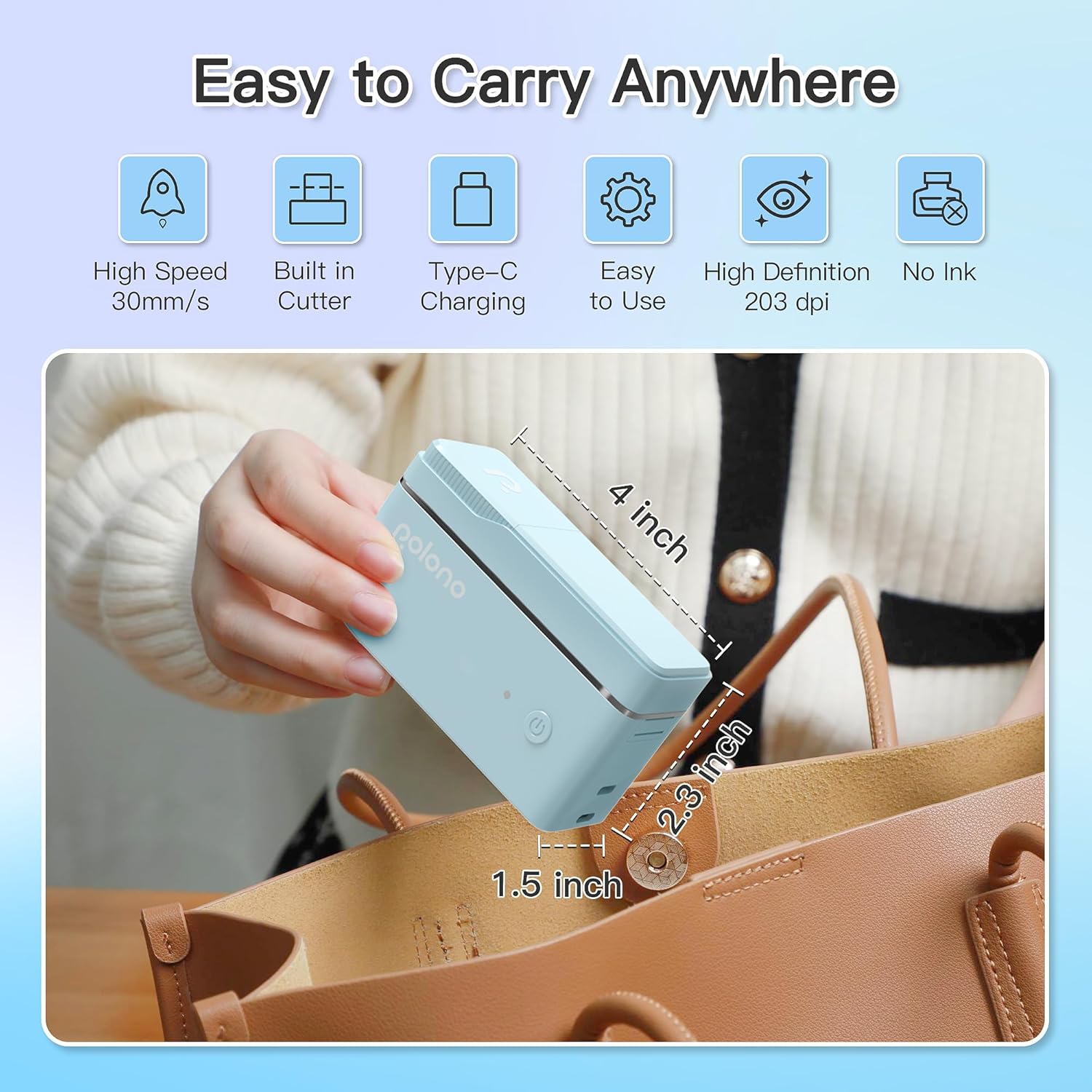
Ofbylding 1: POLONO P31S Label Printer highlighting its compact design and dimensions (approximately 4 inches long, 2.3 inches high, 1.5 inches wide).
Key Features:
- Draachber en lichtgewicht ûntwerp.
- Bluetooth connectivity for wireless printing.
- Thermal printing technology (no ink required).
- Built-in label cutter.
- Supports various label types including text, QR codes, barcodes, and images.
- Oplaadbare batterij.
2. Safety Information
Please read and understand all safety instructions before using the POLONO P31S label printer to prevent injury or damage to the device.
- Net disassemble, reparearje, of wizigje it apparaat.
- Hâld it apparaat fuort fan wetter, focht en ekstreme temperatueren.
- Use only POLONO-approved label tapes to ensure optimal performance and prevent damage.
- Avoid touching the print head immediately after printing, as it may be hot.
- Hâld bûten it berik fan bern.
- Use the provided charging cable or a certified equivalent.
3. Package Ynhâld
Kontrolearje oft alle items yn it pakket oanwêzich binne:
- POLONO P31S Label Printer
- Label Tape Roll (starter roll)
- USB-oplaadkabel
- User Manual (dit dokumint)
4. Opsette
4.1 It apparaat opladen
Before first use, fully charge the label printer. Connect the provided USB charging cable to the printer's charging port and to a USB power adapter (not included) or a computer's USB port. The indicator light will show charging status.
4.2 Installing Label Tape
- Iepenje de deksel fan it labelfak.
- Insert the label tape roll with the printing surface facing up, ensuring it is properly seated.
- Pull a small portion of the label tape out, extending it past the cutter blade.
- Close the label compartment cover securely.

Ofbylding 2: Proper installation of POLONO P31S label tape. Ensure the green sticker on the tape is not removed or damaged, as it contains chip technology for optimal performance. Do not pull the label out directly; use the cutting blade.
4.3 App-download en Bluetooth-ferbining
- Download the "Labelnize" app from the Apple App Store or Google Play Store.
- Turn on the POLONO P31S label printer by pressing and holding the power button.
- Bluetooth ynskeakelje op jo smartphone of tablet.
- Open the "Labelnize" app. The app will prompt you to allow Bluetooth access. Grant permission.
- Within the app, search for available devices and select "P31S" to connect.
- Once connected, the app will indicate a successful connection, and you are ready to create labels.
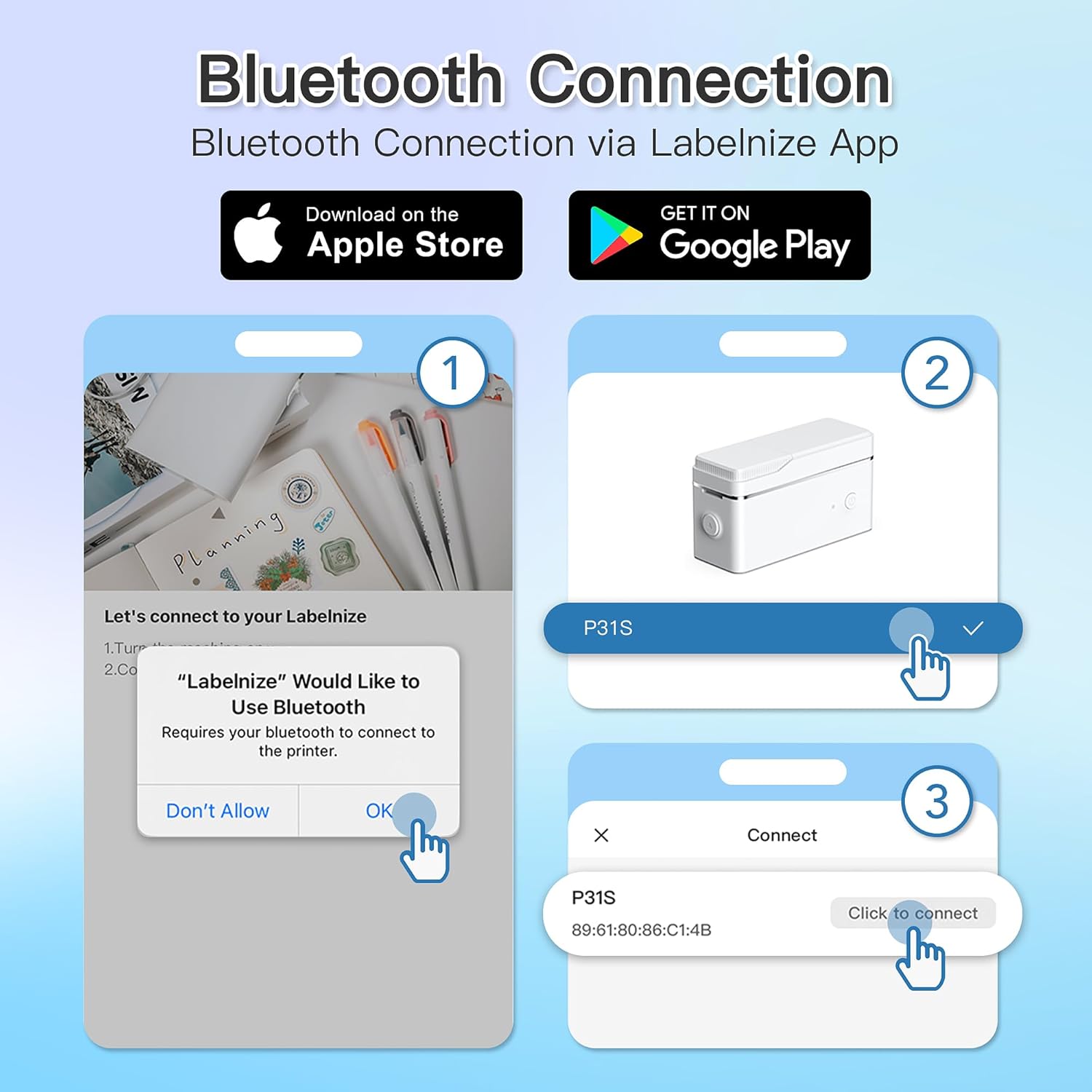
Ofbylding 3: Steps for Bluetooth connection via the Labelnize App. Download the app, allow Bluetooth access, select "P31S" from the device list, and click "Connect".
5. Bedriuwsinstruksjes
5.1 Creating Labels with the Labelnize App
The Labelnize app offers a variety of tools to design your labels:
- Tekst: Enter custom text, choose from over 90 fonts, adjust size, style (bold, italic), and alignment.
- Borders: Select from over 95 border designs to frame your labels.
- Icons/Graphics: Access a library of over 670 tab icons and other graphics to enhance your labels.
- QR Code/Barcode: Generate QR codes or barcodes for various applications.
- Ofbyldings: Insert images from your device's gallery.
- Sjabloanen: Utilize pre-designed templates for common labeling tasks.

Ofbylding 4: The Labelnize app interface for creating labels, offering extensive customization options including borders, fonts, and icons. The app supports multiple languages.
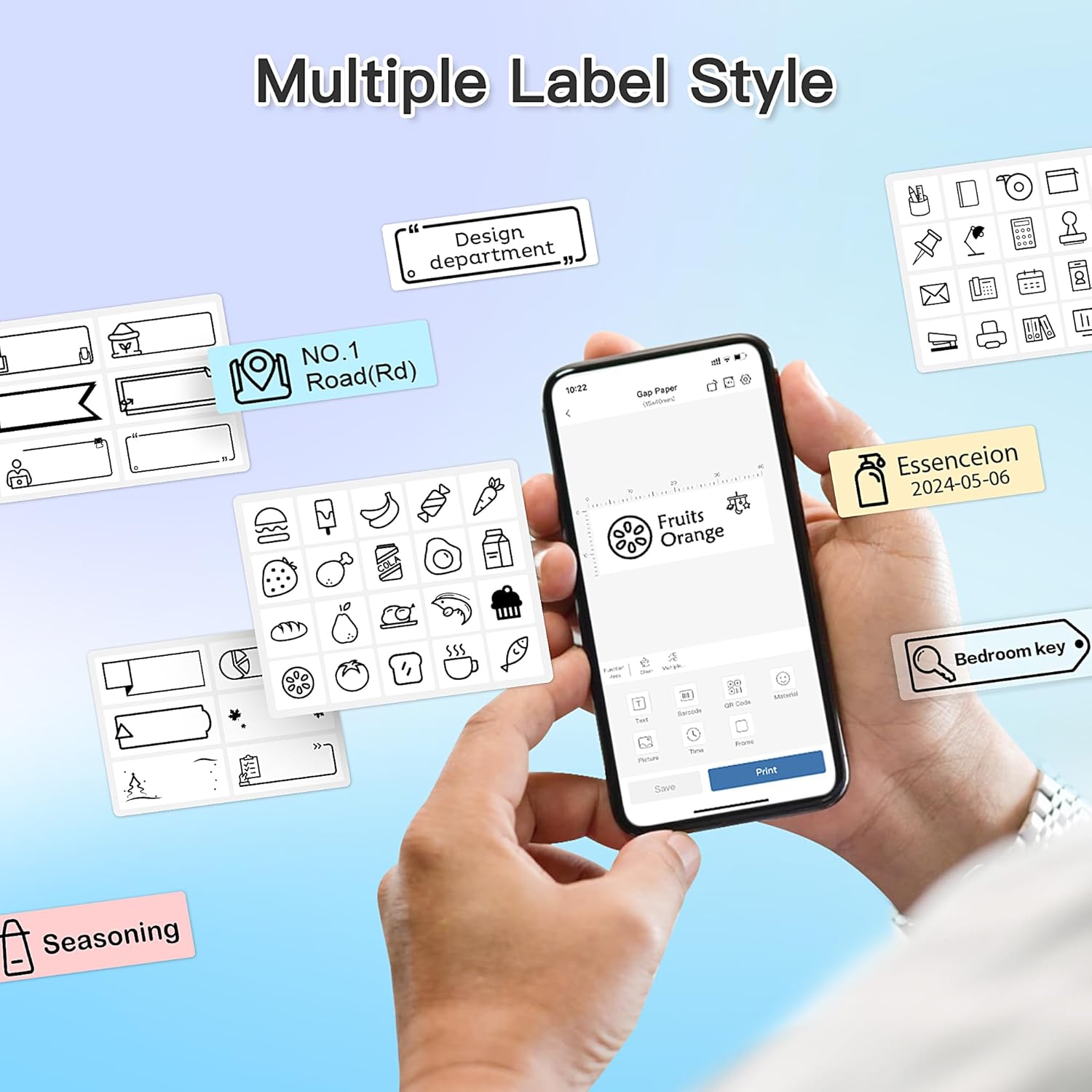
Ofbylding 5: Examples of diverse label styles achievable with the POLONO P31S, demonstrating the flexibility in design for different organizational needs.
5.2 Etiketten printsje
After designing your label in the Labelnize app:
- Review your label design on the app screen.
- Tap the "Print" button within the app.
- Confirm print settings (e.g., number of copies) if prompted.
- The printer will automatically feed and print the label.
5.3 De ynboude snijder brûke
The POLONO P31S features a built-in cutter for clean and precise label separation. After printing, gently press the cutter button or lever (depending on model variation) to cut the label. Do not pull the label manually to tear it, as this may damage the printer or result in uneven cuts.
6. Underhâld
6.1 De printkop skjinmeitsje
Om de printkwaliteit te behâlden, meitsje de printkop regelmjittich skjin:
- Skeakelje de printer út en ûntkoppel de stroomkabel.
- Iepenje de deksel fan it labelfak.
- Feie de printkop foarsichtich ôf mei in wattenstaafkeampbeëinige mei isopropylalkohol.
- Allow the print head to dry completely before closing the cover and turning on the printer.
6.2 Batterij Soarch
- Charge the battery regularly, even if the printer is not used frequently, to prolong its lifespan.
- Foarkom it folslein ûntladen fan 'e batterij foar langere perioaden.
- Bewarje de printer yn in koel, droech plak as net yn gebrûk.
7. Probleemoplossing
| Probleem | Mooglike oarsaak | Oplossing |
|---|---|---|
| Printer giet net oan. | Lege batterij of gjin macht. | Laad de printer mei de levere USB-kabel. |
| Kin gjin ferbining meitsje fia Bluetooth. | Bluetooth is off, printer is off, or app issue. | Ensure printer is on, Bluetooth is enabled on your device, and restart the Labelnize app. Try re-pairing. |
| Slechte printkwaliteit. | Dirty print head, incorrect label tape, or low battery. | Clean the print head (Section 6.1). Ensure you are using POLONO P31S compatible label tape. Charge the printer. |
| Label jam. | Improper tape installation or foreign object. | Turn off the printer, open the cover, carefully remove any jammed tape. Reinstall tape correctly. |
| Printer reagearret net. | Tydlike softwarefout. | Restart the printer and the Labelnize app. |
8. Spesifikaasjes
| Eigenskip | Detail |
|---|---|
| Model | P31S |
| Printing Technology | Thermal |
| Konnektivität | Bluetooth |
| Print Resolúsje | 203 x 203 DPI |
| Maksimale printsnelheid (monochrome) | 15 ppm |
| Max Media Grutte | Label rolls (2 inches / 24 millimeters) |
| Inkt kleur | Black (thermal print) |
| Power Boarne | 1 Lithium Polymer batterij (ynbegrepen) |
| Produkt Ofmjittings | 7.2 x 7.4 x 12.7 sm; 260 g |
| Ynbegrepen komponinten | Labels |
9. Garânsje en stipe
For warranty information and technical support, please refer to the official POLONO webside of nim kontakt op mei harren klanttsjinst. Bewarje jo oankeapbewiis as bewiis fan oankeap foar garânsjeclaims.
Offisjeel Website: www.polono.com (Opmerking: Dit is in plakhâlder URL, ferifiearje asjebleaft de werklike offisjele website for POLONO products.)