
1. Ynlieding
This manual provides instructions for the Mecer Xpress Smartlife 10.1-Inch M17QF7-4G Android 11 Tablet. It covers initial setup, operation, maintenance, and troubleshooting to ensure optimal use of your device.
Pakketynhâld
- Mecer Xpress Smartlife 10.1-Inch M17QF7-4G Android 11 Tablet
- Charger
- Folio-type case
- User Manual (dit dokumint)
2. Produkt Overview
The Mecer Xpress Smartlife tablet features a 10.1-inch IPS display, an octa-core processor, 4GB RAM, and 64GB internal storage. It runs on Android 11 and supports 4G connectivity.
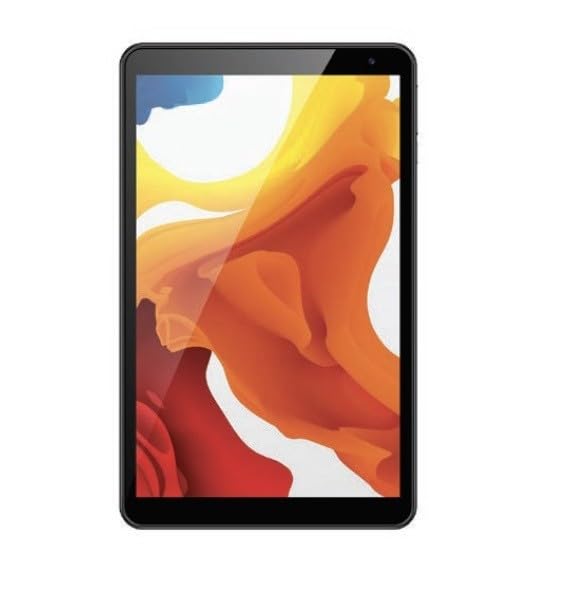
Figure 2.1: Mecer Xpress Smartlife M17QF7-4G Tablet. This image displays the tablet's front view, highlighting its 10.1-inch screen and sleek design.
Fysike eigenskippen
- Power knop: Typically located on the side or top edge, used to power on/off or wake/sleep the device.
- Volume knoppen: Pas audionivo's oan.
- USB Port (Type-C or Micro-USB): Foar opladen en gegevens oerdracht.
- Jack foar koptelefoan: Foar it ferbinen fan bedrade koptelefoanen.
- SIM/MicroSD-kaartslot: For inserting SIM cards for 4G connectivity and a microSD card for storage expansion.
- Foarste kamera: Located above the screen, for video calls and selfies.
- Efterkamera: Lizzend oan 'e efterkant, foar it meitsjen fan foto's en fideo's.
- Sprekkers: Foar audio útfier.
3. Opsette
3.1 Initial Charging
- Connect the charger to the tablet's USB port.
- Stek de lader yn in stopkontakt.
- Allow the tablet to charge completely before first use. The battery indicator on the screen will show charging status.
3.2 Yn-/útskeakelje
- Om oan te setten: Press and hold the Power button until the Mecer logo appears.
- Om út te skeakeljen: Druk en hâld de oan/út-knop yndrukt oant de enerzjyopsjes op it skerm ferskine, en selektearje dan "Utskeakelje".
- Om te sliepen/wekker te wurden: Druk koart op de knop Power.
3.3 SIM- en MicroSD-kaarten ynfoegje
The tablet supports dual SIM cards for 4G connectivity and a microSD card for additional storage.
- Sykje de SIM/MicroSD-kaartsleuf oan 'e kant fan 'e tablet.
- Use the provided tool (if any) or your fingernail to open the tray.
- Carefully place the SIM card(s) and/or microSD card into the designated slots on the tray, ensuring correct orientation.
- Druk de lade foarsichtich werom yn 'e sleuf oant er fêstklikt.
4. Bedriuwsinstruksjes
4.1 Basisnavigaasje
- Touch Screen: Tik om te selektearjen, swipe om te scrollen, knyp om yn te zoomen.
- Thús skerm: De sintrale hub foar jo apps en widgets.
- Notifikaasjepaniel: Swipe fan 'e boppekant fan it skerm nei ûnderen om tagong te krijen ta snelle ynstellings en notifikaasjes.
- App Drawer: Feegje omheech fan 'e ûnderkant fan it skerm nei view alle ynstallearre applikaasjes.
4.2 Connectivity (Wi-Fi and 4G)
- Wi-Fi:
- Gean nei Ynstellings > Netwurk en ynternet > Wi-Fi.
- Wi-Fi ynskeakelje.
- Selektearje jo winske netwurk en fier it wachtwurd yn as jo dêrom frege wurde.
- 4G/Mobyl data:
- Ensure a valid SIM card is inserted.
- Gean nei Ynstellings > Netwurk en ynternet > Mobyl netwurk.
- Toggle Mobile data on.
4.3 Google Play Store
Access millions of apps, games, books, and movies through the pre-installed Google Play Store. You will need a Google account to download content.
4.4 Kameragebrûk
De tablet hat in 0.3MP-kamera oan 'e foarkant en in 2.0MP-kamera oan 'e efterkant.
- Iepenje de Kamera app.
- Tik op de sluterknop om in foto te meitsjen.
- Wikselje tusken de foar- en efterkamera's mei it ikoan foar de kamerawikseling.
- Selektearje fideomodus om fideo's op te nimmen.
5. Underhâld
5.1 De tablet skjinmeitsje
- Brûk in sêfte, pluisfrije doek om it skerm en de lichem skjin te meitsjen.
- Foarkom it brûken fan hurde gemikaliën, abrasive reinigingsmiddels of aerosolsprays.
- Soargje derfoar dat de tablet útskeakele is en dat de stekker derút helle is foardat jo it skjinmeitsje.
5.2 Software Updates
Kontrolearje regelmjittich op software-updates en ynstallearje se om optimale prestaasjes en feiligens te garandearjen.
- Gean nei Ynstellings > Systeem > Systeem fernijing.
- Folgje de ynstruksjes op it skerm om alle beskikbere updates te downloaden en te ynstallearjen.
5.3 Batterij Soarch
- Foarkom it bleatstellen fan 'e tablet oan ekstreme temperatueren.
- Lit de batterij net faak folslein ûntladen wurde.
- Brûk allinnich de orizjinele lader of in sertifisearre kompatible lader.
6. Probleemoplossing
| Probleem | Mooglike oplossing |
|---|---|
| Tablet giet net oan. | Soargje derfoar dat de batterij opladen is. Ferbine de lader en wachtsje in pear minuten foardat jo besykje it opnij oan te setten. |
| Kin gjin ferbining meitsje mei Wi-Fi. | Kontrolearje oft Wi-Fi ynskeakele is yn ynstellings. Ferifiearje it Wi-Fi-wachtwurd. Start jo router en de tablet op 'e nij. |
| Apps crashje of befrieze. | Close background apps. Clear the cache of the problematic app (Settings > Apps > [App Name] > Storage > Clear cache). Restart the tablet. |
| Trage prestaasjes. | Close unused apps. Free up storage space by deleting unnecessary files or apps. Consider a factory reset as a last resort (backup data first). |
| 4G/Mobile data not working. | Ensure a valid SIM card is inserted and mobile data is enabled in settings. Check your data plan with your service provider. |
7. Spesifikaasjes
| Eigenskip | Detail |
|---|---|
| Merk | Mecer |
| Model Namme | Xpress Smartlife |
| Model Number | M17QF7-4G |
| Skermgrutte | 10.1 ynms |
| Display Resolúsje Maksimum | 1280x800 piksels |
| Bestjoeringssysteem | Android 11 |
| Kleur | Swart |
| RAM-ûnthâld ynstalleare grutte | 4 GB |
| Hard-Drive Size | 64 GB |
| Wreidzjen opslach | microSD |
| Prosessor merk | Intel |
| Prozessor Beskriuwing | Intel Octa-core |
| Triedleaze ferbining | 802.11 b/g/n Wi-Fi, Bluetooth 4.2 |
| Cellular Technology | 4G/HSPA+ (Voice and Data, 21Mbps) |
| Front Kamera | 0.3 MP |
| Rear Kamera | 2.0 MP |
| Batterij Cell Type | Lithium Polymer |
| Batterij-enerzjyynhâld | 6000 mAh |
| Item Ofmjittings (L x B x Dikte) | 25L x 1W x 15Th centimetres |
| Human-Interface Ynfier | Touchscreen |
| Special Feature | 4G Voice Call Support |
| Lân fan oarsprong | Súd-Afrika |
8. Garânsje en stipe
8.1 Warranty Information
The Mecer Xpress Smartlife M17QF7-4G Tablet comes with a 1 Jier beheinde garânsjeBewarje jo oankeapbewiis foar garânsjeclaims. De garânsje dekt produksjefouten ûnder normale gebrûksomstannichheden.
8.2 Customer Support
For technical assistance, troubleshooting beyond this manual, or warranty inquiries, please contact Mecer customer support. Refer to the Mecer official webside of produktferpakking foar de meast aktuele kontaktgegevens.