
1. Ynlieding
Thank you for choosing the Mecer 23.8 Inch Full HD LED Monitor. This manual provides essential information for setting up, operating, and maintaining your monitor. Please read it thoroughly before use to ensure proper functionality and longevity of your device.
This monitor features a 23.8-inch Full HD (1920 x 1080) display, offering crisp and clear visuals. It incorporates TFT LED panel technology for energy efficiency and vibrant colors, with a 16:9 aspect ratio suitable for widescreen viewing. Connectivity options include VGA and HDMI, making it compatible with various devices. Built-in speakers provide basic audio, and wide 178° viewing angles ensure comfortable use. With a 2ms response time, it is suitable for general computing and multimedia consumption.
2. Safety Information
- Power Boarne: Brûk allinnich de stroomadapter dy't by de monitor levere wurdt. Soargje derfoar dat it stopkontakt goed ierd is.
- Ventilaasje: Blokkearje gjin fentilaasje-iepeningen. Lit genôch romte om 'e monitor hinne foar goede luchtstream om oerferhitting te foarkommen.
- Pleatsing: Place the monitor on a stable, flat surface. Avoid placing it in direct sunlight, near heat sources, or in environments with excessive dust or humidity.
- Reiniging: Disconnect the power cord before cleaning. Use a soft, dry cloth for the screen and a slightly damp cloth for the casing. Foarkom it brûken fan abrasive skjinmakkers of oplosmiddels.
- Liquid Exposure: Keep liquids away from the monitor. If liquid enters the monitor, disconnect power immediately and contact qualified service personnel.
- Demontage: Besykje de monitor net sels útinoar te heljen of te reparearjen. Lit alle ûnderhâldswurk oer oan kwalifisearre servicepersoniel.
3. Package Ynhâld
Kontrolearje asjebleaft de ynhâld fan it pakket om der wis fan te wêzen dat alle items oanwêzich binne:
- Mecer 23.8 Inch LED Monitor
- Monitorstân (basis en nekke)
- Stromadapter en kabel
- HDMI Kabel
- VGA kabel
- User Manual (dit dokumint)
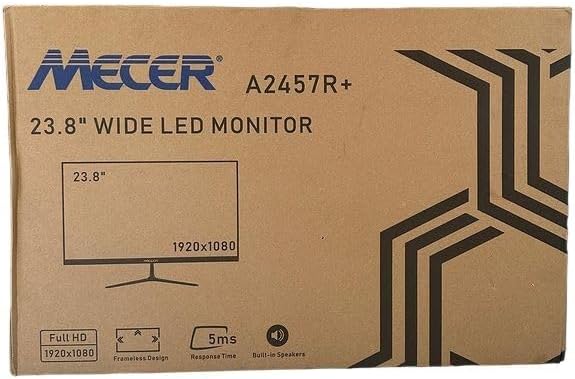
Ofbylding 3.1: The monitor packaging box, indicating the model A2457R+ and key features like 23.8" display, Full HD 1920x1080 resolution, frameless design, 5ms response time, and built-in speakers.
4. Opsette
4.1. De monitorstân yninoar sette
- Helje de ûnderdielen fan 'e monitor en de stand foarsichtich út 'e ferpakking.
- Attach the stand neck to the monitor panel by aligning the tabs and pushing firmly until it clicks into place.
- Attach the stand base to the stand neck, securing it with the provided screw (usually hand-tightened).
- Plak de gearstalde monitor op in stabyl, flak oerflak.

Ofbylding 4.1: Front view of the Mecer 23.8 Inch LED Monitor with its stand assembled, ready for connection.
4.2. Ferbine mei in kompjûter
The monitor supports both HDMI and VGA connections. Choose the appropriate cable for your computer.
- HDMI-ferbining: Connect one end of the HDMI cable to the HDMI port on your computer's graphics card and the other end to the HDMI port on the monitor. HDMI transmits both video and audio signals.
- VGA-ferbining: Connect one end of the VGA cable to the VGA port on your computer's graphics card and the other end to the VGA port on the monitor. VGA transmits only video signals.

Ofbylding 4.2: Rear view of the Mecer 23.8 Inch LED Monitor, showing the input ports including HDMI and VGA, as well as the power input.
4.3. Power Connection
- Connect the power adapter cable to the DC IN port on the back of the monitor.
- Stek de macht adapter yn in muorre outlet.
5. Bedriuwsinstruksjes
5.1. Oan- / útskeakelje
Press the power button, typically located on the bottom right side or rear of the monitor, to turn the monitor on or off. The power indicator light will illuminate when the monitor is on.
5.2. Ynput Boarne Seleksje
If you have multiple devices connected, you may need to manually select the input source. Use the monitor's control buttons (usually located near the power button) to navigate to the input selection menu and choose between HDMI or VGA.
5.3. On-Screen Display (OSD) Menu
The OSD menu allows you to adjust various display settings. Use the monitor's control buttons to:
- Iepenje it OSD -menu.
- Navigate through menu options (e.g., Brightness, Contrast, Color Settings, Input Source).
- Adjust values or select options.
- Ut it OSD-menu.
Algemiene oanpasbere ynstellings omfetsje:
- Helderheid / Kontrast: Pas de algemiene luminânsje en it ferskil tusken ljochte en tsjustere gebieten oan.
- Kleurynstellingen: Adjust color temperature, RGB values, or select preset color modes.
- Aspektferhâlding: Change between 16:9, 4:3, or other available options.
- Audio: Adjust volume for the built-in speakers.
5.4. Ynboude sprekkers
The monitor includes built-in speakers for basic audio output. If using an HDMI connection, audio will be transmitted automatically. For VGA connections, ensure your computer's audio output is configured correctly. Adjust the volume through the OSD menu or your computer's operating system.
6. Underhâld
6.1. De monitor skjinmeitsje
- Haal de stekker fan 'e monitor altyd út it stopkontakt foardat jo him skjinmeitsje.
- Skerm: Feie it skerm foarsichtich ôf mei in sêfte, pluisfrije doek. Foar koppige plakken, dûbje it lichtjesampen the cloth with water or a specialized screen cleaner (ensure it's alcohol-free and ammonia-free) and wipe carefully. Do not spray liquid directly onto the screen.
- Casing: Brûk in sêfte, droege doek om de monitor ôf te feegjenasing. As it nedich is, in bytsje damp doek kin brûkt wurde, folge troch in droege doek.
6.2. Opslach
As jo de monitor foar in langere perioade opslaan, meitsje dan alle kabels los, pak it yn 'e orizjinele ferpakking (as beskikber) en bewarje it op in koel, droech plak, fuort fan direkt sinneljocht en ekstreme temperatueren.
7. Probleemoplossing
As jo problemen hawwe mei jo monitor, sjoch dan nei de folgjende faak foarkommende problemen en oplossingen:
- Gjin macht:
- Soargje derfoar dat de stroomkabel goed ferbûn is mei de monitor en it stopkontakt.
- Kontrolearje dat it stopkontakt wurket troch in oar apparaat yn te stekken.
- Check if the power adapter is working correctly.
- Gjin sinjaal:
- Ensure the video cable (HDMI or VGA) is securely connected to both the monitor and the computer.
- Verify that the correct input source is selected on the monitor (via the OSD menu).
- Check if your computer is powered on and outputting a video signal.
- Try a different video cable if available.
- Ofbylding is wazig of ferfoarme:
- Soargje derfoar dat de resolúsje fan 'e monitor ynsteld is op syn native resolúsje (1920 x 1080) yn 'e werjefte-ynstellingen fan jo kompjûter.
- Adjust the monitor's OSD settings for brightness, contrast, and sharpness.
- For VGA connections, use the 'Auto Adjust' function in the OSD menu if available.
- Gjin audio fan ynboude sprekkers:
- Soargje derfoar dat it folume fan 'e monitor net stil of te leech ynsteld is yn it OSD-menu.
- Kontrolearje de audio-útfierynstellingen fan jo kompjûter om te soargjen dat de monitor selektearre is as it ôfspielapparaat.
- If using VGA, ensure your computer's audio is routed to an external speaker system, as VGA does not carry audio.
8. Spesifikaasjes
| Eigenskip | Spesifikaasje |
|---|---|
| Merk | Mecer |
| Model Number | A2457R+ |
| Display Grutte | 23.8 ynms |
| Resolúsje | 1920 x 1080 piksels (folsleine HD) |
| Display Type | LED (TFT LED Panel) |
| Aspect Ratio | 16:9 |
| Response Tiid | 2 millisekonden |
| Ferfarskje Rate | 75 Hz |
| Viewyn hoeken | 178° Horizontaal / 178° Fertikaal |
| Konnektivität | 1x HDMI, 1x VGA |
| Ynboude sprekkers | Ja |
| Kleur | Swart |
| Produkt Ofmjittings (D x B x H) | 560D x 42B x 410H millimeter |
| Special Features | High performance intelligent multi-frequency scanning, Micro Computer digital technology control, no radiation, no glare, Comply with VESA DPMS international power saving regulation, Support DDC 1/2B and Windows PNP Plug and Play |
9. Garânsje en stipe
This Mecer monitor comes with a 1 Jier beheinde garânsje fan 'e datum fan oankeap. Bewarje jo bewiis fan oankeap foar garânsjeclaims.
For technical support, service, or warranty inquiries, please contact your retailer or the authorized Mecer service center in your region. Do not attempt to repair the product yourself, as this may void your warranty.