
AceGamer PS-P-White
AceGamer RGB Charging Dock for PlayStation Portal - User Manual
Model: PS-P-White
1. Ynlieding
Tankewol foar de oankeapasing the AceGamer RGB Charging Dock for PlayStation Portal. This portable charging station is designed to provide a stable and efficient charging solution for your PlayStation Portal console, featuring customizable RGB lighting and essential protection features. Please read this manual carefully before use to ensure proper operation and maintenance.
2. Package Ynhâld
- AceGamer RGB Charging Dock (1 unit)
- Type-C oplaadkabel (1 ienheid)
- Brûkershânlieding (dit dokumint)
3. Produktfunksjes
- Dedicated Charging: Specifically designed for the PlayStation Portal console.
- RGB ferljochting: Features 7 distinct lighting modes for personalized aesthetics.
- Snel opladen: Efficient power delivery for fast charging.
- Feiligens beskermingen: Ynboude oerstream, oer-voltage, en ûnder-voltage beskerming.
- Ergonomysk ûntwerp: 30-degree comfortable viewing angle for the PlayStation Portal.
- Stabiele basis: Equipped with anti-slip mats for secure placement.
- Konnektivität: USB Type-C input for power.
4. Setup Ynstruksjes
- Ferbine macht: Insert the provided Type-C charging cable into the charging dock's input port and connect the other end to a suitable USB power adapter (not included).

Figure 4.1: Connecting the Type-C power cable to the charging dock.
- Place PlayStation Portal: Carefully align your PlayStation Portal console with the charging connector on the dock and gently place it into position. Ensure a secure connection for charging. The dock is designed to hold the Portal at a 30-degree angle for optimal viewing.

Figure 4.2: PlayStation Portal placed on the charging dock at a 30-degree angle.
- Anti-slip Stability: The base of the charging dock is equipped with anti-slip mats to prevent accidental movement. Ensure the dock is placed on a flat, stable surface.
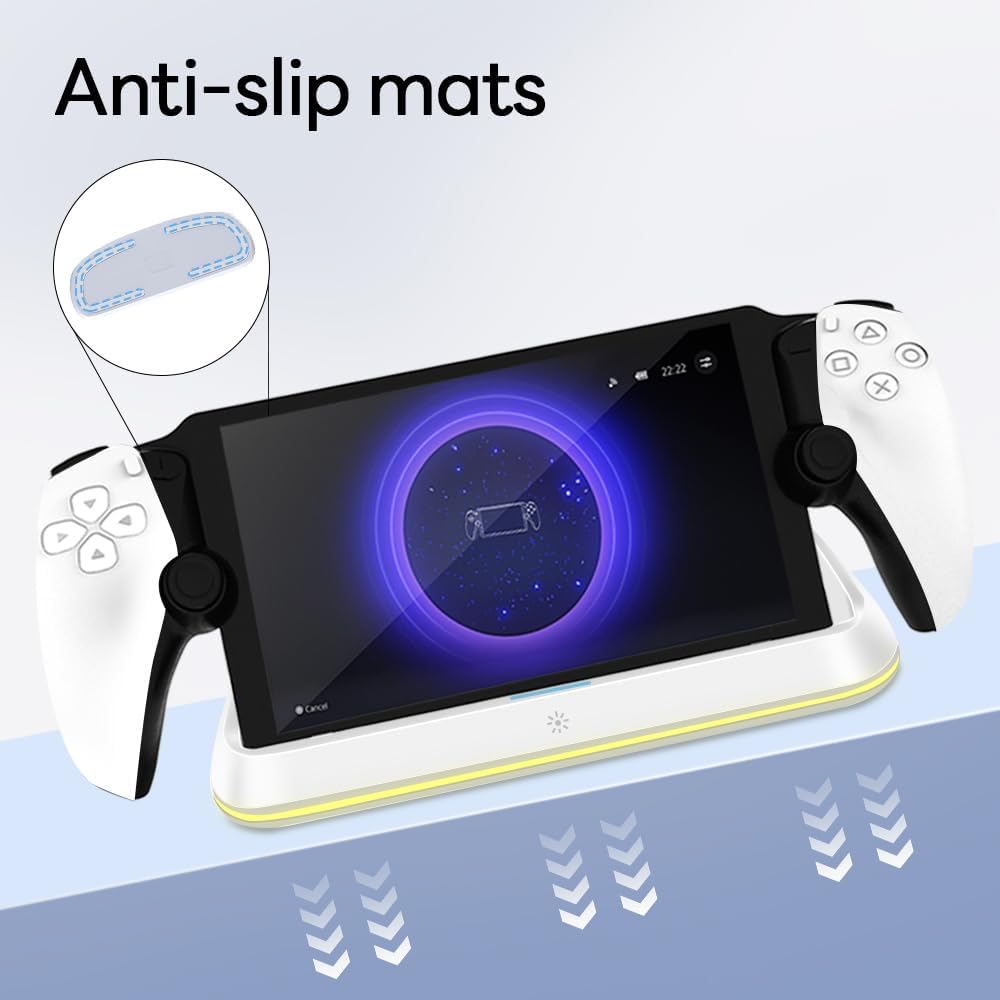
Figure 4.3: Anti-slip mats on the charging dock for enhanced stability.
- Visual Guide: For a visual demonstration of the setup process, please refer to the video below.
Video 4.1: Demonstration of connecting the power supply and placing the PlayStation Portal onto the charging dock.
5. Bedriuwsinstruksjes
- Charging the PlayStation Portal: Once the PlayStation Portal is correctly seated on the dock and the dock is powered, charging will begin automatically. A full charge typically takes approximately 3.5 hours. The dock includes protection against over-current, over-voltage, en ûnder-voltage to safeguard your device.

Figure 5.1: Charging indicators and safety protection features.
- RGB-ljochtkontrôle: The charging dock features a touch-sensitive button to control the RGB lighting. Press the button to cycle through 7 different lighting modes or to turn the lights off.

Figure 5.2: RGB lighting modes and touch control button.
6. Underhâld
- Keep the charging dock clean and free from dust. Use a soft, dry cloth for cleaning.
- Meitsje it apparaat bleatsteld oan ekstreme temperatueren, fochtigens of direkte sinne.
- Brûk gjin abrasive reinigingsmiddels of oplosmiddels, om't dizze it oerflak beskeadigje kinne.
- Ensure the charging port and connector are free of debris before placing the PlayStation Portal.
7. Probleemoplossing
- Apparaat laadt net op:
- Ensure the Type-C cable is securely connected to both the dock and the power adapter.
- Kontrolearje oft de stroomadapter goed wurket en yn in stopkontakt is ynstutsen.
- Check if the PlayStation Portal is properly seated on the charging connector.
- Besykje in oare Type-C-kabel of stroomadapter te brûken.
- RGB-ljochten wurkje net:
- Ensure the charging dock is powered on.
- Press the touch light button to cycle through modes or turn the lights on.
- Unstable placement:
- Ensure the dock is placed on a flat, level surface.
- Check if the anti-slip mats are clean and intact.
8. Spesifikaasjes
| Merk | AceGamer |
| Model Number | PS-P-White |
| Kompatibele apparaten | PlayStation Portaal |
| Ynfier Voltage | 5 Volt |
| Wattage | 7 watt |
| Connector Type | USB Type-C (for power input) |
| Special Features | RGB Lighting, Fast Charging, Over-current Protection, Over-voltage Beskerming, Under-voltage beskerming |
| Ofmjittings | Likernôch 22.5 x 8.9 x 8.4 sm |
| Gewicht | Likernôch 290 g |
9. Garânsje en stipe
AceGamer products are designed and manufactured to the highest quality standards. For warranty information or technical support, please contact the retailer where you purchased the product or visit the official AceGamer website for customer service contact details. Please retain your proof of purchase for warranty claims.
Ask a question about this manual
Ask about setup, troubleshooting, compatibility, parts, safety, or missing instructions. Manuals+ will review the question and use this page’s manual context to help answer it.