
1. Ynlieding
The MAXHUB UC P30 SC802A 12X VHD Camera is a high-definition video capture device designed for professional use. Featuring 12x optical zoom and 1080p video resolution, it is ideal for various applications including video conferencing, live streaming, and educational environments. This manual provides detailed instructions to help you set up, operate, and maintain your camera for optimal performance.
2. Wat sit der yn 'e doaze
Kontrolearje asjebleaft oft alle komponinten yn it pakket oanwêzich binne:
- 1 x MAXHUB UC P30 SC802A 12X VHD Camera
- (Additional accessories such as power adapter, USB cable, remote control, etc., would typically be listed here if provided in the product data. Based on "Included Components: 1 product", only the camera is explicitly mentioned.)
3. Produkt Overview
Familiarize yourself with the key components and features of your MAXHUB UC P30 SC802A camera.
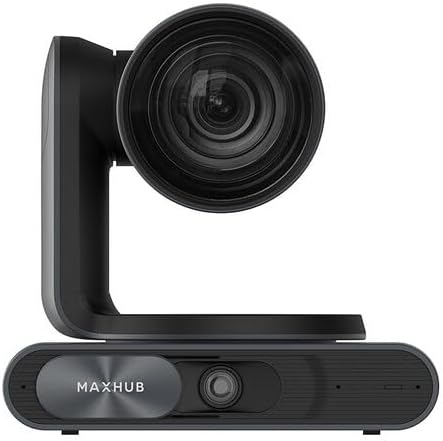
Ofbylding 3.1: Front view of the MAXHUB UC P30 SC802A camera, showing the main lens and the MAXHUB branding on the base.

Ofbylding 3.2: Angled view of the MAXHUB UC P30 SC802A camera, highlighting its compact design and the rotating camera head.
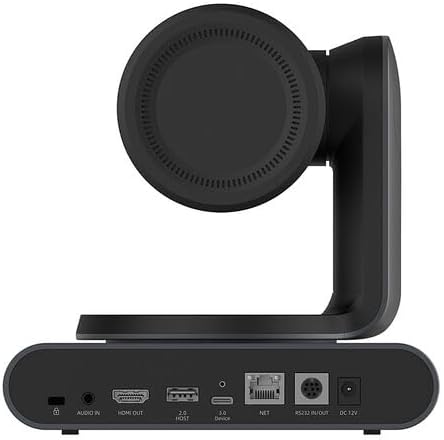
Ofbylding 3.3: Rear view of the MAXHUB UC P30 SC802A camera, displaying various connectivity ports including Audio In, HDMI Out, USB 2.0 Host, USB 3.0 Device, NET (Ethernet), RS232 In/Out, and DC 12V power input.
4. Opsette
Follow these steps to set up your MAXHUB UC P30 SC802A camera:
- Pleatsing: Place the camera on a stable, flat surface or mount it securely using compatible mounting hardware (not included, unless specified). Ensure it has a clear line of sight to the area you wish to capture.
- Power Connection: Connect the provided power adapter to the DC 12V input port on the rear of the camera (refer to Figure 3.3) and plug the adapter into a power outlet.
- USB-ferbining: Connect the camera to your computer using a USB cable (USB 3.0 Device port, refer to Figure 3.3). The camera is designed for plug-and-play operation with most operating systems.
- Fideo-útfier (opsjoneel): For direct video monitoring, connect an HDMI cable from the HDMI Out port on the camera to an HDMI input on a display device (refer to Figure 3.3).
- Audio Input (Optional): If using an external microphone, connect it to the Audio In port on the camera (refer to Figure 3.3).
- Netwurkferbining (opsjoneel): For network control or streaming, connect an Ethernet cable to the NET port (refer to Figure 3.3).
- Driver ynstallaasje: In most cases, the camera will be recognized automatically by your operating system. If prompted, allow the system to install necessary drivers. For advanced features or specific software, refer to the manufacturer's website foar bestjoerders downloads.
5. Bedriuwsinstruksjes
Once the camera is set up, you can begin operation:
- Power On: The camera will power on automatically once connected to power. An indicator light (if present) will illuminate.
- Software-erkenning: Open your preferred video conferencing, streaming, or recording software on your computer. Select the MAXHUB UC P30 camera as your video input device.
- Pan, Tilt, Zoom (PTZ) Control:
- Hânlieding kontrôle: The camera head can be manually adjusted for initial positioning.
- Software kontrôle: Utilize the PTZ controls within your video software or a dedicated MAXHUB control application (if available) to remotely adjust pan, tilt, and zoom.
- Remote Control (as fan tapassing): If a remote control was included, use it to precisely adjust the camera's position and zoom level.
- Fokus oanpassing: The camera typically features auto-focus. If manual focus is required, it can usually be adjusted via software controls.
- Video ynstellings: Adjust video settings such as resolution (up to 1080p), frame rate, brightness, contrast, and white balance through your software's camera settings.
- Útskeakelje: Disconnect the power adapter from the camera or the power outlet to turn off the device.
6. Underhâld
Goed ûnderhâld soarget foar de lange libbensdoer en optimale prestaasjes fan jo kamera:
- Reinigje de lens: Use a soft, lint-free cloth specifically designed for optical lenses to gently wipe the camera lens. Avoid abrasive materials or harsh chemicals.
- Reiniging fan it lichem: Feie de kamerabody ôf mei in sêfte, droege doek. Foar koppich smoargens, in bytsje damp In doek kin brûkt wurde, mar soargje derfoar dat der gjin focht yn 'e poarten of ynterne komponinten komt.
- Opslach: When not in use for extended periods, store the camera in a cool, dry place, away from direct sunlight and extreme temperatures. Use the original packaging or a protective case if available.
- Foarkom obstruksjes: Ensure the camera's ventilation openings (if any) are not blocked to prevent overheating.
7. Probleemoplossing
Sjoch dit diel foar faak foarkommende problemen en har oplossingen:
| Probleem | Mooglike oarsaak | Oplossing |
|---|---|---|
| Gjin ôfbylding/fideo-útfier |
|
|
| Min ôfbyldingskwaliteit |
|
|
| Camera not recognized by computer |
|
|
8. Spesifikaasjes
Key technical specifications for the MAXHUB UC P30 SC802A 12X VHD Camera:
| Eigenskip | Detail |
|---|---|
| Model Namme | UCP30 |
| Merk | MAXHUB |
| Camcorder Type | Action Camera (Note: This might be a misclassification in the source data, as it's a PTZ camera. Describing it as a "Professional Video Conferencing Camera" would be more accurate based on its features.) |
| Optyske zoom | 12 x |
| Video Capture Resolúsje | 1080p |
| Video Capture Format | MP4 |
| Konnektivität Technology | USB |
| Kleur | Swart |
| Item Gewicht | 2.2 pyk |
| Package Ofmjittings | 3.94 x 0.79 x 0.39 inch |
| ASIN | B0DF5RFM3J |
| Datum Earste Beskikber | 25 augustus 2024 |
9. Warranty Information
MAXHUB products are typically covered by a manufacturer's warranty. For specific warranty terms, conditions, and duration, please refer to the warranty card included with your product or visit the official MAXHUB webside. Bewarje jo bewiis fan oankeap foar garânsjeclaims.
10. Stipe
If you encounter any issues not covered in this manual or require further assistance, please contact MAXHUB customer support. You can usually find contact information on the official MAXHUB webwebside of fia de winkel dêr't jo it produkt kocht hawwe.
Foar online boarnen, besykje de MAXHUB Store on Amazon.