
1. Safety Information
Please read and understand all safety instructions before operating this device. Failure to follow these instructions may result in property damage, injury, or death.
- Ensure the device is installed correctly to prevent water leakage.
- Only use with a 2.4GHz WiFi network. 5GHz networks are not supported.
- Hâld it apparaat foar langere perioaden fuort fan ekstreme temperatueren en direkt sinneljocht.
- Do not immerse the device in water. It is designed to be water-resistant, not waterproof.
- Hâld bûten it berik fan bern.
2. Package Ynhâld
Kontrolearje oft alle items yn jo pakket oanwêzich binne:
- Insoma WiFi Water Timer
- WiFi Hub (Gateway)
- User Manual
- Hose Connectors/Adapters
3. Produkt Overview
The Insoma WiFi Sprinkler Timer allows for smart control of your garden watering system via an app and voice commands. It connects to a WiFi hub for extended range and stable signal.

Image: The Insoma WiFi Sprinkler Timer connected to a faucet, with the separate WiFi hub shown.
4. Opsette
4.1 Fysike ynstallaasje
- Attach the WiFi Water Timer to your outdoor faucet. Ensure a tight connection to prevent leaks.
- Connect your garden hose to the outlet of the water timer.

Image: The Insoma WiFi Water Timer securely attached to an outdoor water faucet, with a garden hose connected to its outlet.
4.2 App Installation and Gateway Pairing
- Download de 'Smart Life' app fan 'e app store fan jo smartphone (iOS of Android).
- Ensure your phone's WiFi (2.4GHz only) and Bluetooth are enabled.
- Plug in the WiFi Hub (Gateway). Long press the gateway button until its indicator light flashes.
- Open the Smart Life app, click '+' to add a device, and select 'Add Device' or 'Sykje nei Devices'. The app should discover the gateway.
- Follow the in-app instructions to connect the gateway to your 2.4GHz WiFi network.
Video: This video demonstrates the process of connecting the Insoma WiFi Water Timer and its Gateway to the Smart Life App, including enabling WiFi and Bluetooth, pairing the gateway, and adding the device within the app.
4.3 Water Timer Pairing
- On the gateway page in the Smart Life app, click 'Add device' and select 'Sykje nei Devices'.
- Long press the button on the WiFi Water Timer for 5 seconds until its indicator light flashes.
- The app will discover the water timer. Click 'Done' to add it to your system.
5. Bedriuwsinstruksjes
5.1 App-ôfstânsbetsjinning
Use the Smart Life app to create and manage watering schedules from anywhere. The WiFi connection via the hub provides a stable signal for remote operation.

Image: A user interacting with the Smart Life app on a smartphone, demonstrating remote control capabilities for the water timer, including setting irrigation duration and viewing schedules.
5.2 Smart Voice Control
The timer is compatible with Alexa and Google Assistant, allowing you to control watering with simple voice commands.

Image: A man using a voice assistant (Alexa) to issue a command, 'Alexa, turn on the WiFi Water Timer', illustrating the voice control feature.
5.3 Irrigation Modes
The timer offers two primary irrigation modes: Timed Irrigation and Regular Irrigation (Cycle/Soak). You can set up to 20 different schedules.
- Timed Irrigation Mode: Set specific start times and durations for watering.
- Cycle/Soak Mode: Water in cycles with pause durations to allow water to soak in, improving efficiency and reducing runoff.
- Hânlieding modus: Temporarily water without affecting your programmed schedules. This can be activated via the app or a button on the timer.

Image: Visual representation of various irrigation methods, including normal sprinkler operation, drip irrigation (cycle & soak), and manual hose watering.
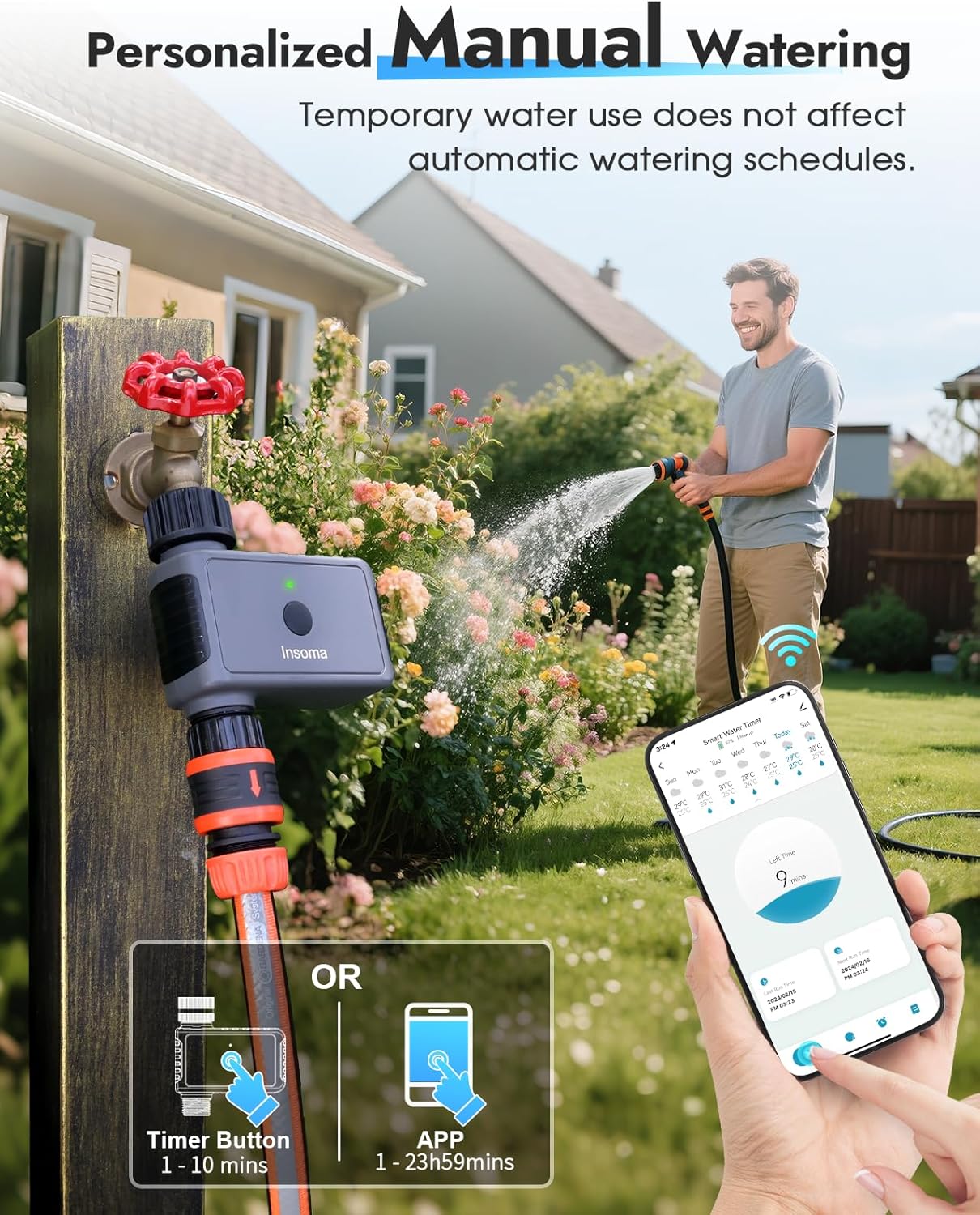
Image: A person manually watering plants with a hose, demonstrating that temporary water use does not affect automatic watering schedules, with options to activate via timer button or app.
5.4 Reinfertraging
Utilize the rain delay feature to pause watering for 24, 48, or 72 hours, preventing overwatering and conserving water during rainy periods.
Image: The water timer installed outdoors during rain, with an overlay showing rain delay options for 24, 48, or 72 hours, indicating its IP55 water resistance.
5.5 Seasonal Adjustment
Adjust watering durations based on the month to meet varying seasonal needs of your plants.

Image: A graph illustrating how watering duration can be adjusted throughout the year (e.g., 30 mins in Feb, 45 mins in Apr, 60 mins in Jul) to match seasonal plant requirements.
5.6 Watering History and Notifications
The Smart Life app provides a detailed irrigation history and real-time notifications about your watering activities.
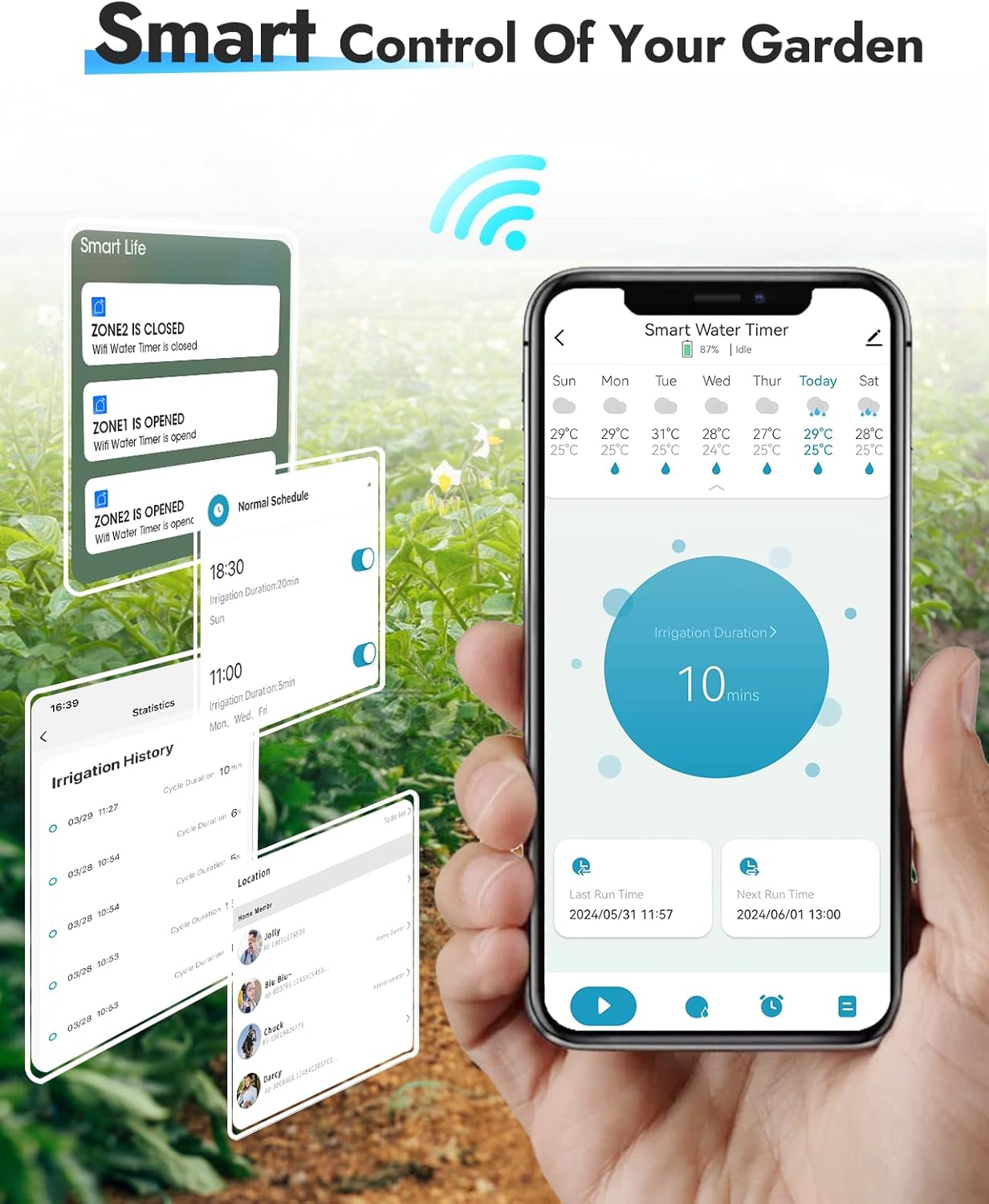
Image: A smartphone displaying the Smart Life app interface, showing weather information, current irrigation duration, and a detailed irrigation history log.
5.7 Expanding Your Irrigation System
One WiFi hub can support up to 32 WiFi timers, allowing you to create a comprehensive smart irrigation system for multiple zones in your garden.
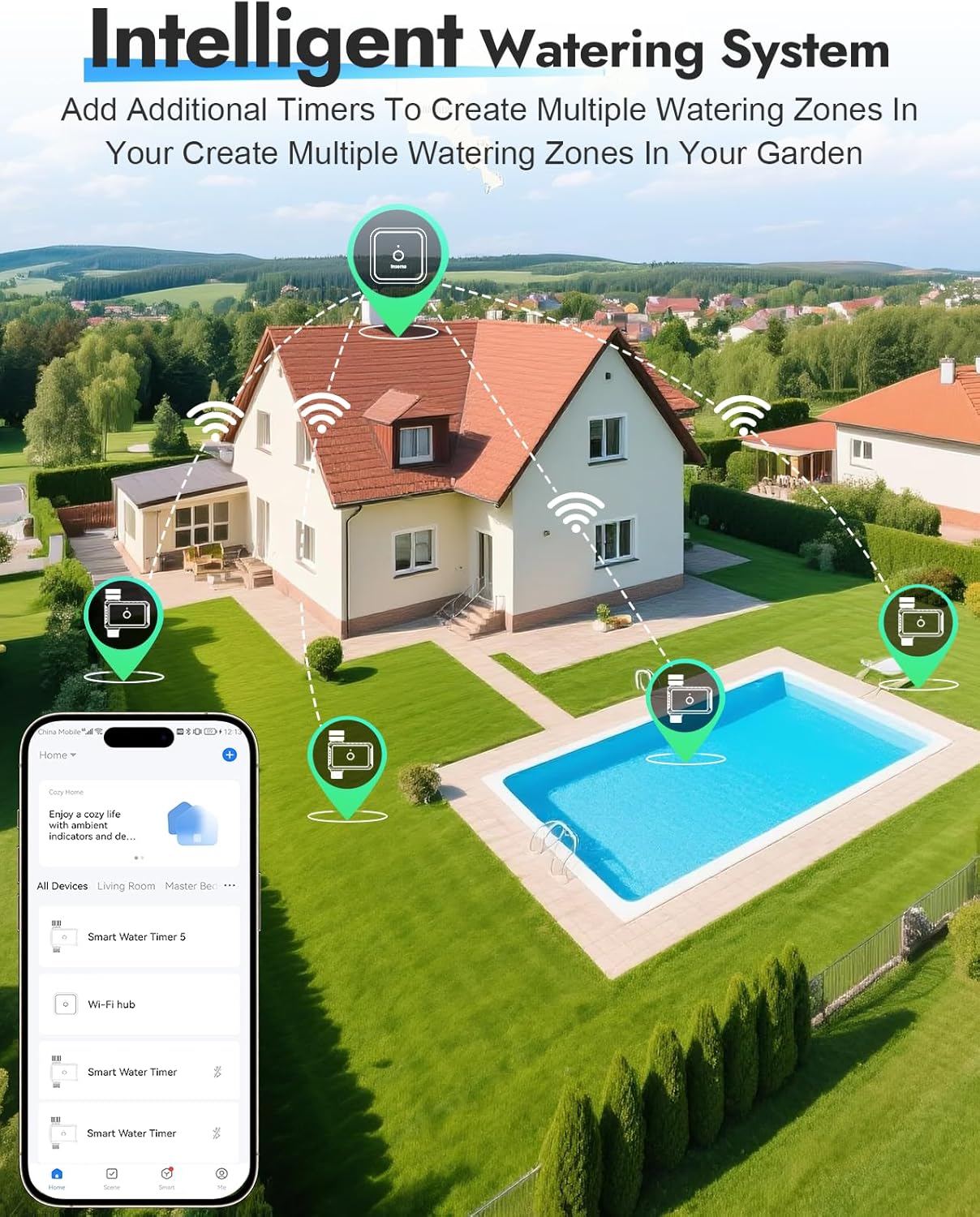
Ofbylding: In loftfoto view of a house and garden, illustrating how multiple WiFi water timers can be connected wirelessly to a central WiFi hub to manage different watering zones.
6. Underhâld
- Reiniging: Wipe the exterior of the timer and hub with a damp doek. Brûk gjin abrasive cleaners.
- Winterisaasje: Before freezing temperatures, disconnect the timer from the faucet and store it indoors in a dry, frost-free location.
- Batterij ferfanging: If your timer uses batteries (check model specifics), replace them as needed to ensure continuous operation. Low battery notifications will appear in the app.
7. Probleemoplossing
| Probleem | Mooglike oarsaak | Oplossing |
|---|---|---|
| Timer not connecting to app/hub | Incorrect WiFi band, weak signal, pairing mode not active. | Ensure 2.4GHz WiFi. Move hub closer to router/timer. Re-enter pairing mode for hub/timer. |
| Gjin wetterstream | Faucet off, low water pressure, timer valve stuck, low battery. | Check faucet. Ensure adequate water pressure. Replace batteries if applicable. |
| Schedules not running | Incorrect schedule settings, rain delay active, low battery. | Verify schedule times and days. Check for active rain delay. Replace batteries. |
| Stimkontrôle wurket net | Incorrect setup with Alexa/Google Assistant, device offline. | Ensure proper integration with voice assistant. Check app for device online status. |
8. Spesifikaasjes
| Eigenskip | Detail |
|---|---|
| Merk | Insoma |
| Model Number | SGW-05W-N |
| Materiaal | Plestik |
| Kleur | Griis |
| Produkt Ofmjittings | 2" D x 4" W x 5" H |
| Oantal ynstellings | 5 |
| Smart Home Kompatibilität | Alexa, Google Assistant |
| WiFi Support | 2.4GHz allinnich |
| Hub Range | Oant 196 ft (60m) |
| Bluetooth berik | Oant 49.2 ft (15m) yn iepen gebiet |
9. Garânsje en stipe
For warranty information and technical support, please refer to the contact details provided with your purchase or visit the official Insoma website.
Website: Insoma Store on Amazon