
1. Produkt Overview
The MOBAPAD N1 HD is a versatile wireless controller designed for an enhanced gaming experience across multiple platforms. It features advanced technologies such as Hall Effect Joysticks for precise control, ALPS Dual-Axis Motors for immersive HD vibration, and six-axis motion control. This controller is compatible with Nintendo Switch, PC, iOS, and Android devices, offering seamless connectivity and responsive performance.

Ofbylding: Front view fan 'e MOBAPAD N1 HD Draadloze Controller, sjen littenasing syn ergonomysk ûntwerp en knopyndieling.
2. Key Features
- Kompatibiliteit mei meardere platfoarms: Fully compatible with Nintendo Switch, PC, iOS, and Android devices, ensuring broad usability.
- Hall-effekt joysticks: Provides smooth, precise, and durable control with minimal wear, ideal for accurate gaming.
- ALPS Dual-Axis Motors with HD Vibration: Delivers realistic and immersive haptic feedback for enhanced gameplay.
- Seis-assige bewegingskontrôle: Built-in gyroscope enables enhanced motion control for compatible games.
- NFC for Amiibo Scanning: Supports NFC technology for scanning Amiibo figures on Nintendo Switch.

Image: The controller illustrating its immersive motion control capabilities with swirling lines around it.

Image: The controller positioned in front of a collection of Amiibo figures, highlighting its NFC scanning function.

Image: The controller shown alongside icons for Switch, Android/iOS, and PC, demonstrating its multi-device compatibility.
3. Opset en Ferbining
Follow these steps to connect your MOBAPAD N1 HD controller to your desired device.
3.1. Ferbine mei Nintendo Switch
- Selektearje yn it HOME-menu Controllers, doe Feroarje Grip / Oarder.
- While the screen is displaying "Press L + R on the controller", press and hold the Thús knop on the MOBAPAD N1 HD controller for 3-5 seconds until the player LEDs begin to flash.
- Once connected, the player LED(s) corresponding to the controller number will remain lit.
3.2. Ferbine mei PC (Windows)
- Connect the controller to your PC using a USB-C cable. The controller will be recognized as a wired controller.
- For wireless connection, ensure your PC has Bluetooth enabled. Go to Bluetooth & other devices settings.
- Selektearje "Bluetooth of oar apparaat tafoegje" en kies "Bluetooth".
- Druk en hâld de Thús knop on the controller until the LEDs flash rapidly, indicating pairing mode.
- Select "MOBAPAD N1 HD" from the list of available devices.
3.3. Ferbine mei iOS/Android-apparaten
- Aktivearje Bluetooth op jo iOS- of Android-apparaat.
- Gean nei Bluetooth-ynstellingen en sykje nei nije apparaten.
- Druk en hâld de Thús knop on the controller until the LEDs flash rapidly.
- Select "MOBAPAD N1 HD" from the list of available devices to pair.
4. De controller betsjinje
Familiarize yourself with the controller's layout and functions for optimal gameplay.
4.1. Knop-yndieling
- Linker analoge stok: For movement and camera control. Features Hall Effect technology.
- Rjochter analoge stok: For camera control and aiming. Features Hall Effect technology.
- D-Pad: Directional input for menu navigation and specific game actions.
- A/B/X/Y-knoppen: Standert aksjeknoppen.
- L/R-knoppen: Skouderknoppen.
- ZL/ZR-knoppen: Triggerknoppen.
- Minus (-) knop: Typically for opening in-game menus or specific functions.
- Plus (+) knop: Typically for opening in-game menus or specific functions.
- Thús knop: Returns to the system's home screen. Also used for pairing and NFC scanning.
- Capture knop: Takes screenshots or video clips (Nintendo Switch).
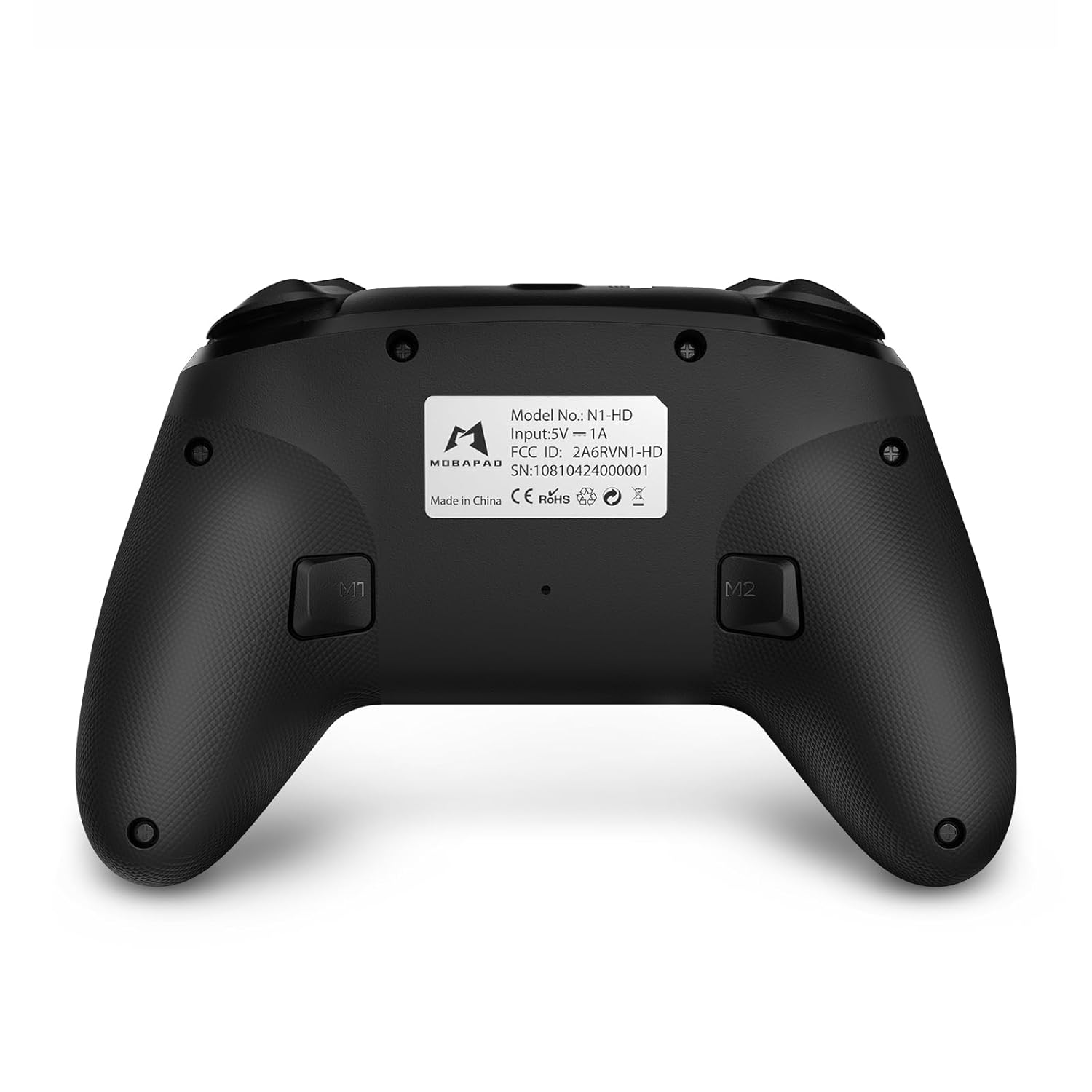
- M1/M2 knoppen: Programmable back buttons for custom macros or remapping.
Ofbylding: Detaillearre foarkant view of the MOBAPAD N1 HD controller, showing all buttons and joysticks.

Ofbylding: Efterkant view of the MOBAPAD N1 HD controller, highlighting the M1 and M2 programmable buttons and product label.
4.2. NFC Functionality (Amiibo Scanning)
To use the NFC function for Amiibo scanning on Nintendo Switch:
- Ensure your controller is connected to the Nintendo Switch.
- In a compatible game, when prompted to scan an Amiibo, place the Amiibo figure directly over the Thús knop area on the controller.
- Hold the Amiibo in place until the game registers the scan.
5. Underhâld en soarch
Goed ûnderhâld soarget foar de lange libbensdoer en optimale prestaasjes fan jo controller.
- Reiniging: Brûk in sêfte, droege doek om de controller ôf te feegjen. Foar koppich smoargens, in bytsje dûsjeampMeitsje de doek skjin mei wetter. Foarkom skealike gemikaliën of abrasive materialen.
- Opslach: Bewarje de controller op in koel, droech plak, fuort fan direkt sinneljocht en ekstreme temperatueren.
- Batterij soarch: The controller contains a Lithium Ion battery. Avoid fully discharging the battery frequently. If storing for extended periods, charge the battery to about 50% to prolong its lifespan. Do not expose the battery to fire or extreme heat.
- Behanneling: Foarkom it fallen litten fan 'e controller of it ûnderwurpen oan sterke stoten, om't dit ynterne komponinten beskeadigje kin.
6. Probleemoplossing
If you encounter issues with your MOBAPAD N1 HD controller, refer to the following common solutions.
| Probleem | Mooglike oarsaak | Oplossing |
|---|---|---|
| De controller ferbynt net. | Lege batterij, bûten berik, ferkearde koppelingsmodus, ynterferinsje. | Charge the controller fully. Ensure it is within range of the device. Re-enter pairing mode (hold Home button). Move closer to the device or away from other wireless devices. |
| Knoppen of joysticks reagearje net. | Software glitch, physical obstruction, damage. | Restart the controller and the connected device. Check for any debris around the buttons/joysticks. If issues persist, contact customer support. |
| Vibration is weak or absent. | Vibration setting off, game does not support vibration, motor issue. | Check in-game settings and system settings to ensure vibration is enabled. Verify if the game supports vibration feedback. |
| NFC scanning fails. | Incorrect placement, game not prompting scan, controller not connected. | Ensure the Amiibo is placed directly over the Home button area. Confirm the game is prompting for an Amiibo scan. Verify controller is properly connected to the Switch. |
7. Spesifikaasjes
| Eigenskip | Detail |
|---|---|
| Model Number | Mobapad N1 HD Black |
| Ofmjittings (L x B x H) | 5.91 x 2.36 x 3.94 inch |
| Gewicht | 7.05 oz |
| Batterij Type | 1 Lithium Ion batterij (ynbegrepen) |
| Konnektivität | Wireless (Bluetooth), USB-C (wired) |
| Kompatibiliteit | Nintendo Switch, PC, iOS, Android |
| Special Features | Hall Effect Joysticks, ALPS Dual-Axis Motors, HD Vibration, Six-Axis Gyroscope, NFC |
8. Garânsje en stipe
For warranty information or technical support, please contact MOBAPAD customer service. Refer to the official MOBAPAD webwebside of jo oankeapdokumintaasje foar spesifike garânsjebetingsten en kontaktgegevens.
You can visit the official MOBAPAD store on Amazon for more information: MOBAPAD Store