
1. Ynlieding
This manual provides essential information for the proper installation, operation, and maintenance of your GAMEON Pro Series 27-inch Fast IPS Gaming Monitor (Model: GOAE27QHD165IPS). Please read this manual thoroughly before using the product to ensure optimal performance and safety. Keep this manual for future reference.

Ofbylding 1.1: Front view of the GAMEON Pro Series 27-inch Fast IPS Gaming Monitor, showcasing syn slanke rânen en stand.
The GAMEON Pro Series 27-inch Fast IPS Gaming Monitor features a QHD 2K (2560x1440p) resolution, a 165Hz refresh rate, and a 0.5ms MPRT response time. It supports Adaptive-Sync and Variable Refresh Rate (VRR) technologies for smooth, tear-free gameplay. Connectivity options include dual HDMI 2.1 ports and dual DisplayPort 1.4 ports, along with an audio-out jack and integrated speakers. This monitor is compatible with various gaming consoles and PCs, including PS5.
2. Package Ynhâld
Kontrolearje de ynhâld fan it pakket by it útpakken. As der items ûntbrekke of beskeadige binne, nim dan kontakt op mei jo winkelier.
- GAMEON Pro Series 27-inch Fast IPS Gaming Monitor
- Monitorstân (basis en nekke)
- Stroomadapter en stroomkabel
- HDMI Kabel
- DisplayPort -kabel
- User Manual
3. Opsette
3.1 Monitorassemblage
- Helje de monitor foarsichtich út 'e ferpakking en hâld it skerm beskerme.
- Befestigje de hals fan 'e stand oan it monitorpaniel. Soargje derfoar dat it goed fêstklikt of mei skroeven fêstmakke is, as dy meilevere binne.
- Befestigje de basis fan 'e stand oan 'e hals fan' e stand en draai de skroef oan 'e ûnderkant fan' e basis fêst.
- Plak de gearstalde monitor op in stabyl, flak oerflak.
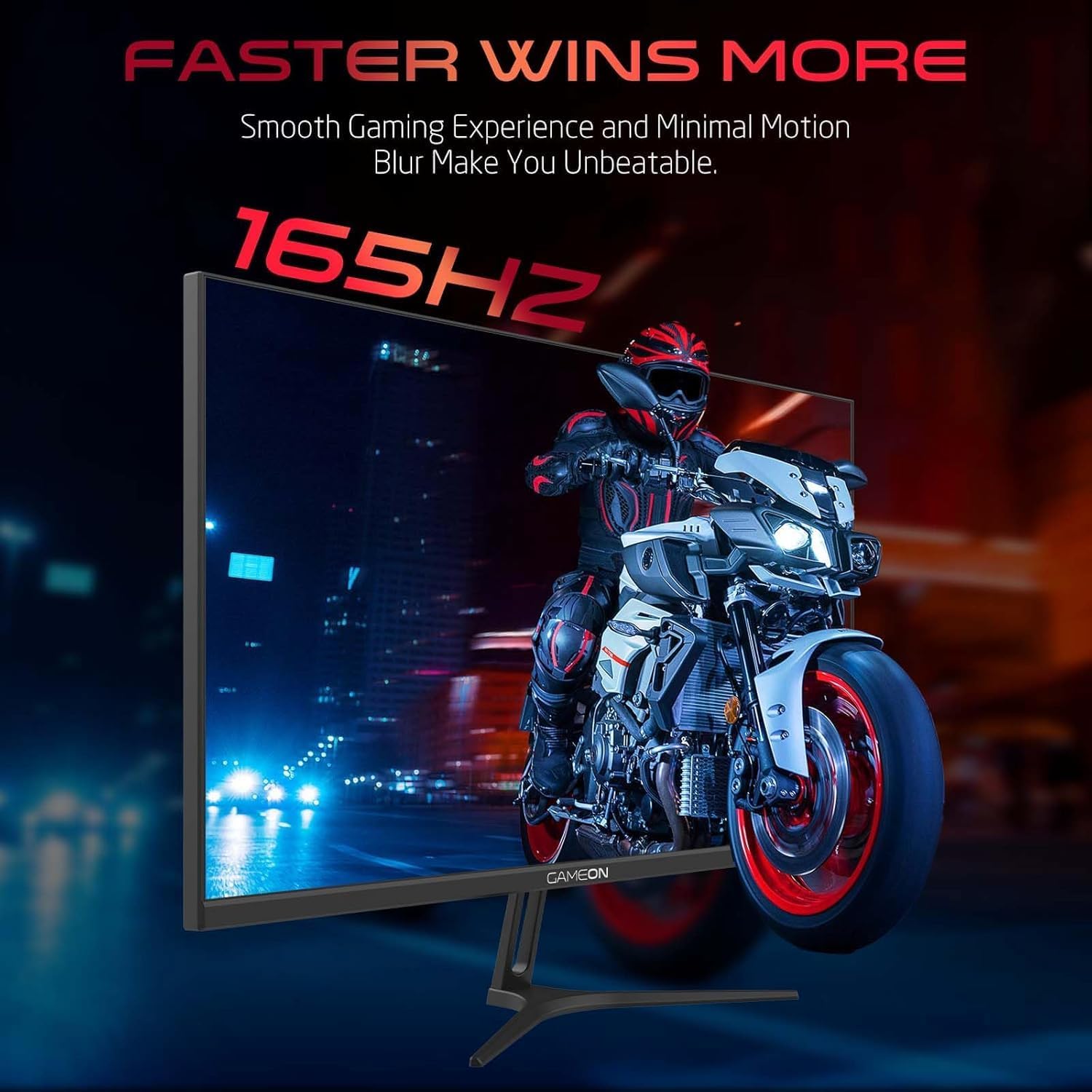
Image 3.1: Illustration of the monitor with its stand, ready for assembly.
3.2 Ferbine mei apparaten
The monitor offers multiple input options. Choose the appropriate cable for your device (PC, gaming console, etc.).

Ofbylding 3.2: Efterkant view of the monitor, highlighting the input ports and VESA mounting points.

Image 3.3: Detailed diagram illustrating the various input/output ports and their corresponding devices.
- HDMI-ferbining: Connect one end of the HDMI cable to the HDMI output port of your device (PC, PS5, Xbox, TV box) and the other end to one of the HDMI 2.1 ports on the monitor.
- DisplayPort-ferbining: Connect one end of the DisplayPort cable to the DisplayPort output of your PC and the other end to one of the DisplayPort 1.4 ports on the monitor.
- Audio útfier: For external audio, connect headphones or external speakers to the 3.5mm audio-out jack on the monitor.
3.3 Stromferbining
- Connect the power adapter to the DC IN port on the monitor.
- Plug the power cable into the power adapter, then plug the other end of the power cable into a power outlet.
4. Bedriuwsinstruksjes
4.1 Power On / Off
Druk op de oan/út-knop op 'e monitor om it oan of út te skeakeljen. It oan/út-ljocht sil oangean as de monitor oan is.
4.2 On-Screen Display (OSD) Menu
The monitor features a menu button (often a joystick or a series of buttons) usually located on the back or bottom right of the monitor. Use this to navigate the OSD menu and adjust settings.
- Press the menu button to open the OSD menu.
- Use the navigation controls to move through menu options.
- Press the menu button again (or a designated 'Enter' button) to select an option.
- Use the navigation controls to adjust values or select sub-menus.
- Select 'Exit' or press the menu button repeatedly to close the OSD menu.
4.3 Algemiene OSD-ynstellingen
- Ofbylding ynstellings: Pas helderheid, kontrast, skerpte, gamma en kleurtemperatuer oan.
- Kleurynstellingen: Fine-tune RGB values, hue, and saturation.
- Ynfierboarne: Manually select between HDMI 1, HDMI 2, DisplayPort 1, or DisplayPort 2.
- Audio: Pas it folume oan foar ynboude sprekkers of oansletten koptelefoanen.
- Gaming funksjes: Enable/disable Adaptive-Sync/FreeSync, adjust overdrive settings, and activate crosshair overlays if available.
4.4 PS5 120Hz Setup Guide
To enable 120Hz output on your PlayStation 5 with this monitor, follow these steps:

Image 4.1: Visual guide for configuring 120Hz refresh rate on a PlayStation 5 console.
- Enable 120Hz from PS5 Settings:
- Gean nei Ynstellings > Screen and Video > Video Output.
- Set Enable 120Hz Output nei Automatysk.
- Set Resolúsje nei 1080p or Automatysk. (Note: While the monitor supports 1440p, some PS5 games may require 1080p for 120Hz output.)
- Enable Performance Mode for Gamers:
- Gean nei Ynstellings > Save Data and Game App Settings > Game Presets.
- Set Performance Mode as standert.
- Check In-Game Settings:
- Go to the specific game's Game Ynstellings > Video Ynstellings en selektearje 120 fps or Performance Mode.
5. Underhâld
5.1 It skerm skjinmeitsje
- Turn off the monitor and unplug the power cable.
- Brûk in sêft, pluisfrij doek licht dampskjinmakke mei wetter of in spesjalisearre skermreiniger.
- Wipe the screen gently. Do not press hard or use abrasive materials.
- Avoid using alcohol, ammonia, or benzene-based cleaners, as they may damage the screen surface.
5.2 De C skjinmeitsjeasing
- Brûk in sêfte, droege doek om de monitor ôf te feegjenasing.
- Foar koppige vlekken, licht dampde doek mei wetter en in myld reinigingsmiddel, en feie it dan droech.
6. Probleemoplossing
As jo problemen hawwe mei jo monitor, rieplachtsje dan de folgjende hantlieding foar probleemoplossing:
| Probleem | Mooglike oarsaak | Oplossing |
|---|---|---|
| Gjin ôfbylding op it skerm | Gjin stroom; Ferkearde ynfierboarne; Losse fideokabel | Ensure power cable is securely connected and power outlet is active. Press power button. Check OSD menu to select correct input source (HDMI/DP). Reconnect video cable firmly. |
| Ofbylding is wazig of ferfoarme | Incorrect resolution; Video cable issue | Set display resolution to 2560x1440p in your device's display settings. Try a different video cable. |
| Gjin lûd | Volume too low; Incorrect audio output selected; Loose audio cable | Adjust monitor volume via OSD. Ensure monitor is selected as the audio output device on your PC/console. Check external audio cable connection if using headphones/speakers. |
| Skerm flikkerjen | Refresh rate mismatch; Adaptive-Sync/VRR issue | Ensure your device's refresh rate is set to 165Hz. If flickering persists with Adaptive-Sync/VRR enabled, try disabling it in the OSD or your graphics card settings. |
| Monitor not detected by PC/console | Video cable issue; Driver issue | Try a different video cable or port. Update your graphics card drivers. Restart your PC/console. |
7. Spesifikaasjes
Below are the technical specifications for the GAMEON Pro Series 27-inch Fast IPS Gaming Monitor (GOAE27QHD165IPS):
| Eigenskip | Spesifikaasje |
|---|---|
| Display Grutte | 27 ynf |
| Panel Type | Snelle IPS |
| Resolúsje | QHD 2K (2560x1440p) |
| Ferfarskje Rate | 165Hz |
| Response Tiid | 0.5ms MPRT |
| Kontrast Ratio | 1000:1 |
| Helderheid | 280 (±30) nits typical |
| Viewyn hoeken | Wiid viewing angles (IPS technology) |
| Adaptive Sync Technology | Adaptive-Sync, FreeSync, VRR Compatible |
| Konnektivität | 2x HDMI 2.1, 2x DisplayPort 1.4, 1x Audio Out (3.5mm) |
| Audio | Built-in 4Ω2W speakers |
| VESA Mount Kompatibilität | 100x100mm |
| Power Ynfier | Eksterne DC 12V 4A adapter |
| Max Power Consumption | 48W |
| Produktôfmjittings (mei stand) | 16.2 x 61.4 x 45.3 sm |
| Produkt Gewicht | 5.84 kg |
| Model Number | GOAE27QHD165IPS |
8. Garânsje en stipe
The GAMEON Pro Series 27-inch Fast IPS Gaming Monitor comes with a 2-jierrige garânsje fan 'e datum fan oankeap. Dizze garânsje dekt produksjefouten by normaal gebrûk. Bewarje jo bewiis fan oankeap foar garânsjeclaims.
For technical support, warranty inquiries, or service requests, please contact GAMEON customer service through their official website or the retailer where the product was purchased. Provide your monitor's model number (GOAE27QHD165IPS) and a detailed description of the issue to expedite assistance.