
Ynlieding
This manual provides instructions for the setup, operation, and maintenance of your Phomemo M834 Bluetooth Thermal Printer. Please read this manual thoroughly before using the device to ensure proper function and longevity.
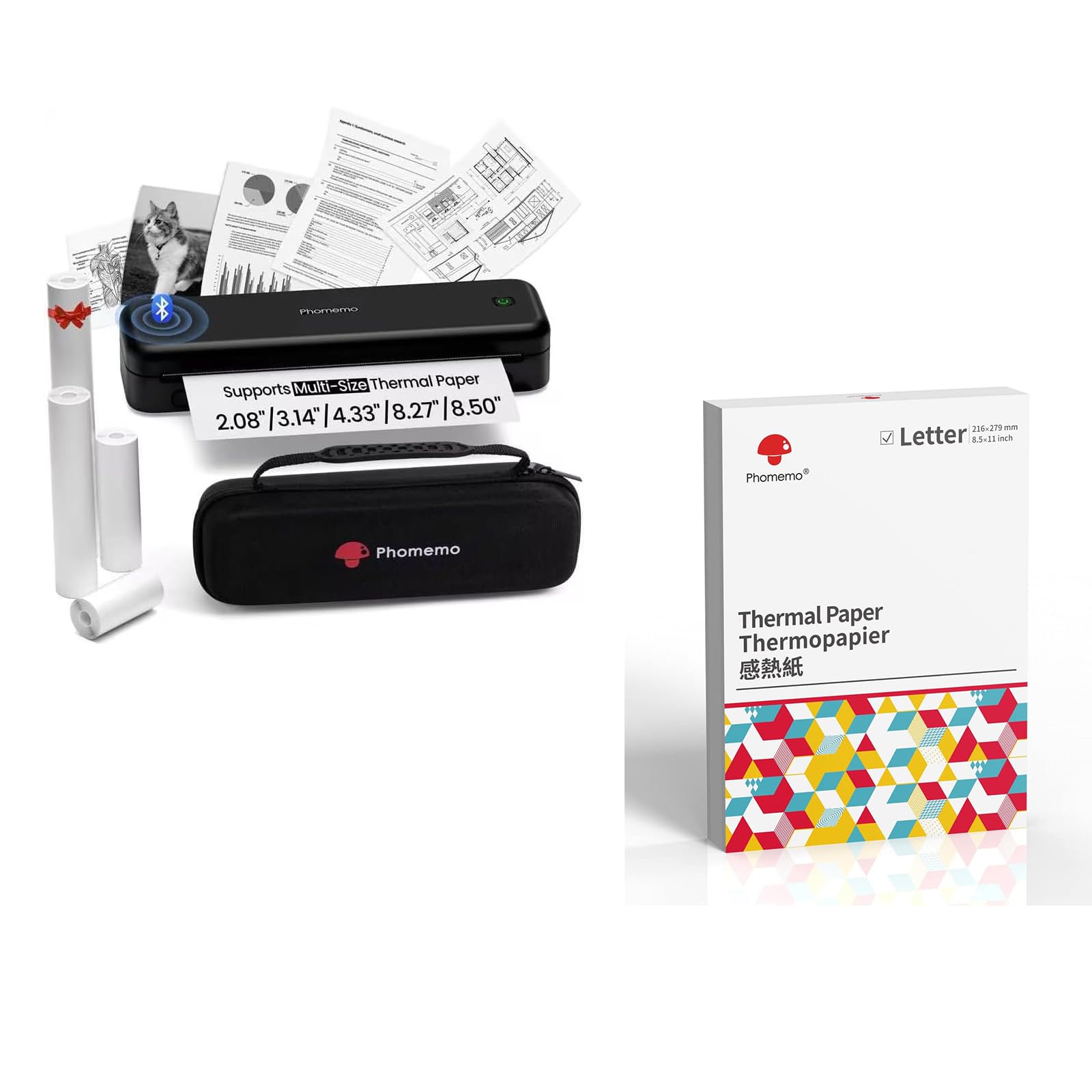
Image: The Phomemo M834 thermal printer, demonstrating its compatibility with multiple paper sizes and including its dedicated carry case.
Pakketynhâld
Kontrolearje oft alle items yn it pakket oanwêzich binne:
- 1 x Phomemo M834 Draachbere Printer
- 1 x Carry Case
- 1 x Roll of 8.5" Thermal Paper
- 1 x Roll of 4.33" Thermal Paper
- 1 x Roll of 3.14" Thermal Paper
- 1 x Roll of 2.08" Thermal Paper
Setup Guide
1. It opladen fan de printer
The M834 printer is equipped with a 2600mAh rechargeable battery. Before initial use, fully charge the printer using the provided charging cable. A full charge allows for over 160 pages of continuous printing.
2. Termysk papier ynlade
The Phomemo M834 supports various thermal paper sizes, including US Letter, A4, 4.33'', 3.14'', and 2.08''. It is compatible with roll, fold, and ordinary thermal paper types. Important: This printer is designed exclusively for thermal paper and is not compatible with standard laser or inkjet printer paper.
- Iepenje de dekking fan it papierfak.
- Insert the thermal paper roll or stack, ensuring the printable side faces the print head.
- Slút it deksel fan it papierfak goed.

Image: A box of Phomemo Letter size thermal paper, indicating its 8.5 x 11 inch dimensions.
3. De printer ferbine
The M834 printer offers both Bluetooth and USB connectivity.
Bluetooth-ferbining:
- Soargje derfoar dat de printer ynskeakele is.
- Enable Bluetooth on your mobile device (iOS, Android, Tablets) or computer.
- Open the Phomemo app or your device's Bluetooth settings and select "M834" to pair.
USB-ferbining:
- Connect the printer to your computer (Windows, macOS, Chrome OS, Linux) using a USB cable.
- Ynstallearje de nedige bestjoerders as jo frege wurde troch jo bestjoeringssysteem.

Image: The Phomemo M834 printer connected to various devices, illustrating its compatibility with iOS, Android, Tablets via Bluetooth, and Windows, macOS, Chrome OS, Linux via USB.
Operating Instructions
Printsje dokuminten
Once connected, you can print documents from your device. The M834 printer offers a print resolution of 300 dpi, providing clear and sharp prints for various uses.
- Open the document or image you wish to print on your connected device.
- Selektearje de printopsje fan jo applikaasje.
- Choose "Phomemo M834" as your printer.
- Pas de printynstellingen oan as nedich (bygelyks papiergrutte, oriïntaasje).
- Begjin de printtaak.

Image: A visual comparison highlighting the enhanced print clarity of 300 DPI output from the Phomemo M834 compared to a 203 DPI printer.
Supported Paper Types and Sizes
The M834 is versatile in its paper support:
- Grutte: US Letter (8.5" x 11"), A4, 4.33'', 3.14'', 2.08''
- Soarten: Roll thermal paper, Fold thermal paper, Ordinary thermal paper
Ensure you use only Phomemo thermal paper for optimal results. Thermal prints are quick-drying, allowing for immediate handling and writing.

Image: A hand writing on a document printed with the Phomemo M834, demonstrating the quick-dry nature of thermal prints.
Ûnderhâld
Reiniging fan de Printkop
To maintain print quality, regularly clean the print head. Use a soft, lint-free cloth lightly dampened with isopropyl alcohol. Gently wipe the print head surface. Ensure the printer is off and disconnected from power before cleaning.
Batterij Soarch
To prolong battery life, avoid fully discharging the printer frequently. If storing the printer for an extended period, charge it to approximately 50% and store it in a cool, dry place.
Troubleshooting
If you encounter issues with your Phomemo M834 printer, refer to the following common solutions:
- Printer giet net oan: Ensure the battery is charged. Connect the printer to a power source and allow it to charge for at least 30 minutes before attempting to power it on again.
- Minne printkwaliteit: Check if the thermal paper is loaded correctly with the printable side facing the print head. Clean the print head as described in the Maintenance section. Ensure you are using genuine Phomemo thermal paper.
- Kin gjin ferbining meitsje fia Bluetooth: Make sure Bluetooth is enabled on both the printer and your device. Ensure the printer is within range. Try restarting both the printer and your device.
- Papier jam: Turn off the printer and carefully open the paper compartment. Remove any jammed paper. Ensure paper is loaded correctly and not creased or bent.
- Printer not recognized by computer (USB): Verify the USB cable is securely connected. Try a different USB port or cable. Ensure necessary drivers are installed for your operating system.
Spesifikaasjes
| Model Namme | M834 |
| Printing Technology | Thermal |
| Konnektivität Technology | Bluetooth, USB |
| Maksimum Print Resolúsje | 300 dpi (Black and White) |
| Printer útfier | Monochroom |
| Maksimale mediagrutte | US Letter (8.5" x 11") |
| Stipe papiergrutte | US Letter, A4, 4.33'', 3.14'', 2.08'' |
| Max Input Sheet Kapasiteit | 100 sheets (for folded thermal paper) |
| Batterij Kapasiteit | 2600 mAh |
| Funksjes | Allinnich printsje |
| Kleur | Swart |
Garânsje en stipe
The Phomemo M834 printer comes with a limited warranty. For specific warranty terms and conditions, please refer to the warranty card included in your package or visit the official Phomemo website.
For technical support or customer service inquiries, please contact Phomemo customer support through their official channels.