
1. Ynlieding
Tankewol foar de oankeapasing the Sharp 4T-C65FL6EX 65-inch 4K Frameless Smart TV. This manual provides essential information for the safe and efficient use of your new television. Please read these instructions thoroughly before operating the TV and retain them for future reference.
Wichtige feiligens ynformaasje
Always follow basic safety precautions when using this product to reduce the risk of fire, electric shock, and injury. Do not expose the TV to rain or moisture. Do not open the cabinet; refer all servicing to qualified personnel. Ensure proper ventilation and avoid placing the TV near heat sources.
2. Produkt Overview
The Sharp 4T-C65FL6EX is a 65-inch 4K UHD Smart LED TV designed to deliver an immersive viewing experience. It features a frameless design, Google TV operating system, and a built-in digital receiver.
Key Features
- 65-inch 4K UHD Display: Enjoy stunning visuals with a resolution of 3840 x 2160 pixels.
- Frameless ûntwerp: Maksimalisearret skermromte foar in útwreide view.
- Google TV-bestjoeringssysteem: Access a wide range of apps, movies, and shows.
- Built-in Digital Receiver: Supports DVB-S/S2/T/T2/C broadcast types.
- Dolby Atmos & DTS Studio Sound: Delivers rich, immersive audio.
- Dolby Vision & HDR10: Enhanced contrast and color for compatible content.
- Yntegreare Chromecast: Easily cast content from your mobile devices.
- Far-field Voice Control & Google Assistant: Control your TV with voice commands.
- Konnektivität: Wi-Fi, Bluetooth v5.1, 3 HDMI 2.0 ports, 2 USB ports, LAN.
Pakketynhâld
- Sharp 4T-C65FL6EX 65-inch 4K Smart TV
- Remote Control
- Power Kabel
- TV-meubel (2 stikken)
- Skroeven foar ynstallaasje fan stand
- User Manual (dit dokumint)

figuer 2.1: Front view of the Sharp 4T-C65FL6EX Smart TV.
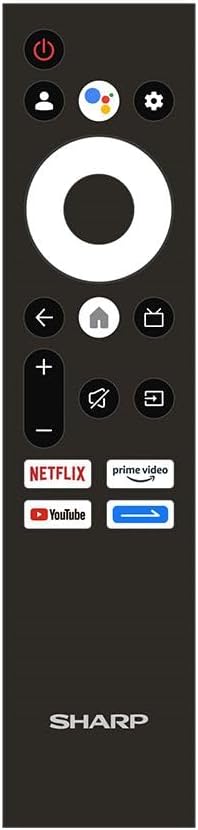
Figure 2.2: The included remote control for the Sharp Smart TV.
3. Opsette
3.1 Útpakke en pleatsing
- Helje de tv foarsichtich út 'e ferpakking. It is oan te rieden om hjir twa minsken foar te wêzen.
- Place the TV on a stable, flat surface or prepare for wall mounting. Ensure adequate space around the TV for ventilation.
3.2 Stand Ynstallaasje
As jo de tv net oan 'e muorre montearje, befestigje dan de ynbegrepen standert:
- Lay the TV screen-down on a soft, clean cloth to prevent scratches.
- Rjochtsje elk standstik út mei de oerienkommende sleuven oan 'e ûnderkant fan' e tv.
- Befestigje de stands mei de levere skroeven. Soargje derfoar dat se goed oandraaid binne.
3.3 Muurbefestiging (Opsjoneel)
This TV is compatible with VESA standard wall mounts. Consult a professional for wall mounting to ensure proper installation and safety. Remove the stand before wall mounting.
3.4 Ferbine apparaten
Ferbine jo eksterne apparaten mei de tv mei de juste poarten:
- HDMI: For Blu-ray players, game consoles, cable/satellite boxes. The TV has 3 HDMI 2.0 ports.
- USB: For USB drives to play media (video, photos, music). The TV has 2 USB ports.
- Antenna/Satellite (RF Input): Connect your antenna or satellite dish cable to the RF input for digital broadcasting.
- LAN: Foar in bedrade ynternetferbining.
figuer 3.1: Rear view of the TV illustrating various input/output ports.
3.5 Ynskeakelje en earste ynstallaasje
- Ferbine de stroomkabel mei de tv en dan mei in stopkontakt.
- Druk op de oan/út-knop op de ôfstânsbetsjinning of op 'e tv.
- Follow the on-screen instructions to complete the initial setup, which includes selecting language, connecting to Wi-Fi, and signing in with your Google account.
4. Bedriuwsinstruksjes
4.1 Remote Control Funksjes
The remote control allows you to navigate the TV's features. Key buttons include:
- Power knop: Skeakelt de TV oan of út.
- Google Assistent-knop: Aktivearret stimkontrôle.
- Navigation Pad (Circle): Beweegt troch menu's en selektearret items.
- Thús knop: Giet werom nei it thússkerm fan Google TV.
- Weromknop: Gean werom nei it foarige skerm.
- Volume omheech / omleech: Past it folume oan.
- Mute knop: Dempt of unmutes it lûd.
- Ynfierknop: Selektearret ynfierboarnen (HDMI, AV, ensfh.).
- App-fluchtoetsen: Direct access to Netflix, Prime Video, YouTube.
4.2 Google TV-ynterface
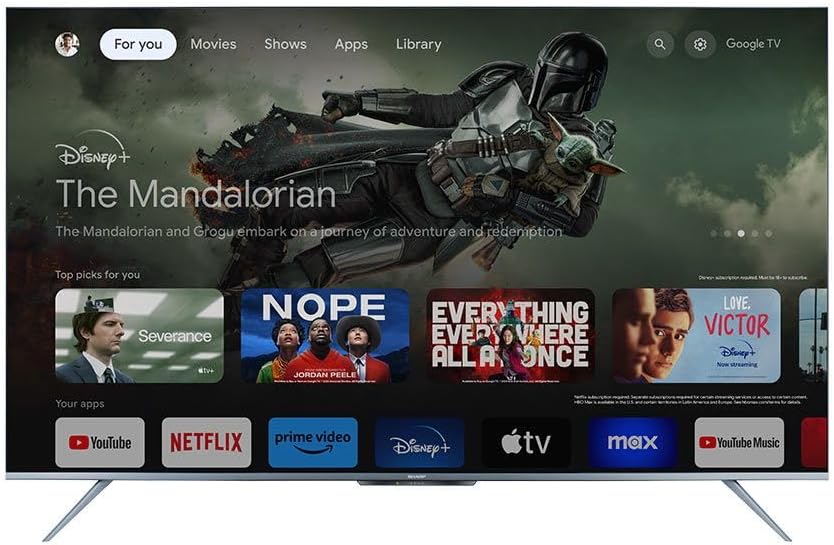
The Google TV interface organizes your content from various streaming services and apps into one personalized screen. You can browse recommendations, access your library, and discover new content.
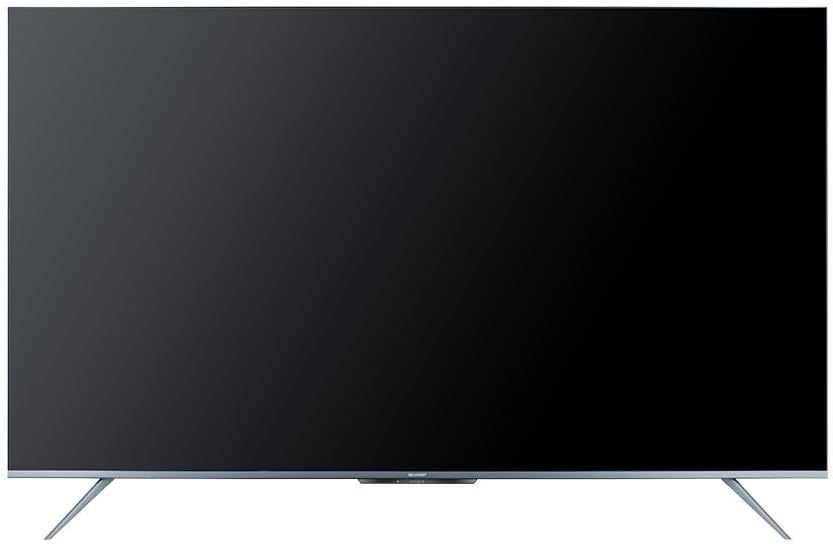
Figure 4.1: The Google TV home screen interface.
4.3 Slimme funksjes brûke
- Streaming apps: Navigate to the 'Apps' section or use the dedicated remote buttons to launch Netflix, Prime Video, YouTube, and other installed applications.
- Stim sykjen: Press the Google Assistant button on your remote and speak into the microphone to search for content, control playback, or ask questions.
- Chromecast ynboude: Use the Chromecast feature to cast videos, photos, and music from your compatible smartphone, tablet, or computer directly to the TV.
- Web Browser: Access the internet using the built-in web browser.
- Google Play Store: Download and install additional apps and games from the Google Play Store.
4.4 Seleksje fan ynfierboarne
To switch between connected devices (e.g., HDMI 1, HDMI 2, TV tuner), press the Ynfier button on your remote control and select the desired source from the on-screen menu.
5. Underhâld
5.1 De tv skjinmeitsje
- Skerm: Feie it skerm foarsichtich ôf mei in sêfte, pluisfrije doek. Brûk foar koppige plakken in skermreinigingsoplossing dy't spesifyk ûntworpen is foar tv's, oanbrocht op 'e doek, net direkt op it skerm.
- Kabinet: Wipe the TV cabinet with a soft, dry cloth. Do not use abrasive cleaners, waxes, or solvents.
- Doch de stekker fan 'e tv altyd út it stopkontakt foardat jo him skjinmeitsje.
5.2 Software Updates
Your Sharp Smart TV may receive software updates periodically to improve performance and add new features. Ensure your TV is connected to the internet to receive these updates. You can usually check for updates in the TV's settings menu.
6. Probleemoplossing
Foardat jo kontakt opnimme mei klanttsjinst, besykje de folgjende oplossingen foar faak foarkommende problemen:
| Probleem | Mooglike oplossing |
|---|---|
| Gjin macht | Check if the power cable is securely connected to the TV and the power outlet. Ensure the outlet is working. Try pressing the power button on the TV itself. |
| Gjin byld, mar lûd is oanwêzich | Ensure the correct input source is selected. Check HDMI or other video cables for secure connections. |
| Gjin lûd, mar byld is oanwêzich | Check the volume level and ensure the TV is not muted. Verify audio cable connections if using external speakers. Check audio output settings in the TV menu. |
| Remote control wurket net | Ferfang de batterijen yn 'e ôfstânsbetsjinning. Soargje derfoar dat der gjin obstakels binne tusken de ôfstânsbetsjinning en de IR-sensor fan 'e tv. |
| Kin gjin ferbining meitsje mei Wi-Fi | Soargje derfoar dat jo Wi-Fi-router oan is en wurket. Fier it Wi-Fi-wachtwurd foarsichtich opnij yn. Besykje jo router en de tv opnij te starten. |
| Smart features are slow or unresponsive | Restart the TV. Ensure a stable internet connection. Close unused applications running in the background. |
7. Spesifikaasjes
| Eigenskip | Detail |
|---|---|
| Model Number | 4T-C65FL6EX |
| Skermgrutte | 65 ynf |
| Display Technology | LED |
| Resolúsje | 3840 x 2160 (4K UHD) |
| Aspect Ratio | 16:9 |
| Viewyn hoeke | 178 graden |
| Ferfarskje Rate | 60 Hz |
| Bestjoeringssysteem | Google TV |
| Ynterne ûnthâld | 32 GB |
| Broadcast Type | Digital (DVB-S/S2/T/T2/C) |
| Audio Technology | Dolby Atmos, DTS Studio-lûd |
| Fideotechnology | HLG, Dolby Vision, HDR10 |
| Konnektivität | Wi-Fi, Bluetooth v5.1 |
| HDMI havens | 3 (HDMI 2.0) |
| USB Ports | 2 |
| LAN-poarte | 1 |
| Audio Output Power | 12 Watt x 2 |
| Stromferbrûk (operatyf) | 200 watt |
| Stromferbrûk (standby) | <0.5 Watt |
| Ofmjittings (B x H x D) sûnder stander | 1447.7 x 837 x 81.3 mm |
| Ofmjittings (B x H x D) mei standert | 1447.7 x 922.6 x 280.2 mm |
| Netto Gewicht | 17.9 kg |
| Lân fan oarsprong | Egypte |
8. Garânsje en stipe
8.1 Produktgarânsje
This Sharp 4T-C65FL6EX Smart TV comes with a 3 jier folsleine fergese garânsje. Please retain your proof of purchase for warranty claims. The warranty covers manufacturing defects and malfunctions under normal use conditions. It typically does not cover damage caused by misuse, accidents, unauthorized repairs, or natural disasters.
8.2 Customer Support
For technical assistance, service requests, or further inquiries regarding your Sharp TV, please contact Sharp customer support. Refer to the warranty card or Sharp's official webside foar kontaktgegevens spesifyk foar jo regio.