
Novation Launch Control XL 3
Novation Launch Control XL 3 MIDI Controller User Manual
Model: Launch Control XL 3
Ynlieding
The Novation Launch Control XL 3 is a USB-powered MIDI control surface designed for comprehensive control over Digital Audio Workstations (DAWs) and external hardware. It features eight 60mm faders, 24 endless rotary encoders, and 16 customizable buttons, providing tactile control for your entire music production workflow. This manual provides instructions for setting up, operating, and maintaining your device.

Image: The Novation Launch Control XL 3, a compact MIDI controller with faders, knobs, and buttons.
Wat is yn 'e doaze
Upon unboxing your Novation Launch Control XL 3, please ensure all the following items are present:
- Novation Launch Control XL 3 Unit
- USB-kabel (Type-C nei Type-A)
- Feiligens ynformaasjeblêd
- Software Download Information (for included software bundle)
Key Features
The Launch Control XL 3 offers a robust set of features designed to enhance your music production and performance:
- Powerful DAW Integration: Seamlessly integrates with major DAWs including Ableton Live, Logic Pro, FL Studio, and Cubase.
- Hardware Konnektivität: Features MIDI In, Out, and Out2/Thru ports for controlling external synthesizers and effects without a computer.
- Hybrid Setup Optimization: Combine external gear, DAW controls, and plugin parameters into custom modes for flexible workflows.
- Tactile Control Surface: Equipped with eight 60mm faders, 24 endless rotary encoders, and 16 customizable buttons.
- OLED-werjefte: Provides real-time feedback for parameters and settings.
- Custom Mapping Capabilities: Effortlessly map MIDI parameters using Novation Components software. Store up to 15 user-defined Custom Modes.
- Included Software Bundle: Comes with Ableton Live Lite, Cubase LE, and software from Klevgrand, Baby Audio, and Output to facilitate immediate music creation.
Setup Guide
Follow these steps to set up your Novation Launch Control XL 3:
- Ferbine mei stroom/kompjûter: Connect the Launch Control XL 3 to your computer using the provided USB cable. The device is USB-powered and does not require an external power supply.
- Driver ynstallaasje: For most modern operating systems (Windows OS, Mac OS), the device is class-compliant and drivers will install automatically. If prompted, follow on-screen instructions.
- Software ynstallaasje: Install any necessary DAW software (e.g., Ableton Live Lite) and the Novation Components application from the Novation website using the provided download information.
- DAW-konfiguraasje: Open your preferred DAW. Navigate to its MIDI/Control Surface settings. Select "Novation Launch Control XL 3" as a control surface or MIDI input device. Refer to your DAW's documentation for specific instructions.
- Firmware Update (Recommended): Visit the Novation support website to check for the latest firmware updates for your Launch Control XL 3. Follow the instructions provided to ensure optimal performance and access to the newest features.

Image: The Launch Control XL 3 connected via USB, demonstrating its integration with other Novation hardware in a studio setup.
Operating Instructions
The Launch Control XL 3 provides intuitive control over your music production environment. Here's a general overview fan syn operaasje:
Faders and Encoders
The eight 60mm faders are typically used for controlling track volume, send levels, or other continuous parameters within your DAW. The 24 endless rotary encoders are ideal for pan controls, effect parameters, or any other assignable continuous values. Their endless nature allows for precise adjustments without physical limits.

Image: A user's hand adjusting the faders and rotary encoders on the Launch Control XL 3, illustrating tactile control.
Knoppen
The 16 customizable buttons can be assigned to various functions such as mute, solo, arm, track selection, clip launching, or transport controls (play, stop, record). The OLED display provides visual feedback for selected parameters and modes.
Modes and Customization
The Launch Control XL 3 supports various modes, including dedicated DAW integration modes and user-definable Custom Modes. Use the Novation Components software to create and manage your custom mappings.

Image: Screenshot of the Novation Components software, showing the graphical interface for creating and editing custom MIDI mappings for the Launch Control XL 3.
Hardware Yntegraasje
The Launch Control XL 3 is equipped with 5-pin MIDI In, Out, and Out2/Thru ports, allowing it to control external MIDI-compatible hardware such as synthesizers, drum machines, and effects units. This functionality enables you to integrate your hardware into your setup without needing a computer for control. Custom mappings can be created in Novation Components to tailor the controller to your specific hardware devices.

Image: The Launch Control XL 3 positioned between two other Novation hardware units, demonstrating its role in a multi-device setup.
Software Yntegraasje
Beyond its deep integration with Ableton Live, the Launch Control XL 3 is compatible with other major DAWs and includes a software bundle to get you started:
- DAW-kompatibiliteit: Supports Logic Pro, FL Studio, Cubase, and more.
- Novation Components: Essential for creating and managing custom MIDI mappings and firmware updates.
- Ynklusyf software:
- Ableton Live Lite
- Cubase LE
- Software from Klevgrand
- Software from Baby Audio
- Software from Output
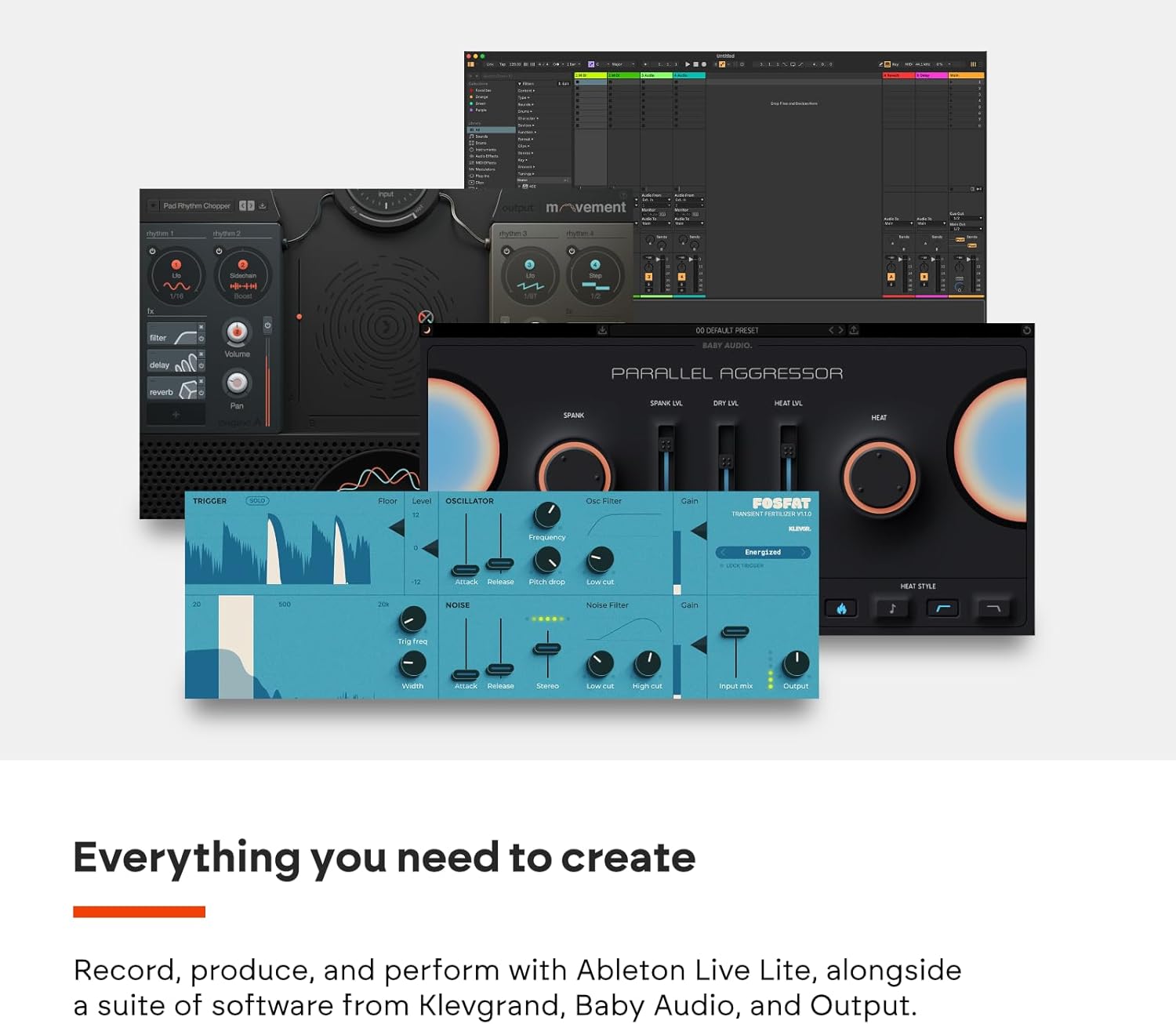
Image: A collage of various music production software interfaces, representing the included software bundle and DAW compatibility.
Spesifikaasjes
| Eigenskip | Detail |
|---|---|
| Model Namme | Launch Control XL 3 |
| Item Model Number | AMS-LAUNCH-CONTROL-XL-3 |
| Item Gewicht | 2.12 pûn (0.96 kg) |
| Produkt Ofmjittings | 9.84 x 9.41 x 1.69 inch (25 x 23.9 x 4.3 sm) |
| Body Materiaal | Plestik |
| Kleur | Swart |
| Kompatibele apparaten | PC, Synthesizer, Groovebox |
| Connector Type | MIDI, USB |
| Hardware ynterface | USB Type C |
| Stipe Software | Ableton Live (deep integration), Logic Pro, FL Studio, Cubase, etc. |
| Hardware Platfoarm | PC/Mac |
| Bestjoeringssysteem | Mac OS, Windows OS |
| Special Feature | 8 user templates (Custom Modes) |
Ûnderhâld
To ensure the longevity and optimal performance of your Novation Launch Control XL 3, follow these maintenance guidelines:
- Reiniging: Use a soft, dry, lint-free cloth to clean the surface of the device. For stubborn dirt, a slightly damp cloth can be used, but ensure no moisture enters the device. Avoid abrasive cleaners, solvents, or aerosol sprays.
- Opslach: When not in use, store the device in a clean, dry environment away from direct sunlight, extreme temperatures, and excessive dust.
- Behanneling: Handle the device with care. Avoid dropping it or subjecting it to strong impacts. Do not place heavy objects on top of the unit.
- Kabelbehear: Ensure USB and MIDI cables are not kinked or strained. Disconnect cables by pulling the plug, not the cable itself.
Troubleshooting
If you encounter issues with your Launch Control XL 3, consider the following troubleshooting steps:
- Apparaat net werkend:
- Ensure the USB cable is securely connected to both the Launch Control XL 3 and your computer.
- Besykje in oare USB-poarte op jo kompjûter.
- Test mei in oare USB-kabel.
- Restart your computer and the Launch Control XL 3.
- Check your operating system's device manager (Windows) or System Information (Mac) to see if the device is listed.
- No Control in DAW:
- Verify that the Launch Control XL 3 is selected as a control surface or MIDI input device in your DAW's preferences.
- Ensure the correct MIDI channels are configured in both the device and your DAW.
- Check if the device is in the correct operating mode (e.g., Ableton Live mode, Custom Mode).
- Faders/Encoders Not Responding:
- Confirm that the parameters you are trying to control are correctly mapped to the faders/encoders in your DAW or Novation Components.
- Perform a factory reset if necessary (refer to Novation's support documentation for instructions).
- Firmware-problemen:
- Ensure your device has the latest firmware installed. Firmware updates can resolve various operational issues.
For further assistance, please refer to the official Novation support website of nim kontakt op mei harren klanteservice.
Garânsje en stipe
Novation products are designed for reliability and performance. For detailed information regarding your product's warranty, please refer to the warranty card included in your product packaging or visit the official Novation website.
Online stipe: The Novation webside (novationmusic.com/support) offers a comprehensive knowledge base, FAQs, driver downloads, firmware updates, and user forums.
Kontakt Support: If you require direct assistance, contact Novation customer support through their website for technical help or service inquiries.