
1. Ynlieding
The AV Access KD-E10 is a versatile 2x1 Dual Monitor KVM Switch Docking Station designed to streamline your workspace. It allows you to connect two computers (one laptop and one desktop) to two monitors, sharing a single set of keyboard, mouse, and other USB peripherals. This device supports stunning 4K@60Hz resolution, provides 100W USB-C charging for your laptop, and ensures stable 1G Ethernet connectivity. With advanced EDID emulation and rapid switching capabilities, the KD-E10 is ideal for enhancing productivity in home office and gaming environments.
2. Package Ynhâld
Kontrolearje asjebleaft oft alle hjirûnder neamde items yn jo pakket opnommen binne:
- 1x KVM Switch Docking Station
- 1x Stromadapter (DC 12V 3A)
- 1x USB 3.2 Gen 2 Type-C to Type-C Cable (L = 1m)
- 1x USB 3.0 Type-B to Type-A Cable (L = 1.5m)
- 1x HDMI 2.0 Kabel
- 1x DP 1.2a Cable
- 1x User Manual
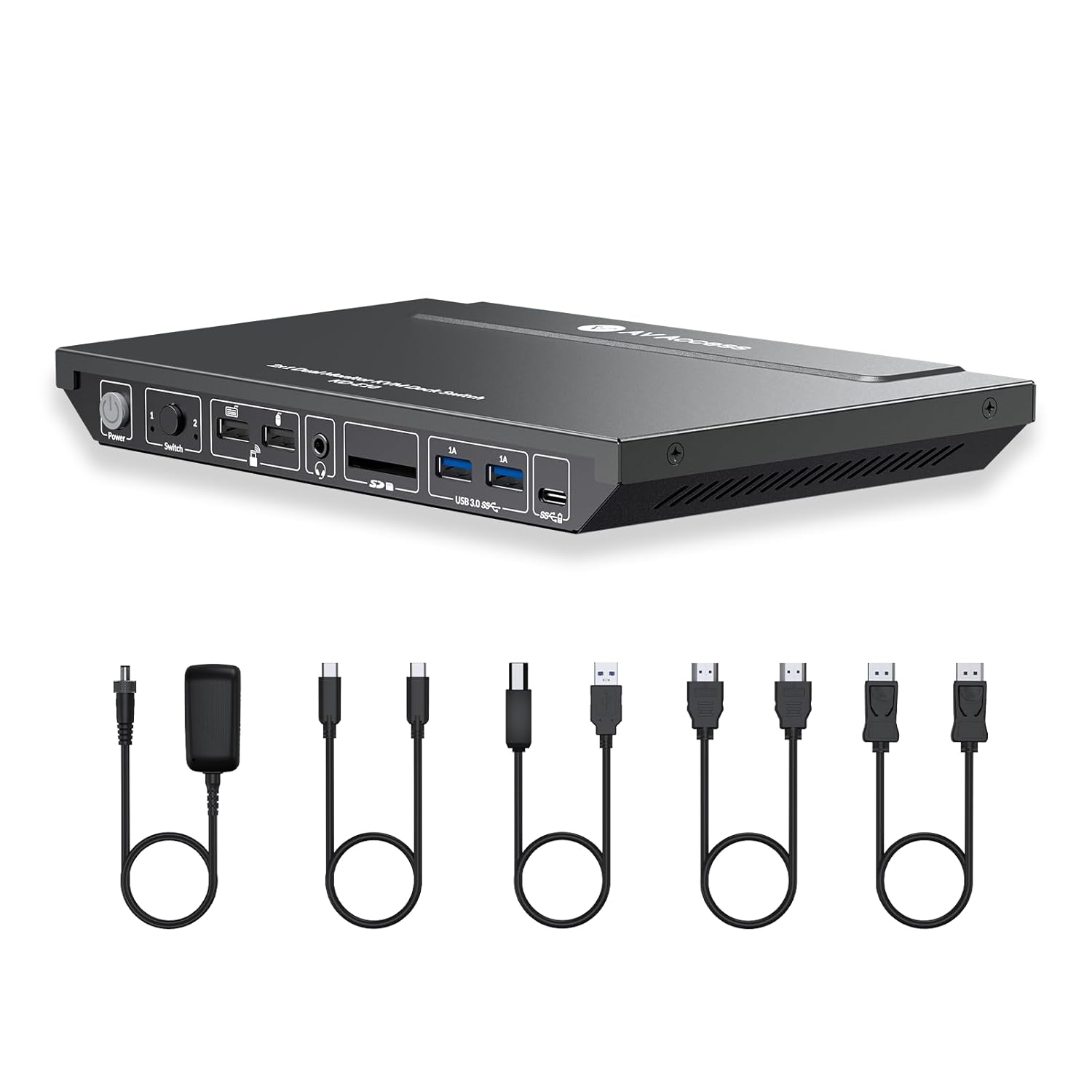
Image: The AV Access KD-E10 KVM Switch Docking Station with all its included cables and power adapter.
3. Produkt Overview
The KD-E10 features a robust all-metal enclosure for durability and efficient heat dissipation. It offers a comprehensive array of ports on both its front and rear panels to support a wide range of devices.
3.1 Foarpaniel
- 1. Power knop: Press to power the device On/Off.
- 2. Source Switching Button: Press to switch between Computer 1 and Computer 2 inputs. LEDs indicate the active input.
- 3. USB 3.0 (1.5A) Type-A Port: For high-power USB devices like webcams.
- 4. 2x USB 2.0 Type-A Ports: For keyboard, mouse, or other low-power peripherals.
- 5. 3.5mm Headphone Jack: Foar audio útfier.
- 6. SD Card Slot: Foar it lêzen fan SD-ûnthâldkaarten.
- 7. USB-C Port (Data Only): Foar gegevens oerdracht.
3.2 Rear Panel
- 8. DC 12V Power Port: Ferbine de ynbegrepen stroomadapter hjir.
- 9. 2x HDMI Out (Monitor A, Monitor B): Ferbine jo monitors hjir.
- 10. DP In for Desktop: Connect DisplayPort cable from your desktop PC.
- 11. HDMI In for Desktop: Connect HDMI cable from your desktop PC.
- 12. USB Type-B Port: Connect USB-B to USB-A cable from your desktop PC for KVM functionality.
- 13. LAN for Laptop: Connect Ethernet cable for wired network to your laptop.
- 14. USB-C Charging Port for Laptop: Connect an additional USB-C power adapter (not included) to charge your laptop.
- 15. USB-C In for Laptop: Connect USB-C cable from your laptop for video, data, and KVM functionality.
- 16. Micro USB Port: Foar firmware updates.

Ofbylding: Detaillearre view of the front and rear panels of the KD-E10, showing all input and output ports with their respective labels.
4. Setup Ynstruksjes
Follow these steps to set up your AV Access KD-E10 KVM Switch Docking Station:
4.1 Connecting Computers
- For Laptop (Computer 1):
- Connect the included USB 3.2 Gen 2 Type-C to Type-C Cable from your laptop to the USB-C In for Laptop port on the KD-E10. This single cable handles video, data, and KVM functionality.
- For laptop charging, connect your laptop's original USB-C power adapter to the USB-C Charging Port for Laptop on the KD-E10.
- Foar in bedrade netwurkferbining, ferbine in Ethernet-kabel fan jo router/modem mei de LAN for Laptop port on the KD-E10.
- For Desktop (Computer 2):
- Connect the included DP 1.2a Cable from your desktop PC's DisplayPort output to the DP In for Desktop port on the KD-E10.
- Connect the included HDMI 2.0 Cable from your desktop PC's HDMI output to the HDMI In for Desktop port on the KD-E10.
- Connect the included USB 3.0 Type-B to Type-A Cable from your desktop PC's USB-A port to the USB Type-B-poarte on the KD-E10 for KVM functionality.

Image: Visual guide for connecting a desktop PC to the KD-E10.
4.2 Connecting Monitors
- Connect your primary monitor to the Monitor A HDMI output port on the KD-E10.
- Connect your secondary monitor to the Monitor B HDMI output port on the KD-E10.
4.3 Connecting Peripherals & Power
- Connect your keyboard and mouse to the USB 2.0 Type-A havens op it foarpaniel.
- Connect any other USB devices (e.g., webcam, printer, external hard drive) to the available USB 3.0 Type-A havens or USB-C Port (Data Only) op it foarpaniel.
- Connect your headphones or microphone to the respective 3.5mm Jacks op it foarpaniel.
- Ferbine de ynbegrepen DC 12V Stromadapter oan 'e DC 12V Power Port on the rear panel of the KD-E10 and plug it into a power outlet.
- Druk op de Power knop on the front panel to turn on the device.
Video: Official AV Access guide on 'How to Use the AV Access KD-E10', demonstrating the setup and basic operation.
5. Bedriuwsinstruksjes
5.1 Switching Between Computers
To switch between the connected laptop (Computer 1) and desktop (Computer 2):
- Druk op de Source Switching Button on the front panel of the KD-E10. The corresponding LED (1 or 2) will illuminate to indicate the active computer.
- Alternatively, use the included infrared remote control (if applicable to your model) to switch inputs.

Image: The front panel switch button allows for rapid switching between connected devices.
5.2 USB Peripherals and Charging
- All USB peripherals (keyboard, mouse, webcam, etc.) connected to the KD-E10 will automatically switch to the currently active computer.
- When an external USB-C power adapter is connected to the USB-C Charging Port for Laptop, your laptop will receive up to 100W of power delivery.
5.3 Modi werjaan
- MacOS: Only supports mirrored display mode via the USB-C port. Extended display modes are not supported on macOS through this connection.
- Windows: Supports various extended display modes, allowing for a multi-monitor setup.
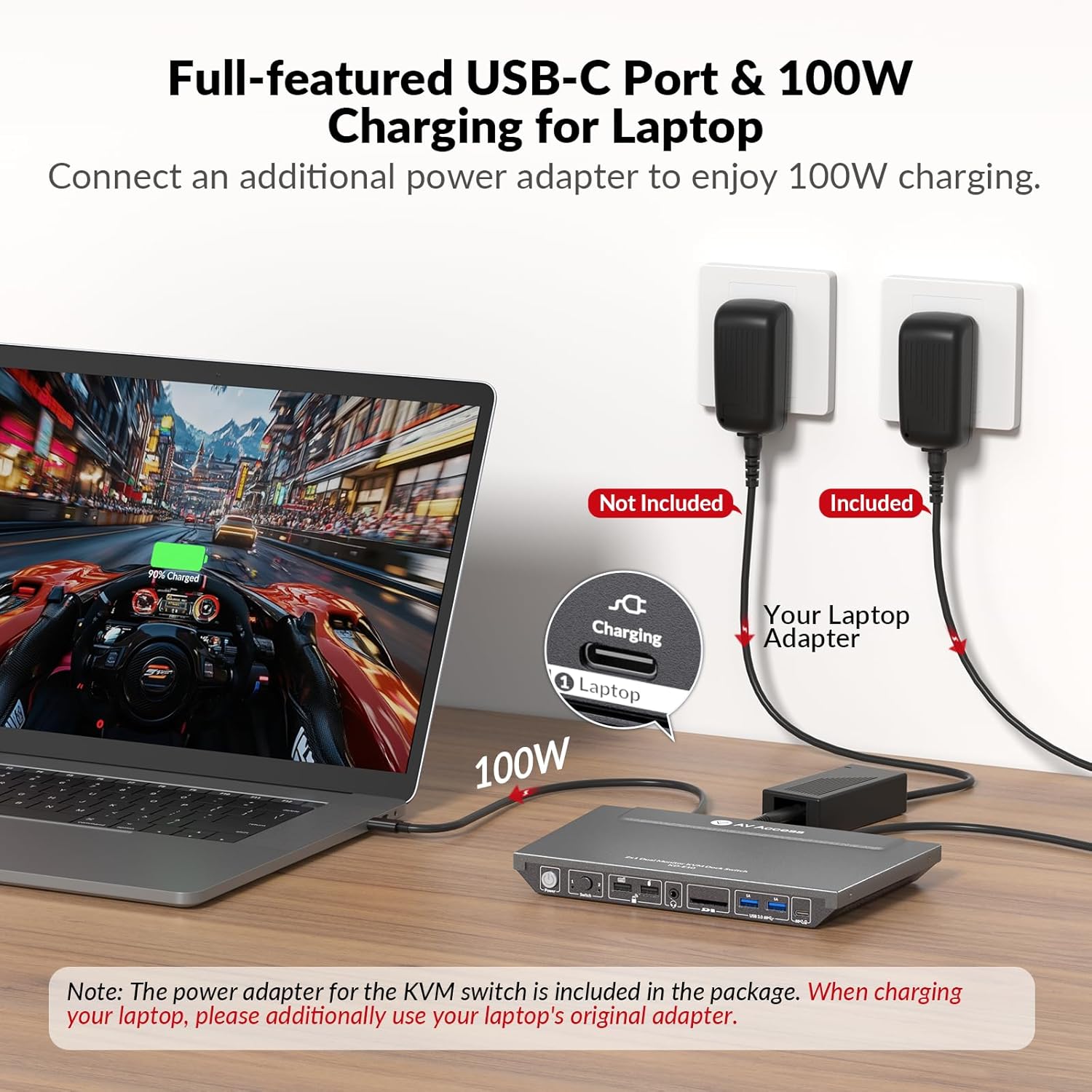
Image: Different display configurations for macOS and Windows operating systems.
6. Avansearre eigenskippen
6.1 EDID Emulation
The KD-E10 features advanced EDID emulation, which ensures that your desktop icons and window arrangements remain consistent when switching between computers. This prevents common issues like desktop icon rearrangement, screen flickering, or windows cramming to the main monitor.

Image: EDID emulation prevents screen flickering and desktop rearrangement during switching.
6.2 Automatic PC Wake-up
When switching to a computer that is in sleep mode, the KD-E10 can automatically wake it up, eliminating the need to manually move your mouse or type on the keyboard.
6.3 High Refresh Rate Support
The KVM switch supports ultra-high refresh rates for a smooth visual experience, making it suitable for gaming and high-speed applications:
- 4K resolution at 60Hz
- 1440P resolution at 144Hz/120Hz
- 1080P resolution at 240Hz/165Hz/144Hz/120Hz

Image: The KD-E10 supports various high refresh rates for optimal performance.
7. Spesifikaasjes
| Eigenskip | Detail |
|---|---|
| Produkt Ofmjittings | 9.06 x 5.51 x 0.98 inch |
| Item Gewicht | 3.48 pûn sterling |
| Operaasje Mode | KVM Switch |
| Aktuele wurdearring | 3 Amps |
| Operaasje Voltage | 20 Volt (DC) |
| Kontakt Type | HDMI Type-A 19-pin |
| Connector Type | DisplayPort, HDMI, Type-C |
| Terminal | PC, laptop |
| Circuit Type | Knopskakelaar |
| Type actuator | Drukknop |
8. Probleemoplossing
- Gjin werjefte: Ensure all video cables (HDMI, DisplayPort, USB-C) are securely connected between your computers, monitors, and the KVM switch. Verify that the KVM switch is powered on and the correct input is selected.
- USB Peripherals Not Responding: Check that the USB-B cable (for desktop) or USB-C cable (for laptop) is correctly connected to the KVM's host ports. Try connecting peripherals to different USB ports on the KVM.
- Laptop laadt net op: Confirm that an external USB-C power adapter is connected to the KD-E10's dedicated USB-C charging port for the laptop. Ensure the power adapter meets the 100W power delivery requirement.
- Desktop Icons Rearrange/Screen Flickering: This issue is typically mitigated by the KD-E10's EDID emulation. If it persists, ensure your graphics drivers are up to date and check monitor settings.
- Netwurkproblemen: The 1G Ethernet port provides network connectivity only for the laptop via the USB-C connection. Ensure the Ethernet cable is properly connected.
9. Underhâld
To ensure optimal performance and longevity of your KD-E10 KVM Switch Docking Station:
- Keep the device in a cool, dry place away from direct sunlight and excessive heat.
- Clean the device with a soft, dry cloth. Avoid using liquid or aerosol cleaners.
- Soargje foar goede fentilaasje om 'e ienheid om oververhitting te foarkommen.
- Foarkom it pleatsen fan swiere objekten boppe op it apparaat.
10. Garânsje & Support
For warranty information, technical support, or any inquiries regarding your AV Access KD-E10 KVM Switch Docking Station, please refer to the contact information provided in your user manual or visit the official AV Access webside. Beskermingsplannen kinne ek apart te keap wêze.