
Ynlieding
Thank you for choosing the Digitus DA-70919 USB-C 8K 12-Port Docking Station. This device is designed to expand the connectivity of your USB-C enabled laptop or computer, providing a comprehensive solution for video output, data transfer, network access, and power delivery. Please read this manual carefully to ensure proper installation and operation.
Produkt oerview
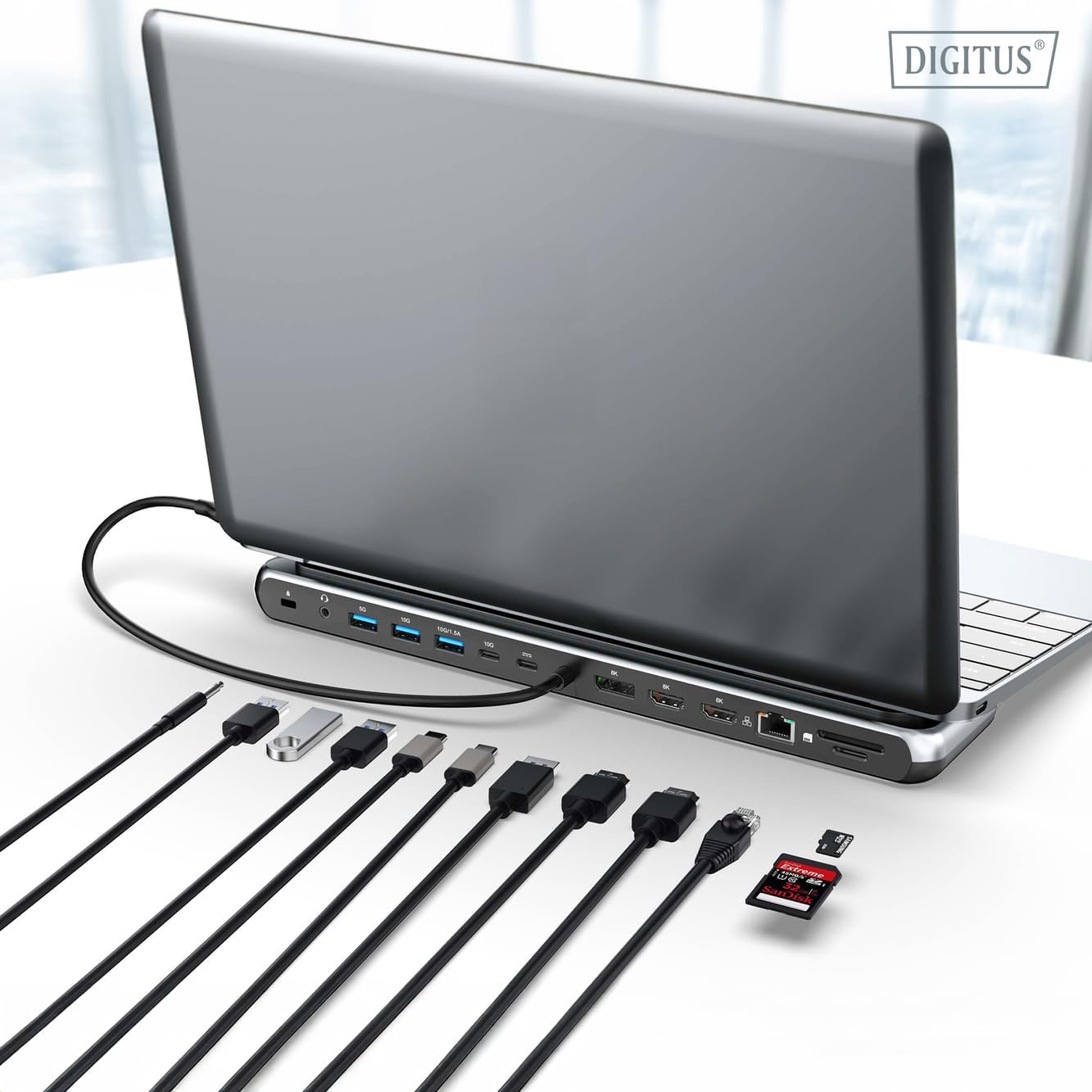
The Digitus DA-70919 docking station offers 12 essential ports to enhance your workspace. It supports high-resolution video output, fast data transfer, and efficient power delivery to your host device.

Ofbylding 1: Detailed diagram of the Digitus DA-70919 docking station ports and their functions. This diagram labels each of the 12 ports on the docking station, including Audio Jack, USB-A, USB-C, USB-C PD, DisplayPort, HDMI, RJ45 Gigabit Ethernet, and SD/MicroSD card slots, along with anti-theft protection.

Ofbylding 2: Front view of the Digitus DA-70919 docking station showing all accessible ports. A clear view of the docking station's front panel, displaying the various input and output ports including USB-A, USB-C, HDMI, DisplayPort, Ethernet, and card readers.
Key Features:
- Fideo-útfier: 2x HDMI, 1x DisplayPort (DP) supporting up to 8K/30Hz for single display, or multi-display configurations.
- USB-gegevenspoarten: 2x USB-A 3.2 Gen 2 (10Gbps), 1x USB-A 3.2 Gen 1 (5Gbps), 1x USB-C 3.2 Gen 2 (10Gbps).
- Power Delivery (PD): USB-C PD 3.0 port for charging your host laptop (up to 85W output).
- Netwurk: Gigabit Ethernet (RJ45) for stable wired internet connection.
- Kaartlêzers: SD and MicroSD card slots with 104 MBps transfer speed.
- Audio: 3.5mm audio-jack foar koptelefoanen of sprekkers.
Setup Ynstruksjes
Follow these steps to set up your Digitus DA-70919 docking station:
- Check Host USB-C Port Compatibility: Ensure your laptop's USB-C port supports DisplayPort Alternate Mode (DP Alt Mode) for video output and Power Delivery for charging. Without DP Alt Mode, video output will not function.

Ofbylding 3: Guide to USB-C port compatibility for DisplayPort Alternate Mode. This graphic explains which types of USB-C ports on your laptop support the full functionality of the docking station, specifically highlighting the requirement for DisplayPort Alternate Mode (DP Alt Mode) for video output.
- Ferbine mei hostapparaat: Connect the integrated USB-C cable from the docking station to the USB-C port on your laptop.
- Ferbine de stroomadapter (opsjoneel mar oanrikkemandearre): If you wish to charge your laptop via the docking station or power high-demand peripherals, connect a USB-C Power Delivery adapter (not included, up to 100W recommended) to the USB-C PD input port on the docking station.
- Eksterne skermen ferbine: Connect your monitors to the HDMI and/or DisplayPort outputs on the docking station using appropriate cables.
- Perifeare apparaten ferbine: Plug in your USB devices (keyboard, mouse, external drives), Ethernet cable, SD/MicroSD cards, and audio devices to the corresponding ports on the docking station.
- Driver ynstallaasje: In most cases, the docking station is plug-and-play and does not require additional drivers. If prompted, allow your operating system to install any necessary drivers automatically.
Operating Instructions
Display Modes
The docking station supports various display configurations:
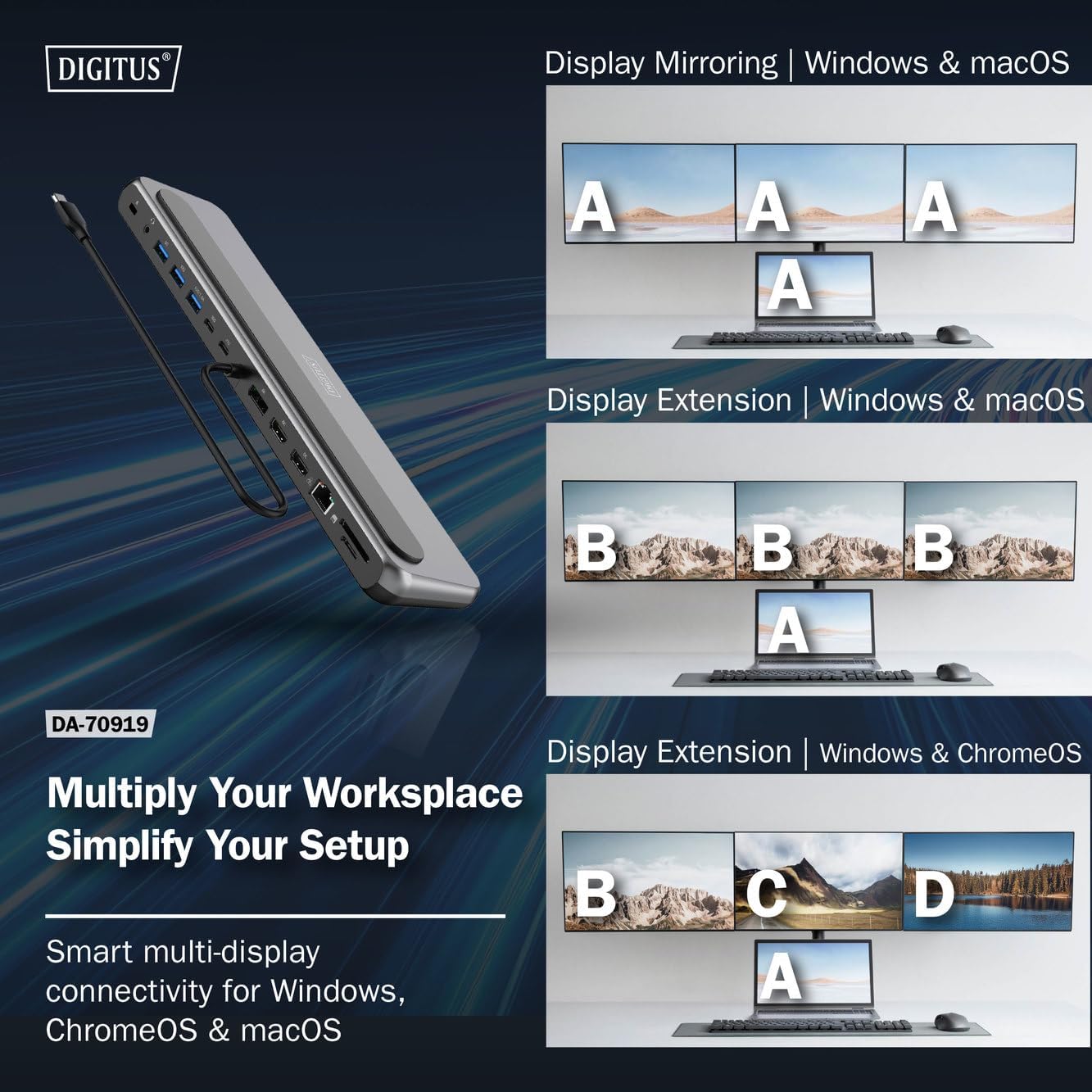
Ofbylding 4: Diagram showing display mirroring and extension modes for Windows, macOS, and ChromeOS. This image illustrates the various display configurations supported by the docking station, including mirroring your screen or extending it across multiple external monitors on Windows, macOS, and ChromeOS.
- Mirror Mode: Duplicates your laptop's display onto the external monitors.
- Extend Mode (Windows/ChromeOS): Extends your desktop across multiple external monitors, allowing for a multi-tasking environment. Supports dual monitors (2x 4K/60Hz) and triple monitors (1x 4K/60Hz + 2x 4K/30Hz) in MST (Multi Stream Transport) mode.
- Extend Mode (macOS): macOS typically supports extended desktop to one external monitor, with other external monitors mirroring each other.
To configure display settings, access your operating system's display settings (e.g., Windows Display Settings, macOS System Preferences > Displays).
Gegevens oerdracht
Utilize the USB-A and USB-C data ports for connecting external storage devices, keyboards, mice, and other USB peripherals. The USB 3.2 Gen 2 ports offer speeds up to 10Gbps, while the USB 3.2 Gen 1 port offers speeds up to 5Gbps.
Power Delivery
When a compatible USB-C PD power adapter is connected to the docking station's PD input port, the docking station can deliver up to 85W of power to charge your connected laptop. This allows you to power your laptop and peripherals through a single USB-C connection.
Ofbylding 5: Illustration of the docking station's fast charging capability via USB-C Power Delivery. This image demonstrates the Power Delivery function, showing a 100W input to the docking station and an 85W output to charge the connected laptop.
Netwurk Ferbining
Connect an Ethernet cable to the RJ45 port for a stable and high-speed wired network connection (10/100/1000 Mbps Gigabit Ethernet).
Card Readers
Insert SD or MicroSD cards into the dedicated slots for quick access to photos, videos, and other files. The card readers support transfer speeds up to 104 MBps.
Audio útfier
Connect your headphones or speakers to the 3.5mm audio jack for audio output.
Ûnderhâld
- Reiniging: Use a soft, dry cloth to clean the surface of the docking station. Avoid using liquid cleaners or solvents.
- Opslach: Bewarje it dockingstasjon op in koel, droech plak, fuort fan direkt sinneljocht en ekstreme temperatueren.
- Behanneling: Avoid dropping or subjecting the device to strong impacts. Do not attempt to disassemble the docking station.
Troubleshooting
As jo problemen hawwe mei jo dockingstasjon, sjoch dan nei de folgjende mienskiplike oplossingen:
- Gjin werjefteútfier:
- Soargje derfoar dat de USB-C-poarte fan jo laptop DisplayPort Alternate Mode stipet.
- Check all video cables (HDMI/DP) are securely connected to both the docking station and the monitor.
- Kontrolearje oft de monitor oan is en ynsteld is op de juste ynfierboarne.
- Besykje ien monitor tagelyk te ferbinen om it probleem te isolearjen.
- Update de grafyske stjoerprogramma's fan jo laptop.
- Gjin stroomfoarsjenning nei laptop:
- Ensure a compatible USB-C PD power adapter (up to 100W) is connected to the docking station's PD input port.
- Kontrolearje oft de USB-C-poarte fan jo laptop Power Delivery stipet.
- Kontrolearje de stroomadapter en kabel op skea.
- USB-apparaten net werkenber:
- Ferbine it USB-apparaat opnij mei in oare poarte op it dockingstasjon.
- Ensure the docking station is properly connected to the host laptop.
- If using a high-power USB device, ensure the docking station is connected to an external power adapter.
- Problemen mei Ethernet-ferbining:
- Kontrolearje de ferbining fan 'e Ethernet-kabel mei sawol it dockingstasjon as jo router/modem.
- Kontrolearje de netwurkynstellingen op jo laptop.
- Start jo router/modem en laptop op 'e nij.
- Card Reader Not Working:
- Ensure the SD/MicroSD card is inserted correctly and fully.
- Test the card with another device to confirm it is not damaged.
Spesifikaasjes
| Eigenskip | Spesifikaasje |
|---|---|
| Model | DA-70919 |
| Hostferbining | USB-C (yntegreare kabel) |
| Video Output | 2x HDMI, 1x DisplayPort (DP) |
| Max. Single Display Resolution | 8K (7680x4320) @ 30Hz |
| Max. Dual Display Resolution (MST) | 2x 4K (3840x2160) @ 60Hz |
| Max. Triple Display Resolution (MST) | 1x 4K@60Hz + 2x 4K@30Hz |
| USB-A gegevens havens | 2x USB 3.2 Gen 2 (10Gbps), 1x USB 3.2 Gen 1 (5Gbps) |
| USB-C Data Port | 1x USB 3.2 Gen 2 (10Gbps) |
| Power Delivery (PD) Input | USB-C PD 3.0 (up to 100W) |
| Power Delivery (PD) Output to Host | Oant 85W |
| Ethernet | RJ45 Gigabit (10/100/1000 Mbps) |
| Card Readers | SD, MicroSD (104 MBps) |
| Audio | 1x 3.5 mm Audio Jack |
| Kompatibiliteit | Windows, macOS, ChromeOS |
| Operating Temperatuer | 0 °C oant 45 °C (32 °F oant 113 °F) |
| Storage Temperatuer | -10 °C oant 70 °C (14 °F oant 158 °F) |
Garânsje en stipe
The Digitus DA-70919 USB-C 8K 12-Port Docking Station comes with a 2-jierrige garânsje fanôf de datum fan oankeap. Dizze garânsje dekt produksjefouten en soarget derfoar dat it produkt funksjonearret lykas beskreaun ûnder normaal gebrûk.
For technical support, warranty claims, or further assistance, please contact your retailer or visit the official Digitus website for contact information. Please have your product model number (DA-70919) and proof of purchase ready when seeking support.


