
1. Ynlieding
This manual provides detailed instructions for the setup, operation, maintenance, and troubleshooting of your GMKtec G3 Pro Mini PC. Please read this guide thoroughly before using your device to ensure optimal performance and longevity.
The GMKtec G3 Pro is a compact desktop computer designed for various applications, including office work, business, multimedia, and online learning. It features an Intel Core i3-10110U processor, 16GB DDR4 RAM, and a 512GB PCIe M.2 SSD, offering efficient performance in a small form factor.
2. Wat sit der yn 'e doaze
Kontrolearje oft alle items yn it pakket oanwêzich binne:
- GMKtec Nucbox G3 Pro Mini PC (16GB RAM, 512GB SSD)
- HDMI Kabel
- Stromadapter
- User Manual
- VESA-befestiging mei skroeven

3. Produkt Overview
The GMKtec G3 Pro Mini PC is designed for compact and efficient computing. It features a robust set of ports and internal components to support various tasks.
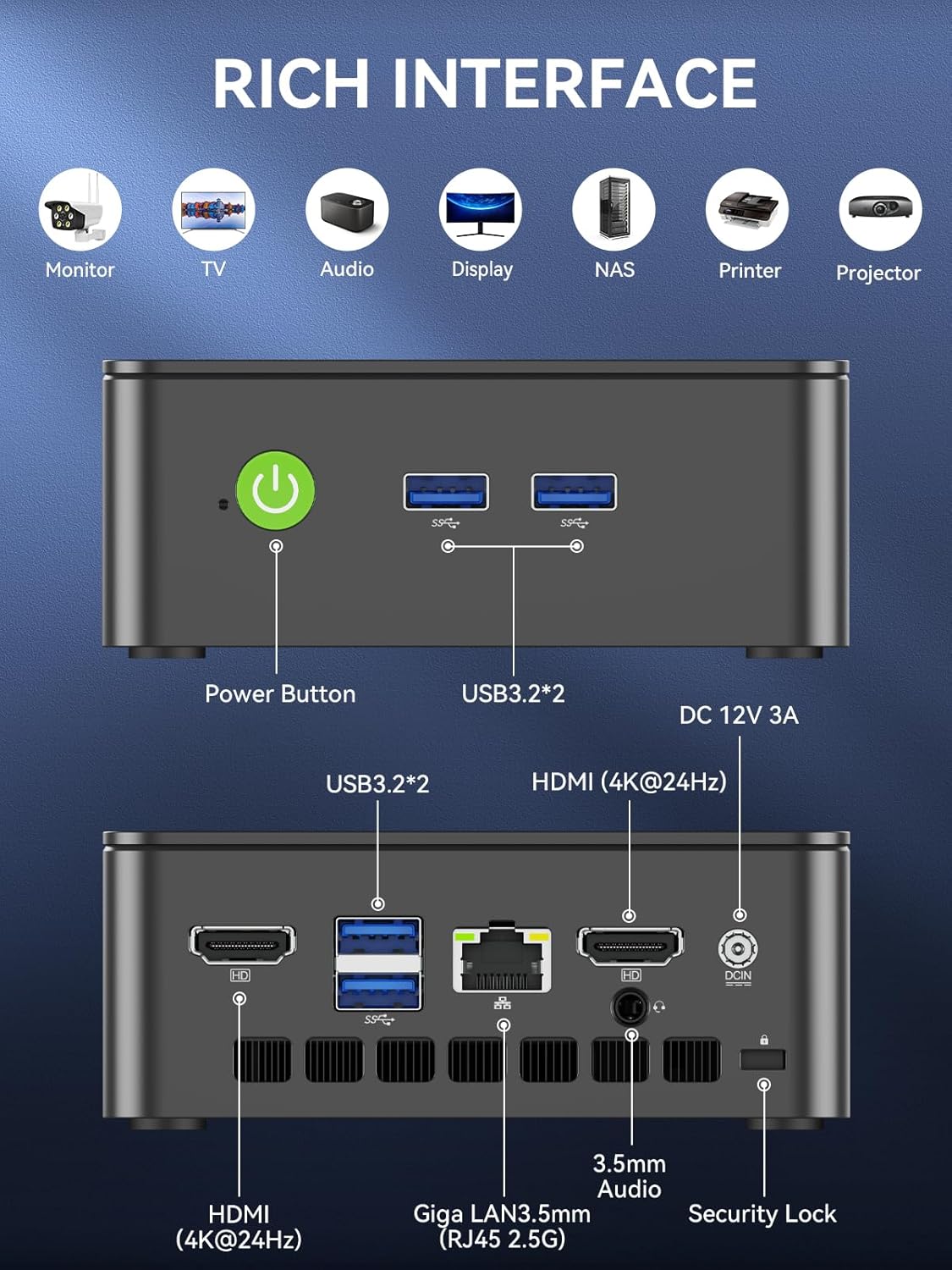
Front Panel
- Power knop: Om it apparaat oan/út te skeakeljen.
- USB 3.2 x 2: Foar it ferbinen fan randapparaten lykas toetseboerden, mûzen of eksterne opslachapparaten.
Rear Panel
- HDMI (4K@60Hz) x 2: For connecting to displays, supporting dual 4K output.
- USB 3.2 x 2: Additional ports for peripherals.
- 3.5mm Audio Jack: Foar it oansluten fan koptelefoanen of eksterne sprekkers.
- Giga LAN (RJ45 2.5GbE): Foar bedrade netwurkferbining.
- DC IN: Power ynfier haven.
- Feiligensslotslot: For securing the device to a desk.
Ynterne komponinten
- Dual DDR4 RAM Slots: Supports up to 64GB RAM.
- M.2 2280 PCIe Gen3*4 Slot: For NVMe SSDs, supporting up to 8TB.
- M.2 2242 SATA3.0 Slot: For SATA SSDs, supporting up to 1TB.
- Cooling Fan & Vents: Integrated cooling system to maintain optimal operating temperatures.

4. Setup Guide
Folgje dizze stappen foar inisjele opset:
- Perifeare apparaten ferbine: Connect your keyboard, mouse, and any other necessary USB devices to the available USB 3.2 ports.
- Ferbine skerm: Use an HDMI cable to connect your monitor(s) to the HDMI ports on the rear panel. The device supports dual 4K@60Hz displays.
- Ferbine macht: Plug the power adapter into the DC IN port on the mini PC, then plug the adapter into a power outlet.
- Power On: Druk op de macht knop op de foarkant paniel te skeakeljen de mini PC.
- Initial Operating System Setup: Folgje de ynstruksjes op it skerm om de ynstallaasje fan Windows 11 Pro te foltôgjen.
- Netwurkferbining: For faster setup, avoid connecting to a wired LAN initially. Connecting LAN might trigger long updates, delaying desktop access. Connect to Wi-Fi 6 or connect to the 2.5GbE LAN port after initial setup is complete.

5. Bedriuwsinstruksjes
Power On/Off
- Om oan te setten: Druk ien kear op de macht knop.
- Om út te skeakeljen: Selektearje fanút it bestjoeringssysteem 'Útskeakelje'. Of hâld de oan/út-knop 5 sekonden yndrukt om in útskeakeling te forsearjen (brûk allinich as it nedich is).
BIOS Settings and Performance Modes
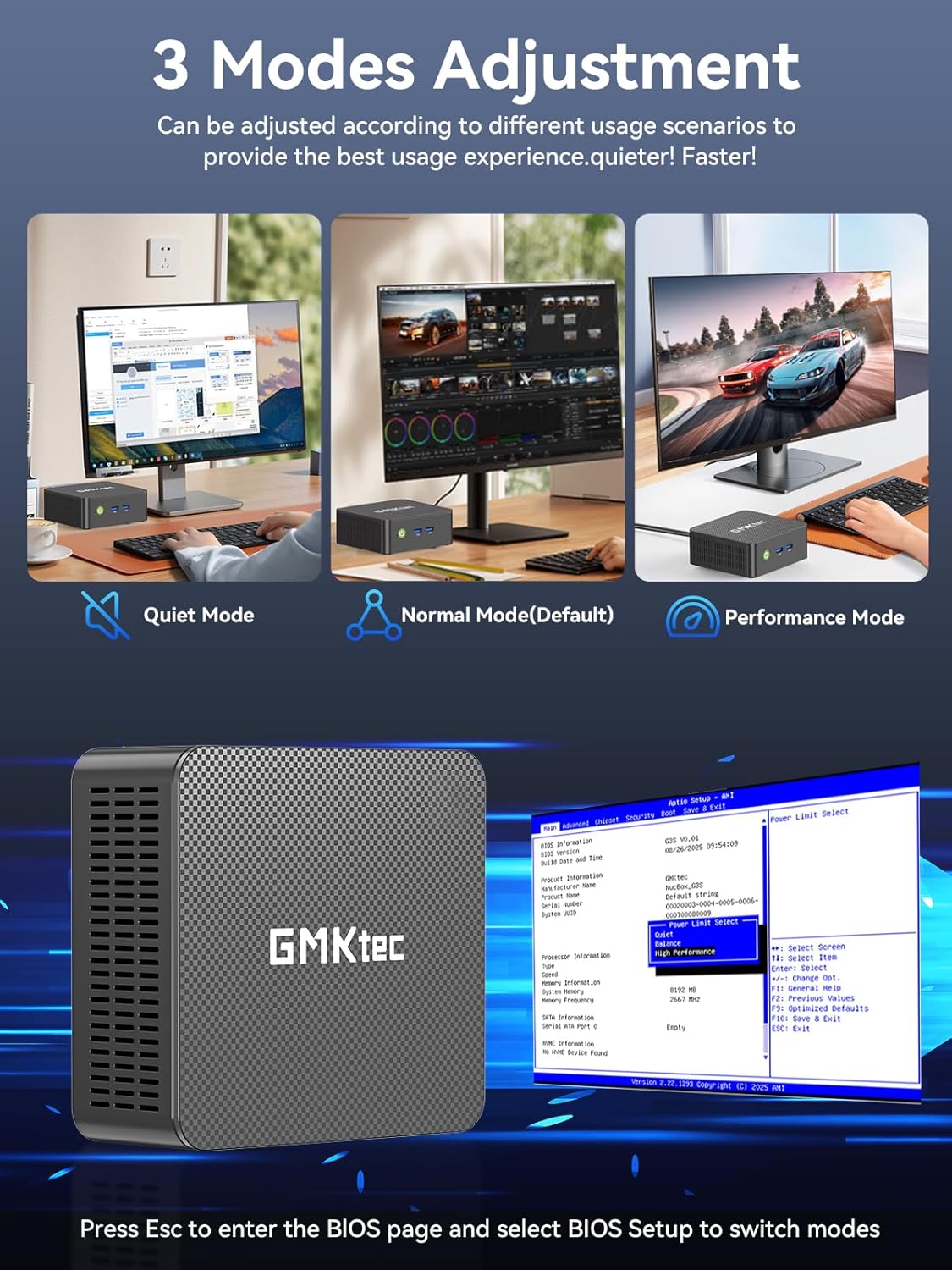
The GMKtec G3 Pro supports different performance modes that can be adjusted via the BIOS settings to optimize for quiet operation, normal use, or maximum performance.
- Tagong ta BIOS: Press the 'Esc' key repeatedly during startup to enter the BIOS page.
- Modi oanpasse: Navigate to the BIOS Setup and select your desired mode (Quiet Mode, Normal Mode, Performance Mode) based on your usage scenario.
6. Storage Utwreiding
The GMKtec G3 Pro offers flexible storage expansion options:
- M.2 2280 NVMe PCIe Slot: Supports high-speed NVMe SSDs up to 8TB for primary storage or additional high-performance storage.
- M.2 2242 SATA Slot: Supports SATA SSDs up to 1TB for additional storage capacity.
To install or upgrade storage, refer to the detailed instructions in the full user manual or consult a qualified technician.
7. Konnektivität
The Mini PC provides comprehensive connectivity options:
- Wi-Fi 6 (802.11ax): Offers high-speed wireless internet access up to 600Mbps.
- Bluetooth 5.2: For connecting wireless devices such as keyboards, mice, and headphones.
- 2.5GbE Ethernet (RJ45): Provides ultra-fast wired network speeds, up to 2.5 times faster than standard Gigabit Ethernet.

8. Ynstelling fan dûbele werjefte
The GMKtec G3 Pro supports connecting two 4K@60Hz displays simultaneously via its two HDMI 2.0 ports. This allows for an extended desktop experience, enhancing productivity for multitasking, content creation, or entertainment.
Simply connect two monitors using HDMI cables to the respective ports on the rear of the mini PC. The operating system will automatically detect the displays, and you can configure their arrangement and resolution through the display settings.

9. Cooling System
The GMKtec G3 Pro is equipped with a smart quiet cooling fan and strategically placed cooling vents to ensure efficient heat dissipation. This design allows for ultra-quiet operation, typically below 38dB, even under load, providing a comfortable working environment.

10. Spesifikaasjes
| Eigenskip | Spesifikaasje |
|---|---|
| Merk | GMKtec |
| Model Namme | G3Pro |
| Bestjoeringssysteem | Windows 11 Pro |
| CPU Model | Intel Core i3-10110U |
| CPU snelheid | Oant 4.1 GHz |
| Graphics Coprocessor | Intel UHD Graphics 1200MHz |
| RAM-ûnthâld ynstalleare | 16 GB DDR4 (Dual Channel) |
| RAM-ûnthâld Maksimale grutte | 64 GB |
| Hurde skiif Beskriuwing | 512 GB M.2 2280 PCIe Gen3*2 + 1*M.2 2242 SATA |
| Konnektivität Technology | Bluetooth 5.2, WiFi 6, Ethernet (2.5GbE), HDMI (4K@60Hz) |
| Video Output | HDMI x2 |
| Display Resolúsje Maksimum | 4096 × 2160 piksels |
| Totaal USB Ports | 4 (USB 3.2) |
| Stromferbrûk | 6 watt (typysk) |
| Special Features | Wake On LAN, PXE Boot, RTC Wake, Automatysk ynskeakelje |
11. Underhâld
To ensure the longevity and optimal performance of your GMKtec G3 Pro Mini PC, consider the following maintenance tips:
- Bliuw skjin: Regularly clean the exterior of the mini PC with a soft, dry cloth. Ensure cooling vents are free from dust and obstructions.
- Software Updates: Keep your operating system and drivers updated to the latest versions for security and performance improvements.
- Juste ôfsluting: Slút de mini-PC altyd goed ôf fia it bestjoeringssysteem om gegevensbeskadiging te foarkommen.
- Miljeubetingsten: Operate the mini PC in a well-ventilated area, away from direct sunlight, excessive heat, and moisture.
12. Probleemoplossing
If you encounter issues with your GMKtec G3 Pro Mini PC, try the following basic troubleshooting steps:
- Gjin macht: Ensure the power adapter is securely connected to both the mini PC and a working power outlet. Try a different outlet if necessary.
- Gjin werjefte: Verify that the HDMI cables are securely connected to both the mini PC and the monitor(s). Ensure monitors are powered on and set to the correct input source.
- Gjin ynternetferbining: For Wi-Fi, check your router and network settings. For wired Ethernet, ensure the cable is properly connected and the network adapter is enabled in the operating system.
- Slow Performance: Close unnecessary applications, check for background processes, and ensure sufficient free storage space. Consider adjusting performance modes in BIOS.
- Perifeare problemen: Try connecting USB devices to different ports. Ensure drivers are installed correctly for specialized peripherals.
For more complex issues, refer to the comprehensive troubleshooting section in the full user manual or contact customer support.
13. Garânsje en stipe
Your GMKtec G3 Pro Mini PC comes with a 1-jierrige beheinde garânsje from the date of purchase, covering defects due to design and workmanship.
For any questions, technical assistance, or warranty claims, please utilize the following support channels:
- E-post stipe: Contact the professional after-sales team at support@gmktec.com.
- Online stipe: Visit the GMKtec store on Amazon or the official GMKtec webside foar FAQ's en ekstra boarnen.
- 24/7 Client Support: Dedicated support is available to assist you with your needs.